1
SoftProof
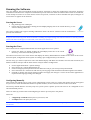
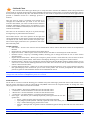
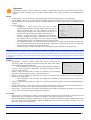
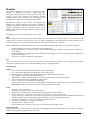
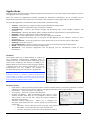
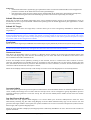
The SoftProof application is used to proof a job on the screen.
There are many tools available to check every aspect of the job at
any stage of production or processing. SoftProof can be used in
conjunction with or instead of a hardcopy proof.
Using a calibrated monitor and configured Press settings, proofs
can be viewed with precise colour accuracy and verified onscreen.
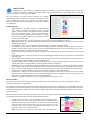
All job plates are shown and can be turned on or off, or changed as
desired. Colour attributes and plate characteristics can be changed
to see the effects of different printing processes, including paper
types and the effects of show through from the reverse side. The
data can be exported to various formats including CIP3 and PDF.
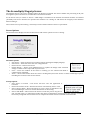
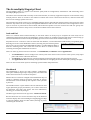
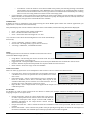
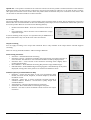
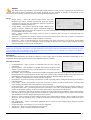
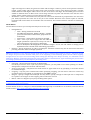
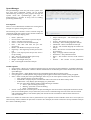
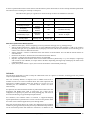
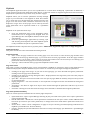
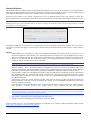
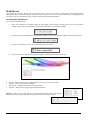
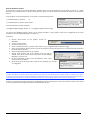
An InkKeyViewer (below) can display a job as it would be on the
press, with the values for each Key. The ink weight can be
calculated and over ink areas identified. The proof can also be
verified using the Calcheck application to give a pass or fail status
in accordance with colour standards.
File Menu Options
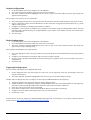
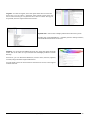
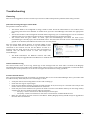
• Open Files – Load an image file directly into SoftProof. Supported file types are Canon RAW format (CRW),
JPEG, PNG, PPM, Serendipity Megarip Image and Tiff.
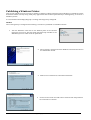
• Open Jobs – Load completed jobs into SoftProof. A QueueManager window will open showing available jobs.
Once selected, choose whether to load the Imaged or Rendered file.
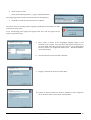
• TWAIN Acquire – Use a connected scanner to import directly into SoftProof. The scanner must be connected
and operational for this to work. The manufacturers driver is used for the capture.
• Save – Save the preview as a Megarip Image file. This can be submitted or placed in a hot folder, or on a
DropSpot.
• Export – Export data from SoftProof. The available formats are CIP3, PDF, Postscript (Separated) and Tiff
Multichannel.
• Submit – Submit the current job to a Media and Pagesetup with any current changes. This re‐images and re‐
renders the file. When submitting the image to be processed again with any relevant changes, the current
image resolution is submitted. If the resolution is restricted in the System Settings, this is the resolution that
will be used.
• SoftProof Settings – Opens the preferences for the SoftProof application, allowing the selection of default
viewing conditions. See below for further information.
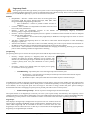
SoftProof Settings
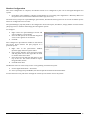
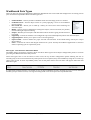
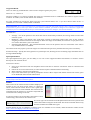
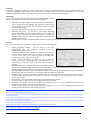
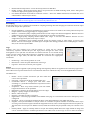
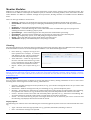
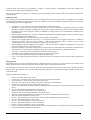
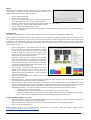
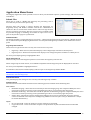
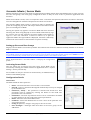
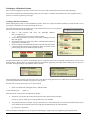
The SoftProof settings allows you to select viewing preferences, including how to load a job, the quality and press
settings to produce accurate proofs. The settings window is split into two (2) tabs – View Options and Press
Configuration.
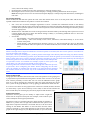
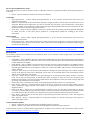
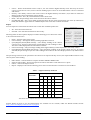
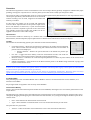
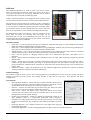
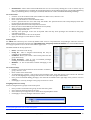
View Options
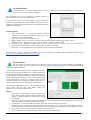
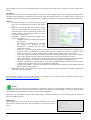
• Allow Multiple Windows – Check this box to enable or disable. Allows jobs to
be opened and viewed in separate SoftProof windows. If disabled, a newly
opened Publication will replace the current one being viewed.
• Rotation – Control the orientation of jobs when they first load. The option
None leaves the job in its imaged or rendered orientation.
• Zoom Level – Select the default zoom setting. All Fitting zoom modes
calculate the size based on the monitor resolution. This is set in the Colour
Management tab of the System Settings.
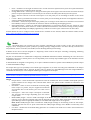
• Enable Pager Thumbnail – Enable or disable the thumbnail viewer in the
Page Navigator panel of a softproofed publication. When enabled, a
thumbnail of a page appears when the mouse pointer hovers over the page
number box. The shortcut key of shift+T in the SoftProof window can also be
used.
• Back Page Rotation – Set a default rotation for a back page when using the
option Show Back Page.
• Resampling Algorithm – Set the resampling algorithm for jobs as they are viewed in SoftProof.
Serendipity Megarip User Manual – Version 5
62