1
ALIEN MEGA/MAX USER MANUAL
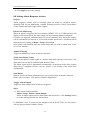
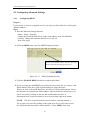
9.2 Configuring Advanced Settings
9.2.1
Configuring DDNS
Purpose:
If your router is setup on a dynamic service you may use this facility for resolving the
dynamic address.
Steps:
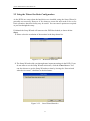
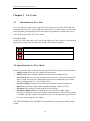
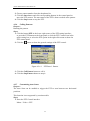
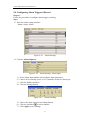
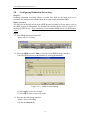
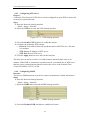
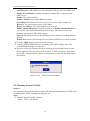
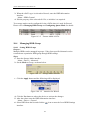
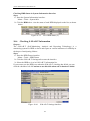
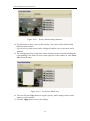
1. Enter the Network Settings interface.
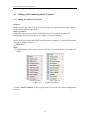
Menu > Setup > Network
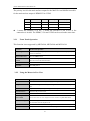
Change the Preferred DNS Server to the same address as the IPv4 Default
Gateway. Change the Alternate DNS Server to 8.8.8.8
Now click apply.
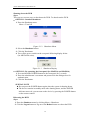
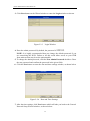
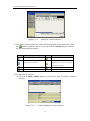
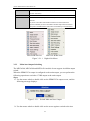
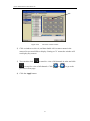
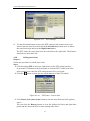
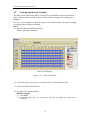
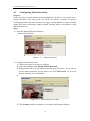
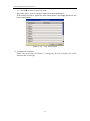
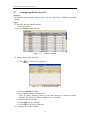
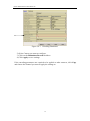
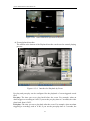
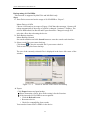
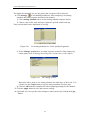
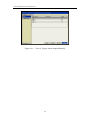
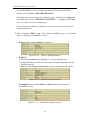
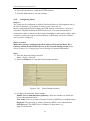
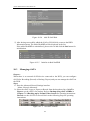
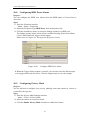
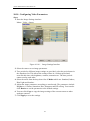
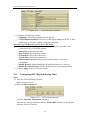
2. Select the DDNS tab to enter the DDNS Settings interface.
NOTE: Device Domain Name will have the serial
number of the DVR preceding ippostcode.com
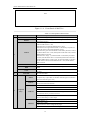
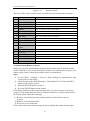
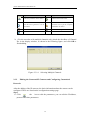
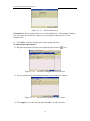
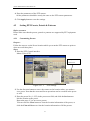
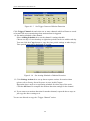
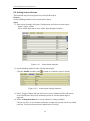
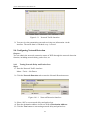
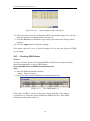
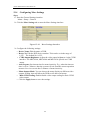
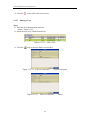
Figure 9.2.1.1
DDNS Settings Interface
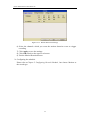
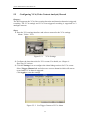
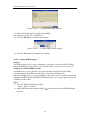
3. Click the ENABLE DDNS checkbox to enable this feature.
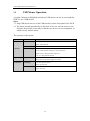
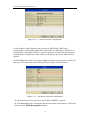
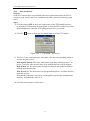
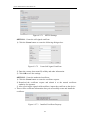
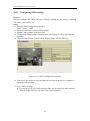
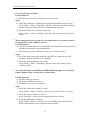
4. If you are using the AlienDDNS service then all you need to do, is to enter a valid
Email address in the box, right of Email and press Apply then wait.
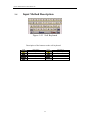
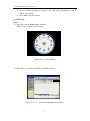
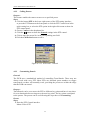
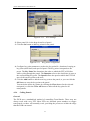
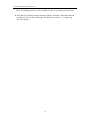
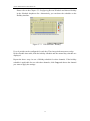
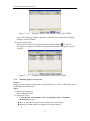
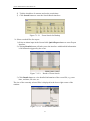
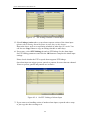
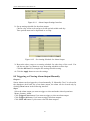
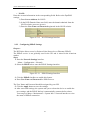
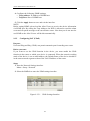
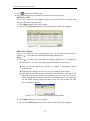
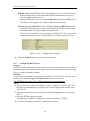
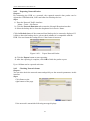
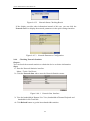
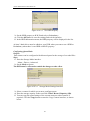
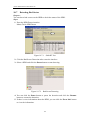
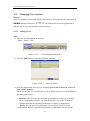
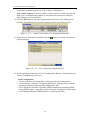
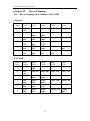
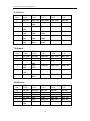
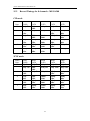
When you click in the blank Email box you will see a keyboard displayed. Select
the characters to complete the Email address. Special characters such as dot or @
can be selected by clicking on the dot and comma under the letter A.
Subsequent lines of special characters are accessed using right arrow button.
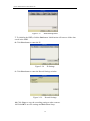
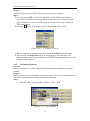
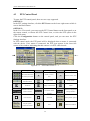
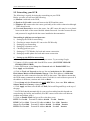
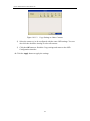
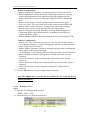
NOTE: The dot is a special character and is number 2 and not number 1.
The @ sign is accessed by clicking on the right arrow key to select the second
line of special characters and is under number 5. Press APPLY then wait.
121