1
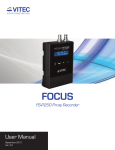
FS-T1001
Media Recorder
User Guide
Idx 11587
Legal Notices
Legal
THIS DOCUMENT CONTAINS CONFIDENTIAL AND TRADE
SECRET INFORMATION OF FOCUS AND ITS RECEIPT OR
POSSESSION DOES NOT CONVEY ANY RIGHTS TO
REPRODUCE OR DISCLOSE ITS CONTENTS, OR TO
MANUFACTURE, USE, OR SELL ANYTHING THAT IT MAY
DESCRIBE. USE IN WHOLE OR IN PART WITHOUT THE
SPECIFIC WRITTEN AUTHORIZATION OF FOCUS IS STRICTLY
FORBIDDEN.
EVERY EFFORT HAS BEEN MADE TO ENSURE THAT THE
INFORMATION IN THIS DOCUMENT IS COMPLETE AND
ACCURATE AT THE TIME OF PRINTING; HOWEVER, THE
INFORMATION CONTAINED IN THIS DOCUMENT IS SUBJECT
TO CHANGE.
Copyright 2011 Focus
All Rights Reserved.
Focus is a Vitec Multimedia Company.
The material contained in this document is also protected by copyright
laws of the United States of America and other countries. It may not be
reproduced or distributed in any form by any means, altered in any
fashion, or stored in a database or retrieval system, without express
written permission of FOCUS.
FOCUS cannot be responsible for unauthorized use of equipment and
will not make allowance or credit for unauthorized use or access.
FS-T1001 Media Recorder -
i
Legal Notices
Contacting FOCUS
USA
Office Hours
Monday through Friday
7:30 AM to 4:00PM (Pacific Time)
Email
[email protected]
Telephone
+1 650 230 2440 x429
Fax
+1 408 739 1706
Address
Focus Enhancements, Inc.
931 Benecia Ave.
Sunnyvale, CA. 94085
Web
www.focusinfo.com
EMEA (Europe, Middle East, Africa)
Office Hours
Monday through Friday
9:00 AM to 5:00PM
Email
[email protected]
Telephone
+49 4307 - 83 58 58
Fax
+49 4307 - 83 58 99
Address
COMO Computer & Motion GmbH
A Vitec Multimedia Company
Lise-Meitner-Str. 15
24223 Schwentinental/ Germany
Web
www.focusinfo.com
Serial Number
The serial number for this equipment is located on the base of the unit.
Please record this serial number and keep it in a secure area.
ii
- FS-T1001 Media Recorder
Legal Notices
Regulations and Safety
Focus Enhancements, Inc.
931 Benecia Ave.
Sunnyvale, CA. 94085
Model Number:
FS-T1001 Media Recorder
Date of Manufacture:
Reference the Serial Number label attached to the unit.
FCC Class A
This product satisfies FCC regulations when shielded cables and
connectors are used to connect the unit to other equipment. To
prevent electromagnetic interference with electric appliances such
as radios and televisions, use shielded cables and connectors.
This equipment has been tested and found to comply within the
limits for a Class A digital device, pursuant to Part 15 of the FCC
Rules. These limits are designed to provide reasonable protection
against harmful interference in a residential installation. This
equipment generates, uses, and can radiate radio frequency energy
and, if not installed and used in accordance with the instructions,
may cause harmful interference to radio communications. However,
there is no guarantee that interference will not occur in a particular
installation. If this equipment does cause harmful interference to
radio or television reception, which can be determined by turning
the equipment off and on, correct the interference by one or more of
the following actions:
• Reorient or relocate the receiving antenna.
• Increase the separation between the equipment and receiver.
• Connect the equipment to an outlet on a circuit different from that
used by the receiver.
• Consult the dealer or an experienced radio/TV technician for help.
FS-T1001 Media Recorder - iii
Legal Notices
Compliance
FS-T1001 is a device marketed for use in industrial or business
environments. The FS-T1001 complies with the regulations the
following testing agencies:
Australia and New Zealand
European Union
VCCI - A
Documentation
Read, Retain, and Follow Instructions
All the safety and operating instructions should be read before
the product is operated.
• Retain Documentation
Place documentation in a secure place for future reference
on operating and safety instructions.
• Follow All Operating and Safety Instructions
• Pay Attention to All Warnings.
Warnings are provided to protect the operator, the
equipment, and content.
iv - FS-T1001 Media Recorder
Legal Notices
Symbols Used in FS-T1001 Documentation
Caution
This symbol indicates important operating or maintenance
(servicing) information that the user should read and
understand.
Note
This symbol indicates supplementary information about
features, functions, or operations that may be of interest
to the user.
Precautions
Do Not Expose to Moisture
Do not use this product near water or in an environment where
it is exposed to dampness or there is the possibility of it getting
wet.
Do Not Remove Cover
There are No User Serviceable Parts inside this unit. Servicing
should be done by qualified service personnel.
Operating Environment
Avoid moisture, dust, extreme heat or cold.
Power Sources
Use only power sources that match those indicated on the
marking label. If unsure of the type of power supply that is
available, consult your dealer or local power company.
Accessories and Replacement Parts
Use only attachments and accessories recommended by Focus.
Use only replacement parts specified by Focus or of comparable
quality and characteristics as the original parts.
Unauthorized substitution of parts can result in loss of warranty.
FS-T1001 Media Recorder -
v
Legal Notices
vi - FS-T1001 Media Recorder
Contents
Table of Contents
Legal .............................................................................................. i
Contacting FOCUS................................................................... ii
Serial Number........................................................................... ii
Regulations and Safety ............................................................ iii
FCC Class A ........................................................................ iii
Compliance.......................................................................... iv
Documentation .................................................................... iv
Precautions ........................................................................... v
Accessories and Replacement Parts ..................................... v
Table of Contents ....................................................................... vii
Introduction .................................................................................. 1
Unpacking................................................................................. 2
Missing or Damaged Components ....................................... 2
Features..................................................................................... 3
Quick Start.................................................................................... 4
Physical Description and Controls ........................................... 4
Front View – Controls .......................................................... 4
Rear View – Connections ..................................................... 5
Mounting and Dismounting the FS-T1001............................... 6
Mounting on a Camera ......................................................... 6
Dismounting from a Camera ................................................ 7
Connecting FS-T1001 to Camera's HD-SDI Port................. 7
Inserting and Removing SxS Media......................................... 8
Inserting SxS Media Into FS-T1001..................................... 8
Removing SxS Media from FS-T1001 ................................. 8
Setting Up FS-T1001 for Use................................................... 9
The FS-T1001 Menu Controls................................................ 11
FS-T1001 Menu System..................................................... 11
Menu Tree .......................................................................... 11
Basic FS-T1001 Setup ............................................................ 12
Settings ............................................................................... 12
Operation Menu Setup........................................................ 12
Recording ............................................................................... 15
Clip Thumbnails and List ................................................... 16
FS-T1001 Media Recorder - vii
Contents
Stop Recording ....................................................................... 16
Playback Recording................................................................ 16
Selecting a Clip by its Thumbnail ...................................... 17
Utilizing FS-T1001 Clips in Other Devices ........................... 17
Utilizing FS-T1001 clips on a computer ................................ 18
MAC ................................................................................... 18
WINDOWS ........................................................................ 19
FS-T1001 Menus ........................................................................ 20
Operation Menu...................................................................... 20
MODE ................................................................................ 20
CONTROL ......................................................................... 21
REC MODE........................................................................ 21
REC FORMAT................................................................... 21
HQ 1080i ............................................................................ 22
TIMECODE........................................................................ 22
AUDIO ............................................................................... 23
SETUP Menu.......................................................................... 23
DATE ................................................................................. 24
TIME .................................................................................. 24
TIME ZONE....................................................................... 24
DST ADJUST..................................................................... 25
OLED ................................................................................. 25
LCD BRIGHT .................................................................... 26
KEY BRIGHT .................................................................... 26
ALARM.............................................................................. 26
TAKE NUMBER ............................................................... 26
TAKE PREFIX................................................................... 26
TC SET ............................................................................... 27
UB SET............................................................................... 27
TC MODE .......................................................................... 27
RETRO CACHE................................................................. 28
PLAY MODE ..................................................................... 28
UTILITIES Menu ................................................................... 28
EJECT MEDIA................................................................... 29
FORMAT............................................................................ 29
REPAIR DISK.................................................................... 29
FILE NAME ....................................................................... 29
UPGRADE ......................................................................... 29
DELETE CLIP ................................................................... 30
SYSTEM RESET ............................................................... 30
viii - FS-T1001 Media Recorder
Contents
DIAGNOSTIC.................................................................... 30
STATUS ............................................................................. 30
VERSION........................................................................... 30
Technical Specifications............................................................. 31
Compliance............................................................................. 31
Environment ........................................................................... 31
Physical Description ............................................................... 31
Connections ........................................................................ 31
Controls .............................................................................. 32
Media Slot .......................................................................... 32
Status Display..................................................................... 32
Power...................................................................................... 32
Supported Input, Output and Recording Formats................... 33
Supported Input Format (HD-SDI)..................................... 33
Supported Output Format (HD-SDI) .................................. 33
Supported Record Formats ................................................. 33
Index ........................................................................................... 35
FS-T1001 Media Recorder - ix
Contents
x
- FS-T1001 Media Recorder
Introduction
Introduction
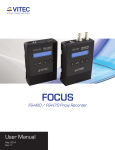
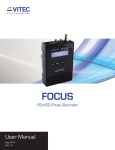
Thank you for purchasing the Focus FS-T1001 Media Recorder. The
FS-T1001 is a camera-mount XDCAM EX recorder made for use with
HD-SDI capable devices, such as HDCAM and XDCAM HD
camcorders, allowing them to take advantage of XDCAM EX based
workflow. FS-T1001 records to removable SxS cards in the XDCAM
EX (35Mb/s 1080i/720p and 25Mb/s 1080i) format. FS-T1001 mounts
to the camera using standard Sony V-Lock Mount Battery adapters,
allowing FS-T1001 to mount between the camera and its battery system.
This is also the primary power source for FS-T1001.
FS-T1001 Media Recorder -
1
Introduction
Unpacking
Verify that the FS-T1001 has the following items:
1
FS-T1001 Media Recorder Unit
11579
2
HD-SDI Cable (BNC)
11611
3
USB A-A Cable
11444
4
User Guide/Lit Pack
11587
5
Velcro Cable-Route Strap
12407
Battery Power Source Required
The FS-T1001 requires a battery power source, such as
Sony V-Mount type battery or DC12V 4-pin XLR power supply.
These items are sold separately.
See the Focus website for qualified devices.
Missing or Damaged Components
If there are missing or damaged items, contact Focus Support for
assistance.
USA
Office Hours
Monday through Friday
7:30 AM to 4:00PM (Pacific Time)
Email
[email protected]
Telephone
+1 650 230 2440 x429
Web
www.focusinfo.com
EMEA (Europe, Middle East, Africa)
Office Hours
Monday through Friday
9:00 AM to 5:00PM
2
Email
[email protected]
Telephone
+49 4307 - 83 58 58
- FS-T1001 Media Recorder
Introduction
Features
• Record XDCAM EX Video on SxS Solid-State Recording Media.
Check the Focus FS-T1001 product page (www.focusinfo.com) for
the latest list of qualified media.
• Record in industry standard XDCAM EX directory structure
including HQ (35Mbps) and SP (25Mbps) modes ensuring
maximum compatibility
• Mount the compact FS-T1001 on your V-lock camera
• Use the FS-T1001 to playback and preview clips to an HD-SDI
monitor
• View menus and thumbnails on the built-in 2.4” color OLED
display, from any angle
• Control the FS-T1001 quickly and easily using the capacitive touch
buttons and intuitive menu structure
• Never miss a shot with retro-cache recording (up to 10 seconds)
• Mount SxS cards to a computer (slave mode) and connect
accessories (host mode) using the dual USB ports
• Connect to a wide array of cameras (input) and monitors (output)
using the HD-SDI I/O ports
FS-T1001 Media Recorder -
3
Quick Start
Quick Start
Physical Description and Controls
Front View – Controls
Dock Mount attach
point for secure
accessory mounting.
Dock Mount
For secure
attachment to
cameras.
Thumb screws
are not shown.
Color OLED Display
2.5", 240x320
Sony V-Lock
battery mounting hardware
Menu, Status, and
Clip Thumbnail
Sony V-Lock
Power Button
For camera attachment.
Control Buttons
(Play/Pause, Stop, Rec)
Menu Buttons
Home and OK
ExpressCard
34 Slot
For use with SxS media.
Scroll-pad
Touch buttons are located at
the 12, 3, 6 and 9 o'clock
positions.
To enter the FS-T1001 Menu,
tap the 3 or 9 o'clock positions.
ExpressCard
Slot Cover.
To remove, lift from lip
at the base of slot.
To reinsert, push
cover into place until
flush.
Speaker
Provides warning sound and
feedback during menu navigation.
TIPS:
- To safely eject an SxS card, press
the HOME key for 3 sec
- Press the OK button during record to
view different TC/UB modes
Control Types
Tactile – provides physical feedback when pressed: Power button.
Capacitive Touch – does not provide physical feedback (optional audible
feedback only):
Rec / Play Control and Menu buttons, and Scroll-pad and Select button.
4
- FS-T1001 Media Recorder
Quick Start
Rear View – Connections
Host / Accessory USB
Port
Computer USB Port
Use to mount an inserted
SxS card to a computer
HD-SDI input (BNC)
HD-SDI output / loop
through (BNC)
Power: 4-pin XLR DC
input (11-17V)
Battery V-lock Mount and Release Lever
Cable routing latch.
Utilize the included
velcro cable strap to
restrain the SDI cable to
the FS-T1001 unit.
FS-T1001 Media Recorder -
5
Quick Start
Mounting and Dismounting the FS-T1001
For a complete list of cameras compatible with the FS-T1001, visit the
FS-T1001 product page at www.focusinfo.com.
FS-T1001 is designed to mount to cameras that have an HD-SDI output,
V-lock battery plate, and a Sony accessory dock mount.
Mounting on a Camera
V-lock Release Levers
6
5
7
To mount FS-T1001 to a camera:
1. Make certain that both the camera and FS-T1001 are
powered off.
2. Disconnect the power cable to the camera.
3. Set the camera on a sturdy surface.
4. Orientate the FS-T1001 front side (OLED display side)
with the inner side of the camera: typically this is the
side with the viewfinder and controls.
5. Slide the FS-T1001 into the V-lock mount on the
camera.
The dock mount arm on FS-T1001 should align with
camera’s dock mount. The FS-T1001 locks into the
V-lock plate.
6. Once inserted, tighten the two docking thumbscrews on
the accessory dock. Be careful not to over tighten.
7. Attach a V-lock battery to the rear of FS-T1001.
The battery locks into place.
6
- FS-T1001 Media Recorder
Quick Start
Dismounting from a Camera
Remove a battery from FS-T1001:
1. Press in the V-lock release lever and slide the battery up
and off the unit.
2. Remove FS-T1001 from the camera.
1. Unscrew the dock thumbscrews from the camera.
2. Then, press the camera's V-lock release lever and
slide the FS-T001 up and off the camera.
Connecting FS-T1001 to Camera's HD-SDI Port
FS-T1001 ships with an HD-SDI compatible 75-ohm BNC cable.
To connect the camera and FS-T1001, follow these steps:
1. Locate the HD-SDI port on the camcorder.
Ensure that the HD-SDI output port on the camera is
enabled and outputting a valid HD signal. Consult the
camcorder's user manual for additional information.
2. Connect one end of the BNC cable to the camera's HDSDI output port.
3. Connect the other end of the BNC cable to the HD-SDI
in port on the FS-T1001, see illustration on page 5.
NOTE: Utilize the included velcro cable strap to restrain
the SDI cable to the FS-T1001's cable routing latch.
FS-T1001 Media Recorder -
7
Quick Start
Inserting and Removing SxS Media
Inserting SxS Media Into FS-T1001
FS-T1001 is compatible with SxS media. Check the Focus FST1001 product page (www.focusinfo.com) for the latest list of
qualified media. SxS media with available space must be inserted
into the FS-T1001's ExpressCard 34 slot in order to use the product.
If being used for recording, make sure the SxS card's write
protection feature is switched off.
To insert SxS Media into FS-T1001, follow these steps:
1. Remove the SxS polymer dust cover by lifting it from
the lip at its base.
2. Insert the SxS card with its backside label facing the
FS-T1001 Scroll-pad.
The card is keyed so that it will only insert in the
correct orientation. Never force the card into the slot.
3. Reinstall the polymer dust cover.
Removing SxS Media from FS-T1001
To remove SxS media from FS-T1001, follow these steps:
1. Remove the SxS polymer dust cover by lifting it from
the lip at its base.
2. Release the SxS card.
Press on it firmly and release. The card disengages and
springs forward.
3. Grasp the card and pull it from the unit.
4. Replace the polymer dust cover.
Safely Ejecting SxS Media
It is necessary to safely eject SxS media in order to avoid
possible corruption of content on the card. To safely eject a
card, navigate to the UTILITIES -> EJECT MEDIA menu item or
hold down the HOME key (when on the home screen) for 3
seconds.
8
- FS-T1001 Media Recorder
Quick Start
Setting Up FS-T1001 for Use
Once FS-T1001 has been attached to camera and media has been
inserted:
1. Power on FS-T1001 by pressing the tactile power button.
The FS-T1001 OLED screen immediately lights. A few
seconds later the FS-T1001 boot-up screen appears.
If there is no media in the FS-T1001, the following system
message appears on the FS-T1001 display:
CHANGE MEDIA
INSERT NEW CARD
BEFORE EXITING
HOME
When valid SxS media is inserted, the following
information appears on the FS-T1001 display. (NOTE: after
media has been inserted, press the HOME button to
continue).
FS-T1001 Media Recorder -
9
Quick Start
Status symbol and short
description
J STOP 1- ____
Record Mode
HQ - 35Mb/s
MP4
Record File Type
TC Mode / Stream
TC 1920x1080i/60
00:00:00:00
Record time
remaining on media
Volume and
Track Number
Media
Timecode/Counter
50 min
Timecode / User Bit Display Options
By pressing the OK button during record, it is possible to cycle through the
different timecode / user bit modes. These are:
COUNTER: Displays current clip duration starting from 00:00:00:00.
Detected stream type is displayed above the TC counter
USER BIT: Displays current user bit setting in the stream. Detected
stream type is displayed above the TC counter
TC: Displays source TC being recorded in the stream (EXT TC timecode
mode must be selected). Detected stream type is displayed
above the TC counter
10 - FS-T1001 Media Recorder
Quick Start
The FS-T1001 Menu Controls
Scroll-pad
Use to move between a menu’s options or
increase/decrease values in a field.
Menu Control Spots
To enter the FS-T1001 menu, press on the 3
or 9 o'clock positions on the
FS-T1001 scroll pad for about 1/2 second.
To move between the menus, continue to
press on either the 3 or 9 o'clock points.
Use the FS-T1001 touch scroll pad to move
UP and DOWN in a menu or
increase/decrease field Values.
FS-T1001 Menu System
FS-T1001 has three separate menus that are organized in a loop
along with the home screen. The menus are OPERATION, SETUP
and UTILITIES.
Going From Menu to Menu
It is necessary to have the top of a particular menu highlighted
in order to move to the next menu. It is not possible to go to
another top-level menu if a menu option is highlighted.
Menu Tree
FS-T1001 Media Recorder - 11
Quick Start
Basic FS-T1001 Setup
Settings
FS-T1001's menu settings are saved on FS-T1001 through power
cycles. Many FS-T1001 settings are set-and-forget.
Set Date and Time
Prior to utilizing FS-T1001, enter the menu and navigate to the
SETUP menu. From the SETUP menu, set FS-T1001's Date
and Time (as well as Time Zone and DST Adjust if desired).
For more information on setting date/time, see page 22.
Operation Menu Setup
The FS-T1001 OPERATION menu
provides the basic settings for unit
operation. The most common unit
settings are found in this menu.
Use the scroll-wheel to move in the
Operations menu.
Set Control Mode
There are three CONTROL modes available:
• NORMAL - Control the FS-T1001 from its front panel.
Ancillary record data and timecode start/stop
in the HD-SDI input stream is ignored.
• EXT TRIG - The FS-T1001 receives Record and Stop
triggers from ancillary data in the HD-SDI input stream.
This assumes a source that supports ancillary data is
being used.
• EXT TC - The FS-T1001 monitor's embedded timecode
in the HD-SDI input stream. When a camera is set to
REC-RUN TC mode, recording will begin on FS-T1001
when timecode is incrementing.
12 - FS-T1001 Media Recorder
Quick Start
When timecode stops, the recording stops.
NOTE: When this mode is being used, before connecting
FS-T1001 to the camera, make sure the camera is set to
REC-RUN mode and not recording.
Set Record Mode
Two REC MODE options are available:
• NORMAL - In normal record mode, FS-T1001 begins
recording immediately when triggered.
• RETRO CACHE - Retro Cache mode continuously records
a constant video loop in the FS-T1001’s flash RAM. The
length of the video loop can be preset in one-second
intervals, up to 10 seconds. Once record is triggered, the
cached content is added to the beginning of the recording.
See SETUP for presetting the desired retro cache duration.
Set Record Format Mode
Two REC FORMAT options are available:
• HQ MODE - Sets the record bit rate to 35Mb/s (MP@HL)
recording mode in the XDCAM EX format.
• SP MODE - Sets the record bit rate to 25Mb/s (MP@H-14)
recording mode in the XDCAM EX format.
Set 1080i Frame Size (HQ Mode Only)
Two HQ 1080i options are available:
• 1440 - Sets the HQ (35Mb/s) frame size to 1440x1080
• 1920 - Sets the HQ (35Mb/s) frame size to 1920x1080
Set Timecode Mode
Four TIMECODE options are available:
• EXTERNAL - The timecode recorded comes from the
RP188 timecode in the HD-SDI input stream (Default TC
display mode)
• FREE RUN - The timecode recorded comes from the
internal, constantly incrementing free run timecode
generator in the FS-T1001. It is possible to set the TC
value using the TC Set function in the setup menu.
FS-T1001 Media Recorder - 13
Quick Start
• REC-RUN - The timecode recorded comes from the
internal timecode generator in FS-T1001. Timecode only
increments when a recording is in process.
The first frame of a new recording will have a TC value +1
from the previous recording.
• REGEN - The timecode recorded comes from the internal
timecode generator on FS-T1001. Timecode only
increments when a recording is in process. The first frame
of a new recording will have a TC value +1 from the last
recording on the media.
FREE-RUN, REC-RUN and REGEN record modes ignore the
RP-188 timecode in the incoming HD-SDI stream. These
modes are useful when the RP-188 timecode in the HD-SDI
stream is not desired or the source does not support RP-188
timecode.
Set Audio Mode
There are three AUDIO options:
• Ch 1/2 - When 2-channel audio recording is desired, this
setting records channels 1 and 2 of the embedded SDI
audio input.
• Ch 3/4 - When 2-channel audio recording is desired, this
setting records channels 3 and 4 of the embedded SDI
audio input.
• Ch 1/2/3/4 - When 4-channel audio recording is desired,
this setting records channels 1, 2, 3 and 4 of the embedded
SDI audio input. NOTE: 4-channel audio is for use with
HQ modes only.
14 - FS-T1001 Media Recorder
Quick Start
Recording
To begin recording, verify that FS-T1001 is on the home screen.
The FS-T1001 offers three record trigger modes: EXT TRIG (external
trigger), EXT TC (external timecode) and NORMAL.
• EXT TRIG control mode triggers the FS-T1001 from the camera
controls (using ancillary data).
The camera must support ancillary data in the SDI stream and it
may be necessary to enable this function in the camera’s setup
menu.
In addition, it may also require media to be inserted and recorded to
on the camera: consult the camera’s user guide for further
information.
• EXT TC control mode triggers the FS-T1001 from the camera
controls (using timecode breaks).
The camera must support REC RUN or REGEN timecode and be
set to that mode. In addition, it may also require media to be
inserted and recorded to on the camera: consult the camera’s user
guide for further information. NOTE: When this mode is being
used, before connecting FS-T1001 to the camera, make sure the
camera is set to REC-RUN mode and not recording.
To begin recording using either of the EXTERNAL control modes,
press any of the supported record triggers on the camera.
• NORMAL control mode triggers record directly on the FS-T1001
itself.
In NORMAL mode, press the FS-T1001's record (Q) button.
The FS-T1001 home screen displays that it is in RECORD mode.
Q REC 1-001
HQ - 35Mb/s
MP4
1920x1080i60
00:27:18:07
Media
50min
FS-T1001 Media Recorder - 15
Quick Start
The TC and track number counters increment when recording is in
process. Available record time on the inserted media also updates as
recording proceeds.
Clip Thumbnails and List
The FS-T1001 automatically creates a single frame thumbnail
image for each recording. In addition, the FS-T1001 generates a list
of video clips that contains each recording’s thumbnails and clip
information. This list is viewable on the FS-T1001's OLED and
may be used to select clips for playback. To view clip thumbnails,
press the FS-T1001 HOME key when on the home screen. Utilize
the scroll pad to selected between different clips. Press the HOME
key again to exit this menu. Also, see Selecting a Clip by its
Thumbnail
on page 17.
Stop Recording
Press either the camera’s record trigger again or the FS-T1001's Stop
button (J). The FS-T1001 stops recording and displays a Please Wait
message. After a moment FS-T1001 display returns to the Home menu
in STOP mode.
PLEASE WAIT...
IIIIIIII
J STOP
1-001
HQ - 35Mb/s
MP4
1920x1080i60
00:00:00:00
Media
50 min
The Track Number display increments by one.
On the SxS card, the recording is represented as a single clip.
Playback Recording
The FS-T1001 provides the ability to playback video via its HD-SDI
output. To preview a video clip connect the FS-T1001 through its HDSDI port to a camera or HD-SDI display device. The camera must
support HD-SDI input and preview functions.
16 - FS-T1001 Media Recorder
Quick Start
To playback and output a clip from FS-T1001's HD-SDI port:
2. On the Home screen, select the clip to playback by its Track
Number.
Use the Scroll-pad’s 12 o'clock or 6 o'clock buttons to
increment through the Track Numbers of the available
clips’ stored on the FS-T1001.
3. When the clip is located, press the Play/Pause (/ II)
button.
Playback begins over the HD-SDI port.
4. To pause the playback, press the FS-T1001 Play/Pause (/
II) button.
5. Stop playback by pressing the FS-T1001 Stop (J) button.
Selecting a Clip by its Thumbnail
Another method for selecting a clip to playback is to pick it from
list of clips that appear on the Thumbnail Preview menu.
1. Go to the Home menu.
2. Press the HOME button. (Note: do not press for an
extended period as this will force FS-T1001 to safely
eject the SxS card).
A list of the video clips with thumbnails and clip
information appears. If there are no video clips, no list
appears and the Home menu remains displayed.
3. Locate the file using the Scroll-pad or the Up and Down
soft buttons.
4. Press the Play/Pause (/ II) to start playback.
5. Press Stop (J) to end playback and return to the video
clip list.
6. Press Stop the HOME button to return to the home
screen.
Utilizing FS-T1001 Clips in Other Devices
Once a recording is complete, it is possible to remove the SxS card and
insert it into other XDCAM EX devices.
FS-T1001 Media Recorder - 17
Quick Start
Utilizing FS-T1001 clips on a computer
Once a recording is complete, it is possible to remove the SxS card from
the FS-T1001 and mount it to a Mac or Windows computer system by
inserting it into an ExpressCard 34 slot/reader or external SxS card
reader.
Using XDCAM EX Content on a Computer
It may be necessary to install SxS device drivers and applications that
support XDCAM EX import/playback on your computer system. Consult
XDCAM EX documentation for information on using XDCAM EX content
on your computer system.
When the SxS card is inserted into a reader, the card mounts to the
computer as an external volume. An SxS card that has been formatted
and recorded by FS-T1001 is compatible with applications that support
XDCAM EX.
FS-T1001's directory is identical in structure to SxS cards used with
other XDCAM EX devices. When mounted to a computer, the FST1001 directory appears as:
MAC
18 - FS-T1001 Media Recorder
Quick Start
WINDOWS
FS-T1001 Media Recorder - 19
FS-T1001 Menus
FS-T1001 Menus
Operation Menu
The FS-T1001 Operations menu contains the basic operation and
recording settings for the FS-T1001. This menu contains settings that
are frequently changed during normal FST-1001 operation. It is also
designed to provide a snapshot of the current settings for key operation
modes. The Operations menu features the following settings:
Operation
Default
Options
MODE
REC/PLAY
REC/PLAY
HDD
CONTROL
NORMAL
NORMAL
EXT TRIG
EXT TC
REC MODE
NORMAL
NORMAL
RETRO CACHE
REC FORMAT
HQ MODE
HQ MODE
SP MODE
HQ 1080
1920
1920
1440
TIMECODE
EXT TC
EXT TC
FREE RUN
REC RUN
REGEN
AUDIO
CH 1/2
CH 1/2
CH 3/4
CH 1/2/3/4
MODE
• REC/PLAY Use this mode to set the FS-T1001 to
recorder/player mode. In this mode, the unit will record input
video signals over HD-SDI or playback recorded content via
HD-SDI.
20 - FS-T1001 Media Recorder
FS-T1001 Menus
• HDD Use this mode to set the FS-T1001 to USB device mode.
This permits connecting the unit to a computer via USB and
mounting the inserted SxS card to the computer's desktop.
CONTROL
• NORMAL – Use this setting to control the FS-T1001 from the
unit's front panel. Ancillary record trigger data in the HD-SDI
input stream is ignored.
• EX TRIG - Use this setting to control the FS-T1001 by
receiving record and stop triggers from ancillary data in the
HD-SDI input stream (assumes a source that supports ancillary
data is being utilized).
• EXT TC control mode triggers the FS-T1001 from the camera
controls (using timecode breaks).
The camera must support REC RUN or REGEN timecode and
be set to that mode. In addition, it may also require media to be
inserted and recorded to on the camera: consult the camera’s
user guide for further information. NOTE: When this mode is
being used, before connecting FS-T1001 to the camera, make
sure the camera is set to REC-RUN mode and not recording.
REC MODE
• NORMAL - In normal record mode, FS-T1001 begins recording
immediately when triggered.
• RETRO CACHE - In retro cache record mode, the FS-T1001 is
constantly in record mode, caching video to flash RAM in a
loop on the unit for a predetermined amount of time (set in one
second intervals, up to 10 seconds, in the setup menu). Once
record is triggered (in either normal or external control mode),
the cached content is added to the beginning of the recording.
REC FORMAT
• HQ MODE - Sets the record bit rate to 35Mb/s (MP@HL)
record mode in the XDCAM EX format.
HD SDI Input for HQ Mode
The HD-SDI input signal can be 1920x1080, 1440x1080 or
1280x720 in HQ mode. See the supported frame rates in the
specification section of this manual.
FS-T1001 Media Recorder - 21
FS-T1001 Menus
• SP MODE - Sets the record bit rate to 25Mb/s (MP@H-14)
record mode in the XDCAM EX format.
HD SDI Input for SP Mode
See the supported frame rates in the specification section of
this manual.
Record Modes
For both record modes the standard (50/60Hz) and the frame
rate will follow that of the source. It is not possible for frame
rate conversion, standards conversion, scaling or
interlacing/deinterlacing.
HQ 1080i
• 1440 - Sets the HQ (35Mb/s) frame size to 1440x1080
• 1920 - Sets the HQ (35Mb/s) frame size to 1920x1080
TIMECODE
• EXT TC - The recorded timecode comes from the RP188
timecode in the HD-SDI input stream.
• FREE RUN - The timecode recorded comes from the internal,
constantly incrementing free run timecode generator in the
FS-T1001. It is possible to set the TC value using the TC Set
function in the setup menu.
• REC-RUN - The timecode recorded comes from the internal
timecode generator in FS-T1001. Timecode only increments
when a recording is in process. The first frame of a new
recording will have a TC value +1 from the previous recording.
• REGEN - The timecode recorded comes from the internal
timecode generator on FS-T1001. Timecode only increments
when a recording is in process. The first frame of a new
recording will have a TC value +1 from the last recording on
the media.
FREE RUN, REC-RUN and REGEN record modes ignore the
RP-188 timecode in the incoming HD-SDI stream. These
modes are useful when the RP-188 timecode in the HD-SDI
stream is not desired or the source does not support RP-188
timecode.
22 - FS-T1001 Media Recorder
FS-T1001 Menus
AUDIO
• 1/2 - When 2-channel audio recording is desired, this setting
records channels 1 and 2 of the embedded SDI audio input.
• 3/4 - When 2-channel audio recording is desired, this setting
records channels 3 and 4 of the embedded SDI audio input.
• 1/2/3/4 - When 4-channel audio recording is desired, this
setting records channels 1, 2, 3 and 4 of the embedded SDI
audio input. Note: 4-ch. audio is only possible
SETUP Menu
The Setup menu contains the settings for date and time, usability,
timecode, retro cache and play mode. The Setup menu features the
following settings:
Operation
Default
Options
DATE
12/14/10
TIME
10:24:00
TIME ZONE
UTC
UTC
Africa
America
Antarctica
Arctic
Asia
Atlantic
Australia
Europe
Indian
Pacific
DST ADJUST
AUTOMATIC
AUTOMATIC
STANDARD
ALTERNATE
OLED
ON
ON
OFF
AUTO
OLED BRIGHT
11
1 - 16
brightness levels
KEY BRIGHT
11
1 - 16
brightness levels
Continued on next page.
FS-T1001 Media Recorder - 23
FS-T1001 Menus
Operation
Default
Options
ALARM
ON
ON
OFF
TAKE NUMBER
0001
0-9999
TAKE PREFIX
FST-
User Defined Upper/lower case
letters or numbers
TC SET
00:00:00:00
User defined.
UB SET
00:00:00:00
User defined.
TC MODE*
NON-DROP
DROP
NON-DROP
RETRO CACHE
5
0 – 10 seconds,
User defined.
PLAY MODE
PLAY CLIP
PLAY CLIP
LOOP CLIP
PLAY ALL
LOOP ALL
* 60Hz record modes only
DATE
Set the FS-T1001 system to the current date.
Default is 07/09/09.
TIME
Set the FS-T1001 system to the current time.
TIME ZONE
Select the time zone, where the FS-T1001 is to be used.
It is necessary to select the time zone where the FS-T1001 is to
operate so that other time features accurately display local time.
In addition, DST ADJUST, see below, depends on this setting.
Default is UTC, Universal Time Code.
24 - FS-T1001 Media Recorder
FS-T1001 Menus
To set the time zone:
1. Select geographical region, such as America or Asia.
Use the Scroll-pad and Select button to locate and pick
a geographical region.
Selecting a region displays a list of cities in different
time zones within that region.
2. Use the Scroll Pad to locate a city located in the same
time zone as the recording session.
3. Press the Select key.
The display returns to the SETUP menu.
DST ADJUST
This preference sets the daylight savings settings on FS-T1001 to
either adjust automatically (based on a set date) or based on
standard or alternative settings. There are three settings:
• AUTOMATIC Default
The FS-T1001 Series automatically adjusts to and from
daylight savings time. The TIME ZONE must be set to location
of operation.
• STANDARD
Locks the FS-T1001 to Daylight Standard Time for the
location identified in TIME ZONE.
• ALTERNATE
Locks the FS-T1001 to Daylight Savings Time for the location
identified in TIME ZONE.
Using STANDARD or ALTERNATE
STANDARD and ALTERNATE are useful during a transition
between daylight standard and daylight savings times. Using
either setting for the day of the transiting, eliminates the
potential time-jump effects when the transition occurs.
OLED
Use to enable/disable the OLED backlight. There are three options:
• ON - Permanently sets OLED backlight to ON.
• OFF - Permanently sets OLED backlight to OFF.
• AUTO - Automatic mode, the OLED backlight lights when any
key is pressed and remains on for 10 seconds. Having the
OLED backlight off helps save battery power and recording
inconspicuously.
FS-T1001 Media Recorder - 25
FS-T1001 Menus
LCD BRIGHT
Use to set OLED backlight brightness on FS-T1001: range 1 - 16.
Default is 11.
KEY BRIGHT
Use to set the brightness of the FS-T1001 control keys and scroll
pad: range 1 - 16. Default is 11 (brightest).
ALARM
Enable/disable the FS-T1001 audible alarm. The audible alarm
warns the user of low disk space, power warning or over temp
warning.
Default is ON.
TAKE NUMBER
Sets the second part (4-numeric) of clip names on FS-T1001.
PPPPNNNN_01
Take number
EXAMPLE: FST-0001-01.MP4
Default is set to "0001". Value is user definable and can be set
in the range of 0001 to 9999.
TAKE PREFIX
Sets the first part (4-alphanumeric) of clip names on FS-T1001.
PPPPNNNN_01
Take prefix
EXAMPLE: FST-0001-01.MP4 s a clip name with TAKE
PREFIX = “FST_” and TAKE NUMBER = “0001”
Default is set to "FST-". Value is user definable and can be set as
either upper or lower case characters, numbers (0-9), a dash (-) or
underscore (_).
26 - FS-T1001 Media Recorder
FS-T1001 Menus
TC SET
Used to preset the TC (timecode) value on FS-T1001. This value is
available for use by the FS-T1001 immediately after exiting TC
SET.
Using the TC SET Value
•
•
•
•
EXT TC – preset TC value is not used.
FREE RUN - preset TC value continuously increments.
REGEN - preset TC value is not used.
REC RUN – preset TC value is used as the start value for a
new recording.
For more information see HQ 1080i
1440 - Sets the HQ (35Mb/s) frame size to 1440x1080
1920 - Sets the HQ (35Mb/s) frame size to 1920x1080
TIMECODE on page 22.
Default is 00:00:00:00.
UB SET
Use to preset the UB (user bit) value for recordings.
Professional applications employ user bits to assist in post
production. For example, when multiple cameras are used during a
shoot, each FS-T1001 has a unique UB setting that identifies it and
the camera it serves. Later, the user bits are used to determine
which camera recorded the video clip..
Default is 00:00:00:00.
TC MODE
Use to set the timecode mode to either DROP frame or NONDROP frame (60Hz mode only). When using EXT TC mode this
setting has no effect because the FS-T1001 follows the timecode
mode within the incoming RP188 timecode in the HD-SDI stream.
FS-T1001 Media Recorder - 27
FS-T1001 Menus
RETRO CACHE
Use to set the retro cache record time between 1 and 10 seconds.
Default is 5 seconds.
PLAY MODE
• PLAY CLIP - When in playback, this mode sets the current clip
to play and then stop at the end of the clip
• LOOP CLIP - When in playback, this mode sets the current clip
to play until the end of the clip and then immediately start
playing the clip again in an endless loop.
• PLAY ALL - When in playback, this mode plays all clips in
order from start to finish.
• LOOP ALL - When in playback, this mode plays all clips on
the disk until the end and then immediately starts playing from
the first clip again in an endless loop.
UTILITIES Menu
Operation
Comment
EJECT MEDIA
Safely ejects the inserted media from FS-T1001 (It
is also possible to eject media by holding down the
HOME key for 3 seconds while on the home
screen).
FORMAT
Formats card.
Backup data before using. No Undo.
REPAIR DISK
Repairs the file structure of the SxS card.
FILE NAME
Displays the file name of each video clip.
UPGRADE
Upgrades the FS-T1001 software.
DELETE CLIP
Deletes and removes selected clip from unit.
No Undo.
SYSTEM RESET
Resets FS-T1001 to factory defaults.
DIAGNOSTIC
Provides data to assist Focus Technical Support in
diagnosing issues.
STATUS
Provides details of power state and internal
temperature of unit.
VERSION
Displays the current software version for the unit.
28 - FS-T1001 Media Recorder
FS-T1001 Menus
EJECT MEDIA
Use this function to safely eject inserted media. This step is
necessary for hot-swap use of media. (It is also possible to eject
media by holding down the HOME key for 3 seconds while on the
home screen). If you hold down the HOME key for less than three
seconds, the thumbnail menu will display.
FORMAT
Use this function to format the SxS media and erase any content on
the card. The default SxS directory structure is written to the card.
Backup Content Before Formatting SxS Card
REPAIR DISK
Use this function to scan the SxS media to search for and repair any
errors in the files.
After Using REPAIR DISK Move Content and Re-Format Card
After using the REPAIR DISK utility, move the content from the
FS-T1001 card and run the FORMAT utility before resuming
recording.
FILE NAME
Use this function to display the actual file name of each clip.
It is not possible to change the file name.
UPGRADE
Use this function to upgrade the FS-T1001 firmware.
1. Download upgrade from www.focusinfo.com and copy
to an SxS card. When downloading, make sure browser
or download app does not automatically unzip file.
2. Ensure upgrade is named "FST.bin".
3. Insert card in FS-T1001 and run select UPGRADE.
4. Follow on-screen instructions to complete upgrade.
FS-T1001 Media Recorder - 29
FS-T1001 Menus
DELETE CLIP
This function allows you to delete the current clip from the inserted
SxS media.
To select a clip to delete:
1. Go to the Home menu.
2. Use the Scroll-pad up or down soft buttons (12 or 6
o’clock) to locate clip. The clip’ track number appears in
the menu.
3. Go to UTILITY menu and select DELETE CLIP.
SYSTEM RESET
This function resets the FS-T1001 back to its factory default
settings.
DIAGNOSTIC
This function provides Focus technical support with diagnostic
information in the event that an issue needs troubleshooting.
STATUS
This function shows system status such as unit internal temperature
etc.
VERSION
This function displays the current system firmware version.
30 - FS-T1001 Media Recorder
Technical Specifications
Technical Specifications
Compliance
• CE
• FCC Part 15 ,Class A
• C-Tick
• RoHS
• VCCi
Environment
• Operating Temperature: +23 to 104o F (-5 to 40 o C)
• Storage Temperature: -4 to 140 o F (-20 to 60 o C)
• Humidity: 10-90% (relative humidity)
CAUTION: FS-T1001 can be used in hot environments.
The unit's enclosure can be hot to the touch during
operation in high temperatures.
Physical Description
Connections
• Computer/Accessory/Network I/F: USB 2.0 Type A (x 2)
• HD-SDI Input: BNC (x 1), conforms to SMPTE 292M
• HD-SDI Output: BNC (x 1), conforms to SMPTE 292M
• DC Power Input: 4-pin XLR (x 1). 11-17V DC
For more information, see Rear View – Connections on page 5.
FS-T1001 Media Recorder - 31
Technical Specifications
Controls
• Power and Recording
Buttons - capacitive touch with backlight LEDs for:
Power
Record
Stop
Play/Pause
Home
OK
For more information, see Front View – Controls on page 4.
• Menu Navigation
Scroll-pad - capacitive touch with button points.
For more information, see FS-T1001 Menu Controls on page
11.
Media Slot
• Single SxS card slot with slot gasket cover.
Visit the Focus website (www.focusinfo.com) to see the latest
list of qualified cards.
Status Display
• 2.5”, 320x240 Color OLED Display
Power
• Power Consumption - Less than 10W (nominal).
• External DC Input - 11-17V (4-pin XLR).
• Battery - Compatible with Sony BP battery series (V-Shoe plate)
with pass through to the camera (V-Shoe plate).
Nominal Voltage = 14.4V.
32 - FS-T1001 Media Recorder
Technical Specifications
Supported Input, Output and Recording Formats
Supported Input Format (HD-SDI)
• 1080 59.94i/50i/29.97P/25P/23.98P or 720 59.94p/50p (Note:
FS-T1001 does not support 1080i 29.97PsF, 25PsF or
23.98PsF input signals for 30P, 25P or 24P recording)
• 4-channel HD-SDI embedded audio (4-ch or 2-ch: Ch1/2 or 3/4
selectable to record)
• Ancillary data from camera (REC/STOP commands)
• Any given supported input type (e.g. 1080 59.94i) will be
automatically detected and set the output encode frame
rate/frame size.
• RP-188 timecode in the HD-SDI stream
Supported Output Format (HD-SDI)
• 1080 59.94i/50i/29.97P/25P/23.98P or 720 59.94p/50p
• 4-channel HD-SDI embedded audio
• RP-188 timecode in the HD-SDI stream
Supported Record Formats
XDCAM EX Format
File System: FAT32
File Format: MP4 wrapper (XDCAM EX directory structure)
Video: MPEG2 Long GOP
Audio: Linear PCM (2-ch or 4-ch, 16-bit, 48kHz) – HD-SDI
input (In 2-ch. mode, Ch.1/2 or Ch.3/4 is selectable)
Recording Formats:
HQ Mode (VBR, max. bit rate 35Mb/s, MPEG2 MP@HL)
1920x1080 @ 59.94i, 50i, 29.97p, 25p, 23.98p
1440x1080 @ 59.94i, 50i, 29.97p, 25p, 23.98p
1280x720 @ 59.94p, 50p, 29.97p, 25p, 23.98p
SP Mode (CBR, bit rate 25Mb/s, MPEG2 MP@H14)
1440x1080 @ 59.94i, 50i
FS-T1001 Media Recorder - 33
Technical Specifications
34 - FS-T1001 Media Recorder
Technical Specifications
Index
B
battery
remove, 7
thumbscrew, 6, 7
v-lock mount, 1, 2
C
cable
disconnect power, 6
HD-SDI, 2
camera
mount, 1
compliance, iv
E
ExpressCard 34, 8, 18
F
FS-T1001
connecting to camera, 6, 7
inserting SxS card, 8
menu controls, 11, 32
menu system, 11
menu tree, 11
remove from camera, 7
removing SxS card, 8
setup, 9
H
HD-SDI, 1, 2, 3, 6, 7, 12, 13, 14,
16, 17, 20, 21, 22, 27, 31, 33
input, 12, 13, 16, 21, 22, 33
output, 6, 7, 16, 33
HQ, 3, 13, 20, 21, 33
M
media
inserting, 8
recording, 3, 8, 9, 16, 17, 18,
21, 27, 28, 29, 30
removing, 8
menu
operation, 11
setup, 11, 12, 13, 23, 25
system, 11
tree, 11
utilities, 11, 28
mode
rec, 13, 20, 21
rec format, 13, 20, 21
O
OLED
display, 32
operation, 11
control mode, 12, 20, 21
record (rec) mode, 13, 20, 21
record (rec), retro-cache, 13, 20,
21, 24, 28
record format mode, 13, 20, 21
P
port
HD-SDI, 1, 2, 3, 6, 7, 12, 13,
14, 16, 17, 20, 21, 22, 27,
31, 33
USB, 3, 21, 31
power cable
disconnect, 6
preview, 3, 16, 17
FS-T1001 Media Recorder - 35
Index
R
rec format mode, 13, 20, 21
HQ, 3, 13, 20, 21, 33
SP, 3, 13, 20, 22, 33
rec mode, 13, 20, 21
retro-cache, 3, 13, 20, 21, 24, 28
S
setup, 9
date and time, 12
SP, 3, 13, 20, 22, 33
SxS, 1, 3, 8, 9, 16, 17, 18, 21, 27,
28, 29, 30, 32
inserting, 8
36 - FS-T1001 Media Recorder
U
USB, 3, 21, 31
V
video
thumbnail, 3, 16, 17
v-lock
battery mount, 1
X
XDCAM EX
workflow, 1
FS-T1001 Media Recorder
Idx 11587 (MANL-1177-05)