1
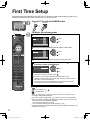
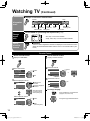
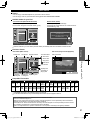
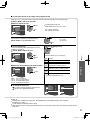
Auto channel setup (ANT/Cable setup)
Select the connected Antenna in terminal
ANT/Cable setup
Not used: Go to
Step 3 of 6
Cable
Antenna
Not used
select
ANTENNA
Cable In
OK
ANTENNA
Cable In
OK
Select
(Label inputs)
Select “Not used” when viewing TV via
Satellite receiver or Cable box. Note: Select
“Cable” when viewing via Cable DTA Box.
RETURN
Select “Not used” when no wire is connected to the “Antenna/Cable” terminal.
Typical when a Cable/Satellite box is connected to a TV input.
Prevents accidental tuning to an unavailable signal.
Quick Start
Guide
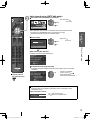
Select “Start”
Auto program
Skip: Go to
Step 4 of 6
Start
select
Skip
(Label inputs)
OK
OK
Select
Start scanning for channels via the TV’s
built-in tuner. Select “Skip” when viewing TV
channels via Satellite receiver or Cable box.
RETURN
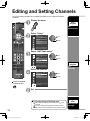
First Time Setup
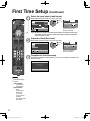
Start scanning the channels
(Available channels are automatically set.)
Auto program
Progress
8%
Number of analog channels
10
Number of digital channels
0
Press RETURN to quit
RETURN
Complete the Auto program setup
Press to return to
the previous screen
Completion message is displayed when the Auto program scan is successfully
completed.
If there is no available
Auto program
OK
channel, return to
Number of analog channels
10
(ANT/ Cable setup).
Number of digital channels
0
“Not used” will be selected.
Auto program completed.
Press OK to continue.
OK
RETURN
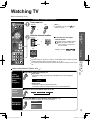
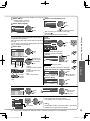
Operation of the EXIT button during “First time setup”
Press the button once to display confirmation screen. Press again to close
confirmation screen.
[EXIT confirmation screen]
Are you sure you want to exit the First Time Setup?
Yes
No
Yes
No
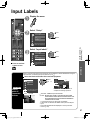
Exit “First time setup”
Return to the original screen.
To repeat the First Time Setup, select
“First time setup” in the Setup Menu.
13
tc_L22_x2_eng_0378-1.indb 13
2010/02/12 16:34:18