1
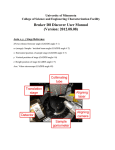
- Check the “Illumination” menu on WITecControl. Change illumination to 100, and click
“illumination on/off” if the light is not on.
- Use the remote control to adjust the focus: press up or down arrow to select the control on
“microscope z”. Focus on the sample with the Z-focusing-stage by using the “-z” or “+z” buttons of
the remote control. The focusing speed can be adjusted between about 0.01 µm/s (potentiometer
fully counter-clockwise) and 500 µm/s (potentiometer fully clockwise). You may need to minimize
the speed to activate the control.
- It is very difficult to focus on flat and clean surfaces such as a silicon sample. The best way to do
this is using bright field illumination. Close the luminous-field diaphragm to a value of 1 − 3.
Approach the sample until the edge of the diaphragm appears focused. At this point, the sample is
also in focus.
5. Place the laser cover box to the sampling area.
6. Realtime Raman spectral observation
(1) Move the reflector slider to the Raman measurement position (center position). Pull the pushrod
out.
Connect the wire to the beam stop control box to allow laser illumination of the microscope.
Unplug the wire to stop the beam when changing samples, or optical viewing the sample.
(2) Check ‘Spectrograph”, and make sure the wavelength is set at “514.5nm”, and grating is at
“600g/mm”. Change to “1800g/mm” if you want to get higher resolution of the spectrum (with
smaller spectral range).
(3) Start the "Oscilloscope" to look at the realtime Raman spectra of the focal plane. Increasing the
"Integration Time", adjusting the focus (+Z or -Z on the remote control) or increasing the laser
power may help to achieve an optimum signal.
7. Collect a single Raman spectrum
- Stop the "Oscilloscope"
- Go to "Control-> Single Spectrum". Set desired "Integration Time" and "Accumulations" number
(e.g. 0.5s integration time and 200 accumulations will need 100 seconds to collect a single
spectrum).
- Click "Acc. Single Spectrum". Wait until the measurement is done.
- Go to "File->Save Project As" to save the data.
8. Take a Z image scan of the sample
(1) Go to "Image Scan" ÆScan details --> scan mode --> depth
(2) Go to "Image Scan", set the scan dimension under "Geometry" ("Height" value is not
valid for z scan).
(3) Set the resolution of the image: "Points per Line" and "Lines per Image". (Note the x or y
resolution is ~250nm, and the z resolution is ~0.5um. More points will only increase your
collection time, but not the resolution).
(4) Go to "Microscope Z Control", click "Set Zero" to change the current Z position to 0.
Come back to "Geometry", click "Center at Current Pos." Set "Center (Z) [um]" to a center
coordinate of z (e.g. if you are scanning 2 um in z, and the current setting is 0. Then set it to 1um)
(5) Set a proper "Int. Time (Trace) [s]", and click "Start Scan".