Download WinCon-8000 Getting Started
Transcript
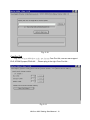
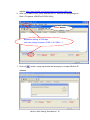
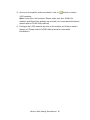
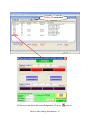
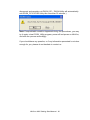
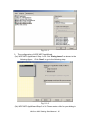
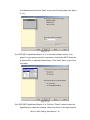
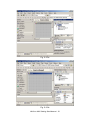
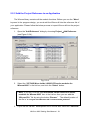
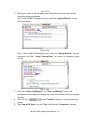
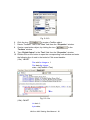
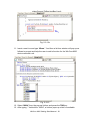
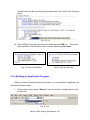
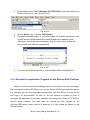
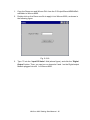
2. In the toolbox menu select “Windows CE .NET Device” from the Deployment Device Combo box. (see Figure 5-2-16) Fig. 5-2-16 3. 4. 5. On the “Build“ menu, choose “Build Demo”. If you have finished steps 1~4, you would obtain the following message in the Output window, which means the execution application has been built. Otherwise, you will get error messages. Then you will need to debug the source code and rebuild the application. Fig. 5-2-17 You can find the Demo.exe file in C:\project\Demo\Demo\bin\Release\. 5.2.5 Execute the Application Program on the Wincon-8000 Platform When you have finished the building process for the Demo.exe, you could apply the developed execution file; Demo.exe; into the Wincon-8000 target controller device. For example, you can use a portable memory stick (Like Pen Driver) to store the file and copy it to Wincon-8000. Or later on, we will develop a method on how to download the application to the main controller unit through the Ethernet (TCP/IP) or Rs-232 series protocol. The main idea for running the user program in the WinCon-8000 target control device is because it is very simple as shown in the following steps. WinCon-8000 Getting Start Manual-- 61