1
4
6
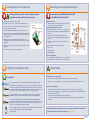
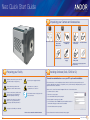
Installing the Camera Link (PCIe) Card
Ensure that the Camera ON/OFF switch is in the OFF
position AND your PC is switched OFF.
Ensure your PC is powered off. Ensure anti-static precautions
using anti-static strap provided. Keep all screws safe.
1. Unplug all cables from the rear of the computer.
2. Remove the PC enclosure so as to gain access to the expansion slots.
3. Locate a PCIe x16, x8 or x4 slot. If you are unsure which PC slot is correct,
please consult the PC user manual.
4. Remove the filler bracket corresponding to the slot you intend to use.
5. Remove the controller card carefully from its protective ESD packaging and
firmly press the card connector into the chosen expansion slot and ensure it
is securely locked in.
6. Making sure that the card’s mounting bracket is flush with any other
mounting brackets or filler brackets to either side of it, secure the controller
card in place.
7. Replace the cover of the computer and secure it with the mounting screws
if applicable.
Fasten the Card
to the slot with
a screw
Connecting your Camera and Switching it on
Unused filler brackets
Gently press the
card into
the slot
Mounting the Camera
• Attach the camera to lens or optical system using the camera
C-mount (or F-mount) interface as required
Connecting the Signal and Power Cables
ON/OFF
Switch
USB 2.0
• Before inserting the 12V DC power connector to the rear of the
camera, ensure the orientation is correct. Never forcibly insert the
connector.
• Securely connect the camera link cable between the CL1
connector on the rear of the unit and the appropriate port on the
PCIe card.
PCI Slot
ISA Slot
8. Reconnect any accessories you were using previously.
• If required connect the I/O expander cable to the 26 way I/O
connector.
• Switch the Camera on using the ON/OFF switch.
• Turn on the PC.
• Start your software.
• Start acquiring data.
12 V DC
Power
Connector
TTL/DAC 26 DAC
26-Way D Type
Connector
CL1
Connector
Water Cooling Guidelines
• If you require ultimate cooling please refer to the Neo user manual
for guidelines on connection and use of a water/coolant system.
5
Installing the PCI Card Device Driver
Restart your PC
If you are running Windows 7 or 8, the drivers will be installed automatically during start-up.
and
NOTE: In Windows 7 and 8, allowing the computer to enter sleep mode will cause the Camera
Link card to hang after wakeup. If this happens, the software will no longer be able to connect
to the camera and a reboot will be required to reset the PCIe card. Users should deactivate sleep
mode functions of the PC where possible (refer to Windows 7 or 8 help on your PC).
If you are running Windows Vista you may be asked to specify the directory containing the
Bitflow drivers. These are located in ‘C:\Bitflow SDK 5.60 for Neo release 3\PlugAndPlay’.
If you are running Windows XP, the ‘Found New Hardware Wizard’ dialog will be displayed
following boot up. When prompted ‘Can Windows connect to Windows Update to search for
software?’, select ‘No’ and click on Next. Select ‘Install the software automatically’ option and
click on ‘Install’. The Camera drivers will now be installed.
If you are running Linux, please refer to the SDK CD. Any distribution specific differences will be
noted in the installation instructions. Further support is available at
andor.com/support.
Troubleshooting
Camera buzzer does not sound on start-up
•
The camera buzzer should be audible momentarily when the camera is switched to ON.
•
If this does not occur, ensure that power is connected to the camera and the ON/OFF switch is set to ON.
Camera is not recognized by PC
•
Ensure camera is switched to ON (The camera must be powered up before the software is initiated).
•
Check that the camera cable(s) are securely and correctly connected between the camera head and the PCIe
card in the PC (shown in step 6).
•
Check that the PCIe card and drivers have been installed properly:
Control Panel – System – Hardware – Device Manager – Imaging Devices (refer also to user manual Section
3.4 and 3.5.
For additional troubleshooting information please refer to the user manual on the CD provided and
for technical information about the Neo sCMOS go to: andor.com/neo
MAN-06733
NQSG 0915 R1