1
2013-10-25
STEP 5. PROVIDE FEEDBACK TO THE RESEARCH STUDY
When you are done with the impact analysis, we would greatly appreciate if you could provide
feedback to us. Use the OK? Columns in the tracker case output area and the impact output area
to signal which recommended artifacts you actually used in your work task. Also, this copies your
selection to the Windows clipboard.
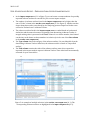
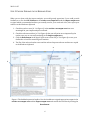
1. Check the tracker cases (cf. 1 in Figure 6) in the tracker case output area that were
meaningful in your impact analysis work task.
2. Check the software artifacts (cf. 2 in Figure 6) that you will point out as impacted by the
tracker case you are currently analyzing in the impact output area.
3. Click the Done button in the upper right corner of the GUI (cf. 3 in Figure 6) to save your
feedback to a local file containing user statistics.
4. The IDs of the selected tracker cases and the selected impacte software artifacts are copied
to the Windows clipboard.
2
3
1
Figure 6. The feedback system in ImpRec. Use the checkboxes to signal appropriate output in the
tracker case output area and the impact output area and confirm the selection by clicking the
Done button.
6