1
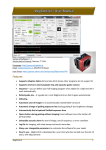
Hinode Solar Guider Firmware Loader Program User Manual May, 2014 Hutech Corporation 25691 Atlantic Ocean Dr., Unit B11 Lake Forest, CA 92630 http://hutech.com Introduction This manual covers the installation and use of the firmware loader/updater for the Hinode Solar Guider (SG). The firmware loader runs under Windows Vista, Windows 7, or Windows 8 only. The firmware loader should be used only when updating firmware inside the Hinode SG. It should be used when advised by Hutech to load a new version of the firmware, and so it should not be necessary to use it at any other time. Step 1. Hinode Connection. If the Hinode SG unit has not been connected to your PC, the first step is to connect it so that the proper Windows serial port drivers can be installed. You should hear a “ding” sound from the Hinode SG as it powers up from the USB connection. At this point you will need an active internet connection to allow Windows to search for the proper drivers (FTDI serial port chipset drivers). This search may require several minutes to complete and may appear to have stopped working, but be patient and let Windows complete this step before proceeding further. Step 2. Download the firmware loader and firmware from Hutech. Next, download the firmware loader from Hutech from this web location: http://www.sciencecenter.net/hutech/Hinodesg/code/ The firmware loader installation package will be in a file called “HinodeFirmwareLoader.zip” and the latest firmware will be in a file with a “.bin” extension. Step 3. Install the firmware loader software. 1. Open the .zip file and copy the file inside the .zip file (i.e. decompress the contents) to a temporary location such as your desktop. Note: If you use the same temporary location each time you need to install the firmware loader program, the older version will automatically be uninstalled first. 2. Run the “setup.exe” file inside the installation folder. 3. If the program successfully loads, an icon for the firmware loader will be created on your desktop and the program will begin running. Note: The installation folder may be deleted at this point. Step 4. Load the firmware .bin file Once the program is running, either from autostarting after installation, or after clicking on the installed desktop icon, if the Hinode SG has been previously plugged in, you should see its COM port listed in the list box on the left side of the loader program’s window. If so, press the “Load Firmware” button to open a file selection window, navigate to the previously downloaded .bin file to begin the download. If you have multiple COM ports listed, select the Hinode SG’s port before pressing the “Load” button. If you’re unsure which port is assigned to the Hinode SG, note which ports are listed in the loader program’s selection box, unplug the Hinode SG, the press the “Scan COM Ports” button. The port which has disappeared is the Hinode SG’s port. Plug the Hinode SG back in, press the “Scan COM Ports” button again, select the correct port, and proceed with loading the firmware .bin file. If you started the firmware loading program without plugging the Hinode SG into your computer, plug it in and press the “Scan COM Ports” button to find the Hinode SG’s assigned port, then proceed with the loading as described above. Once loading starts, the loading progress will be visible in the status panel. DO NOT INTERRUPT THE LOADING PROGRESS! An interruption may require the Hinode SG to be shipped back to Hutech for servicing. Upon successful completion, the status panel will show the information below (the exact number of blocks shown may differ). The firmware loader program may be closed now.