1
ENGLISH
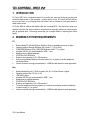
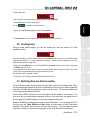
c) When running VirtualDJ for the first time, you will need to configure the software for
use with your sound card.
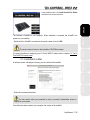
Output(s): Headphone
The adjacent menu should then display the default configuration: Master : Front output /
Headphones : Rear output.
Sound card: 4.1 card (PC) / 4 Out Card (Mac)
Select the sound card you want VirtualDJ to use in the the adjacent menu.
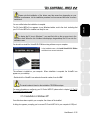
You will need low impedance headphones for monitoring (less than 32 Ohms), as the sound level
will be too low if you use high impedance headphones. To monitor a deck, press the monitoring
button for the corresponding deck. Make sure to disable any 3D positioning features on your
sound card, or else you may end up hearing echoes of the track you are monitoring in your main
mix!
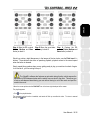
When a track on deck A is being played in the room, you should use your headphones to monitor
the track on deck B, and when a track on deck B is being played in the room, you should press
the headphone monitoring button on deck A to prepare the next track, and so on. When a
monitoring button is lit up on your DJ Control MP3 e2, it indicates that the deck in question is
being monitored.
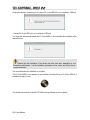
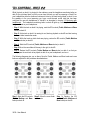
In VirtualDJ, the boxes in the upper middle part of the screen representing decks 1 and 2 reflect
your monitoring status: in the case below, deck A (the left-hand deck, or deck 1 in VirtualDJ) is
green, indicating that it is being monitored on your headphones, while deck B (the right-hand
deck, or deck 2 in Virtual DJ) is red, indicating that it is not being monitored.
User Manual – 15/32
ITALIANO
Input : None
ESPAÑOL
- In the Sound Setup tab, configure as follows:
NEDERLANDS
DEUTSCH
- Click the Config button.
FRANÇAIS
Please note that connector labels on certain sound cards may vary. Consult your sound
card’s documentation for specific details.