1
ADVANCE SETUP cont.
MAINTAIN
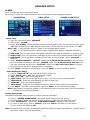
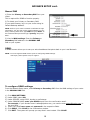
Use the Maintain menu to update system firmware and set an automatic system reset schedule.
To enable auto-reset:
1) Under AUTO RESET, select ON. The Settings option appears.
2) Under SETTINGS, select EVERY DAY, EVERY WEEK, or
EVERY MONTH. The date drop-down menu appears.
3) Select the date for auto-reset from the drop-down menu.
4) Enter the time for auto-reset using the Virtual Keyboard
(mouse only).
5) Click APPLY. Click CLOSE in the confirmation window
To restore factory settings:
1) Click DEFAULT SETTINGS. This will restore the system to the original factory settings.
2) Click OK to confirm.
NOTE: Recorded video on the HDD will not be erased.
To restart the machine (soft/partial-reset):
1) Click RESTART.
2) Click OK to confirm. The system will perform a soft/partial-reset and load to a live split-screen
view.
To upgrade firmware: (For future use)
1) Copy the firmware file to an empty USB flash drive. The firmware file should not be in a folder.
2) Connect the USB flash drive to the top USB port on the front panel of your system.
3) Open the System Menu (Main Menu>Advance>System).
4) Click “FIRMWARE UPDATE”. The system will scan the USB flash drive and begin updating the
firmware. Do not remove the USB flash drive while the upgrade is taking place.
5) Click CLOSE in the confirmation window. In the system prompt, click OK. The system will restart.
PARAMETER EXPORT: Copy the system settings of the device to an empty USB flash drive.
PARAMETER IMPORT: Import system settings from another device.
17