1
ReadyNAS for Home Software Manual
a. Schedule a full backup.
To select when you want full backups to be performed, select from these options:
•
First time
•
Every week
•
Every 2 weeks
•
Every 3 weeks
•
Every 4 weeks
•
Every time this backup job is invoked
The first full backup is performed at the next scheduled occurrence of the backup
depending on the schedule you specify. The next full backup is performed at the
interval you choose calculated from this first backup. Incremental backups are
performed between the full backup cycles.
Backups of a Web or FTP site only have the option to do a full backup every time.
b. Send a backup log.
Backup logs can be sent to the users on the Alert contact list when the backup is
complete. It is a good idea to select this option to make sure that files are backed up
as expected. You can elect to send only errors encountered during backup, full
backup logs consisting of file listings (can be large), or status and errors (status refers
to completion status).
Note: Backup log emails are restricted to approximately 10K lines. To view the
full backup log (regardless of length), select Status > Logs and click the
Download All Logs link.
c. Remove files from backup destination.
Select this option if you want to erase the destination path contents before the backup
is performed. Be careful not to reverse your backup source and destination as doing
so can delete your source files for good. It is safer to not select this option unless your
device is running low on space. Do an experiment with a test share to make sure you
understand this option.
d. Change ownership of backup files.
The Backup Manager attempts to maintain original file ownership whenever possible;
however, this might cause problems in Share Security mode when backup files are
accessed. To work around this, you have the option of automatically changing the
ownership of the backed-up files to match the ownership of the share. This allows
anyone who can access the backup share to have full access to the backed-up files.
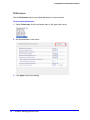
e. Click Apply to save your settings.
As a best practice, before trusting your backup job to a schedule, it is a good idea to
manually perform the backup to make sure that access to the remote backup source
or destination is granted, and that the backup job can be done within the backup
frequency you selected. This can be done after you save the backup job.
Chapter 3: Backing Up Your Data
|
51