1
5
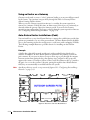
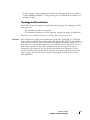
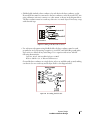
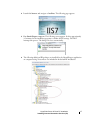
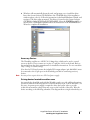
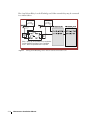
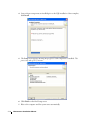
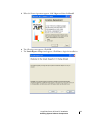
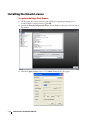
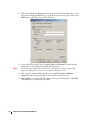
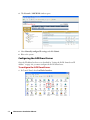
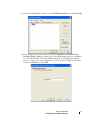
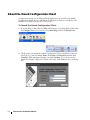
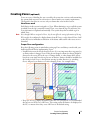
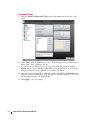
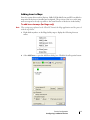
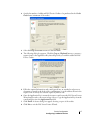
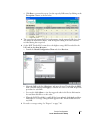
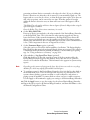
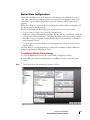
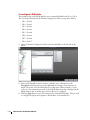
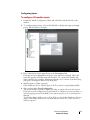
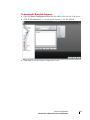
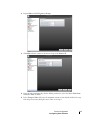
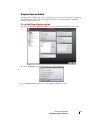
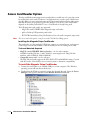
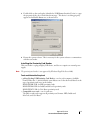
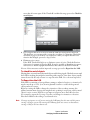
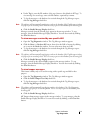
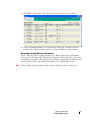
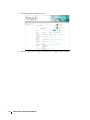
Click the Auto Configure button after all the devices have been added. You may need
to click Auto Configure more than once.
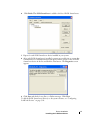
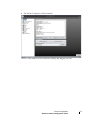
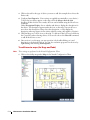
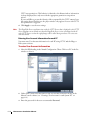
Verify that the actual number of installed powered devices equals the number
displayed (in brackets beside each device) on the left side of the screen.
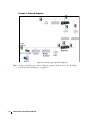
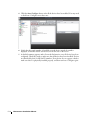
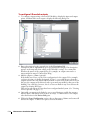
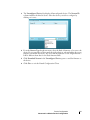
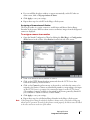
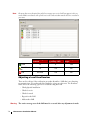
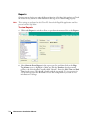
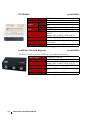
7 A detailed summary appears under Lonworks Information once all devices have been
configured. Check the results to make sure that all devices have been installed. Devices
are identified by their LonWorks ID numbers. If any device does not appear, check to
make sure that it is physically installed properly, and then run Auto Configure again.
6
5-12
Infrastructure Installation Manual