1
Hardware Overview
Answer a call
Power Indicator
Soft Keys
1) Handset: pick up the handset;
2) Speaker: press
;
3) Headset: press
.
Note: You can also reject the call by press the Reject soft key.
Hold
Speaker
Navigation
Press the hold soft key during a call to hold the call,
Resume the soft key to resume the call.
Line Keys
DSS Keys
Headset
Mute
Volume Keys
Alphanumeric Keypad
Speaker
LEDs
1. Power Indicator: Steady green when power on, blinking green when the call is ringing.
2. Line Keys
Steady green: during the conversation, or plan to dial a call.
Blinking red: the call is ringing.
Off: idle interface
Call Transfer
Blind Transfer
a. Press the transfer soft key during the conversation, the call is on hold now.
b. Enter the number that transfers to.
c. Press the transfer soft key, and now the blind transfer completed.
Attended Transfer (at least one line key set as Auto)
a. Press the transfer soft key during the conversation, the call is on hold now.
b. Enter the number that transfer to, and press the send soft key or
.
c. Start the second conversation, press the transfer soft key, then, transfer completed.
Semi-Attended Transfer (at least one line key set as Auto)
a. Press the transfer soft key during the conversation, the call is on hold now.
b. Enter the number transfer to, and then press
, then you can hear the ring tone.
c. Press the transfer soft key, and now the Semi-attended transfer completed.
Place a call
Call Conference
Three ways to make a call:
Assuming that A and B are in conversation. A wants to bring C (or D & E) in a conference:
1) A press line 2, the call is placed on hold.
1)
Handset: Pick up the handset; enter the number, and then press the send soft key or
.
press
2) Speaker: Press
.
or press
or the line keys; enter the number, and then press the send soft key
2) A enter the number of C and then press send soft key or
. C answers the call.
3) A press the conference soft key, then A, B and C are now in a conference.
4) If add D&E, press DSS key 1 (set DSS key as Line key), the current conference is on hold,
dial D and press conference soft key, the four are in conference. Press DSS key 2, and dial E,
3) Headset: Press
; enter the number, and then press the send soft key or press
.
Note: You can also use Contacts or call log to dial the number you want, press place the
call by the three ways mentioned. More, you can also alternate the mode during the call.
Note: 1) If C does not answer the call, A can back to continue the conversation with B; 2)
End a call
Once A hangs up the call, the conference is ended, while if B or C drops the call, A&C or
To end a call in three different modes:
A&B conversation continues.
1) Handset: hang up the handset or press the cancel soft key.
2) Speaker: press
, or press the cancel soft key
3) Headset: press the cancel soft key.
Call Mute
press conference soft key, then A,B,C,D,E are in conference.
Press
to mute the microphone during the call
Press
again to un-mute the conversation.
Instruction
Quick Reference Guide
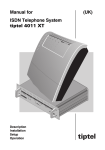
tiptel 3010
Configuration
1. Configuration via Phone
a. Press Menu→Setting→Advanced Settings (Default password: admin)
b. Select Network: To configure the Wan Port (DHCP/Static/PPPoE), PC Port…
c. Select Accounts: To configure enable the account; fill the SIP SERVER, Outbound Proxy, ID…
d. Save the configuration
2. Configuration via Web
a. Get the IP address: Press Menu→ Status.
b. Login: input the IP address in the web browser. The PC and phone should be in the same
segment) /
Login name: admin
password: admin (default)
c. Configure: select network/Account…to fill the relevant content.
d. Save the configuration, or if want to reboot, click the reboot button.
User Manual
A detailed User's Manual is available for download at http://www.tiptel.com.
tiptel