1
30
KX101 USER MANUAL
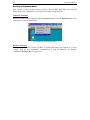
Closing a Remote Connection
To end your KX101 connection, right-click on the icon, and select Disconnect from the menu.
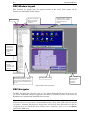
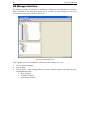
RRC Toolbar and Shortcuts
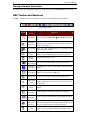
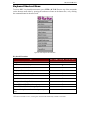
The RRC Toolbar provides one-click access to the most frequently-used commands.
Figure 29 RRC Toolbar
BUTTON
BUTTON
NAME
FUNCTION
New Profile
Creates a new Navigator entry for a Raritan device; same
results as selecting Connection Æ New Profile in the menu
bar.
Connection
Properties
Opens Modify Connection Properties dialog box to
manually adjust bandwidth-correlated options (Connection
Speed, Color Depth, etc.).
Video Settings
Opens the Video Settings dialog box to manually adjust
video conversion parameters.
Synchronize
Mouse
In dual-mouse mode, forces realignment of target server
mouse pointer with Raritan Remote Client mouse pointer.
Refresh
Screen
Forces refresh of video screen.
Auto-sense
Forces refresh of video settings (resolution, refresh rate).
Video Settings
Enter OnNot applicable for KX101. Used by RRC with other Raritan
Screen Menu products.
Exit OnNot applicable for KX101. Used by RRC with other Raritan
Screen Menu products (on keyboard, press ESC key)
Send
Sends a Ctrl+Alt+Del key sequence to the target server.
Ctrl+Alt+Del
Enters Single Cursor Mode, in which the local PC’s mouse
Single Cursor
pointer no longer appears on-screen. Press <Ctrl+Alt+X> to
Mode
exit this mode.
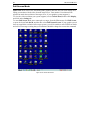
Full Screen
Mode
Maximizes the screen real estate to view the target server
desktop.
Show / Hide
Navigator
Toggles whether or not the RRC Navigator is displayed.
Refresh
Navigator
Forces a refresh of the data displayed by the RRC Navigator.
Show / Hide
“Browsed”
Devices
Toggles whether or not the RRC Navigator displays Raritan
Devices automatically identified on the network (that do not
have pre-configured profiles associated with them).
About
Displays version information about Raritan Remote Client.