1
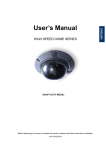
HIGH SPEED IP- DOME SERIES
HEAVY DUTY MODEL
Before attempting to connect or operate this product, please read these instructions completely.
00-37723EZ1EA2
ENGLISH
User’s Manual
CONTENTS
PREFACE....................................................................................................................3
FEATURES..................................................................................................................4
PRECAUTIONS...........................................................................................................7
QUICK STARTING ......................................................................................................8
FUNCTION DEFINITION ........................................................................................ 8
QUICK START FROM MICROSOFT WINDOWS ................................................... 9
CONSTRUCTION ...................................................................................................... 11
SWITCH SETTING ....................................................................................................12
SWITCH DEFINITION........................................................................................... 12
ID SETTING .......................................................................................................... 12
DOME CONTROL PROTOCOL............................................................................ 12
INSTALLATION – HARD CEILING ...........................................................................13
HARD CEILING MOUNTING ................................................................................ 13
INSTALLATION – T-BAR CEILING...........................................................................16
T-BAR CEILING MOUNTING ............................................................................... 16
CONNECTION...........................................................................................................19
CABLE CONNECTION......................................................................................... 19
LAN PORT (RJ-45)............................................................................................... 19
OSD DISPLAY FORMAT ...........................................................................................20
OSD DISPLAY FORMAT ...................................................................................... 20
SPECIFICATIONS .....................................................................................................21
SYSTEM ARCHITECTURE .......................................................................................23
ARCHITECTURE 1 ............................................................................................... 23
APPENDIX - NETWORK CONNECTION..................................................................24
APPENDIX - NETWORK PASSWORD .....................................................................25
APPENDIX - NETWORK SETUP ..............................................................................26
APPENDIX - IP DOME CONTROL............................................................................32
APPENDIX - SERVER CONFIGURATIONS .............................................................33
1. SERVER GENERAL SETTINGS................................................................... 33
2. USER SETTINGS.......................................................................................... 34
3. CLOCK SETTINGS ....................................................................................... 35
4. SYSTEM COMMANDS ................................................................................. 36
APPENDIX - NETWORK CONFIGURATIONS..........................................................37
1. NETWORK GENERAL SETTINGS............................................................... 37
2. DHCP SETTINGS.......................................................................................... 38
3. DDNS SETTINGS.......................................................................................... 39
APPENDIX - VIDEO CONFIGURATIONS .................................................................40
1. TIME STAMP................................................................................................. 40
00-37723EZ1EA2
1
2. VIDEO QUALITY........................................................................................... 41
APPENDIX - EVENT CONFIGURATIONS ................................................................42
1. SCRIPT EDIT ................................................................................................ 42
2. SCRIPT WIZARD .......................................................................................... 44
APPENDIX - OSD MENU (R, K MODEL)..................................................................47
OSD TREE STRUCTURE (R, K MODEL) ............................................................ 47
OSD MENU (R, K MODEL) .................................................................................. 49
APPENDIX - OSD MENU (S MODEL) ......................................................................57
OSD TREE STRUCTURE (S MODEL) ................................................................. 57
OSD MENU (S MODEL) ....................................................................................... 60
00-37723EZ1EA2
2
PREFACE
The speed dome is a new subcompact dome camera system designed to deliver
superb performance and durability with a pristine housing that looks good in any
security and surveillance installation.
This speed dome contains new generation advanced DSP color camera, with
25X optical zoom multiply 12X digital magnifier (22X optical zoom with 12X digital
magnifier, or 23X optical zoom with 10 digital magnifier are selectable items), delivers
the power of a 300X zoom (264X ,230X zoom) to make sure that the finest details are
captured. Continuous auto focus, back light compensation, auto iris controls, IR cut
filter removable, privacy mask functions (IR cut filter removable and privacy mask
functions are not included in 22X lens) are some of the salient features incorporated
to fit your needs.
High speed tilt and 360° endless rotation and auto flip function allows this speed
dome to be installed in the most demanding applications. RS-485 communication
channel is available for remote control purposes, 128 preset points can be
programmed for precise location of target areas, and you can also define multiple
cruise routes for the camera to operate automatically.
Home function allows the user to specify a preset position as the ‘home position’.
Dome camera can come back to home position when the user stops to move the
camera for a while.
Built in network module allows users control all speed dome features through
internet or intranet. User needn’t pre-install specific windows application to access the
IP dome cameras. Instead of that, user can access IP dome cameras through internet
browser such like Microsoft IE.
Dependability and ultra high reliability are key factors in the speed dome design
cycle. Every speed dome is assembled with meticulous care and thorough testing at
our ISO 9001 compliant factory. High performance, reliability, and reasonably pricing,
this speed dome is an ideal solution to your tough surveillance requirement.
00-37723EZ1EA2
3
FEATURES
NETWORK VIDEO SERVER FEATURES
1. Built-in HTTP web server providing Internet access capability.
2. Dome IP assignment via ARP/Web Page/IP Installer for easy setup.
3. JAVA-based web page providing maximum platform compatibility.
4. Active-X control for Internet Explorer providing maximum performance.
5. Motion Detection/ Date/ Time/ GPIO Input for event trigger.
6. Email/ FTP/ Internal Buffer Storage/ Relay Out/ PPP Dialing out for event trigger
action.
7. Programmable event script for various applications.
8. IP Dome DDNS support for dynamic IP application.
9. 3- Layer user security control.
10. Firmware and user content pages are remote upgradeable via FTP.
11. CGI based server is easy to integrate new application for users.
CAMERA FEATURES
1. Optical performance:
(1). S model: 25X optical zoom with 12X digital magnifier.
(2). K model: 23X optical zoom with 10X digital magnifier.
(3). R model: 22X optical zoom with 12X digital magnifier.
2. Continuous Auto-focus or manual focus
3. Minimum illumination:
(1). S model: 25X lens: 0.01 lux
(0 lux: IR illuminator ON)
(2). K model: 23X lens: 0.01 lux
(0 lux: IR illuminator ON)
(3). R model: 22X lens: 1 lux
4. Advanced DSP camera provide:
(1) Auto white balance
(2) Back-light compensation
(3) Auto iris control
(5) IR-cut filters removable mechanism. (S, K model only)
(6) Electronic shutter
5. Slow Shutter function enable dome to gain a brighter video output through
shutter speed control. (S, K model only)
6. Title Display function enable dome to display a string for a view. The title will be
displayed on screen if you pass through the region what you saved before.
7. IR-Cut Filter Removable :
(1). S model: 25X lens: Equipped
00-37723EZ1EA2
4
(2). K model: 23X lens: Equipped
(3). R model: 22X lens: N/A
8. WDR
(1). S model:
(2). K model:
(3). R model:
9. Privacy Mask
(1). S model:
(2). K model:
(3). R model:
25X lens: N/A
23X lens: Equipped
22X lens: N/A
25X lens: Equipped
23X lens: Equipped
22X lens: N/A
ROTARY BODY FEATURES
1. 5” compact, low profile color dome camera
2. 360° endless rotation
3. Pan speed up to 375° /sec
4. Tilt speed up to 300° /sec
5. Preset function enable user to record different 128 viewpoints what you want. You
can set Pan/ Tilt/ Zoom for every preset position.
6. Proportional Zoom enables Pan/ Tilt speed inverse proportional to Zoom ratio.
You can track an object easily with this function.
7. Auto-Turn Around function allows user to keep tracking object even the object
pass through the bottom of camera. You needn’t rotate 180 degrees in pan
direction to keep observing the object. This function will do this for you quickly.
8. Auto-Pan function enable dome camera to scan a specific region repeatedly with
user defined speed. You can set start point, end point and scan speed to scan a
specific region. User can make dome camera to do continuously panning without
limit through setting the start point the same as end point
9. Sequence function enable dome camera to switch viewpoints between presets.
There are three parameters can be filled into sequence function. You can set
“Preset number”, “Dwell Time” and “Speed” for sequence line.
10. Cruise function enable dome camera to scan a user defined path. User can
manipulate dome camera with joystick to establish this path.
11. Home function enables the possibility to lock a viewpoint or a function. Home
function will go back to home position or functions (Auto-pan/ Sequence/ Cruise)
when user move the camera to other position and the time period is expired.
12. Auto Restoring function will record current position when user defined period of
time is reached. Dome will go to the position if the power of your installation site is
recovery after shutdown.
13. Remote V-Sync Adjustment function enable user to adjust the line lock signal
remotely. You can adjust the phase of line lock signal to synchronize the system
from keyboard.
00-37723EZ1EA2
5
14. D Protocol and P Protocol Supported from OSD. You can control our dome
camera easily from any keyboard of PELCO (Pelco Corporation).
15. VCL Telemetry Control Protocol Supported from OSD. You can control our
dome camera easily from system of DM (Dedicated Micros Corporation).
16. Build-in 4 alarm input connectors
17. On Screen Display for camera control
18. 12VDC/ 24VAC power model available
19. Twist lock release from bracket for easy installation and servicing
00-37723EZ1EA2
6
PRECAUTIONS
1.
Handle the camera carefully
Do not abuse the camera. Avoid striking, shaking, etc. The camera could be
damaged by improper handing or storage.
2.
Do not disassemble the camera
To prevent electric shock, do not remove screws or covers. There are no user
serviceable parts inside. Ask a qualified service person for servicing.
3.
Do not block cooling holes on the bracket
This camera has a cooling fan inside. Blocking the cooling holes leads to build up
of heat the camera and may cause malfunction.
4.
Do not operate the camera beyond the specified temperature, humidity or
power source ratings
Use the camera under conditions where temperature is between 0°C ~ 40°C
(32°F ~ 104°F), and humidity is below 90%.
5.
Do not expose the camera to rain or moisture, or try to operated it in wet
areas
This product is designed for indoor use or locations where it is protected from
rain and moisture. Turn the power off immediately and ask a qualified service
person for servicing. Moisture can damage the camera and also create the
danger of electric shock.
6.
Do not use strong or abrasive detergents when cleaning the camera body
Use a dry cloth to clean the camera when dirty. In case the dirt is hard to remove,
use a mild detergent and wipe gently.
7.
Never face the camera towards the sun
Do not aim the camera at bright objects. Whether the camera is in use or not,
never aim it at the sun or other extremely bright objects. Otherwise, blooming or
smear may be caused.
* PELCO is a registered trademark of PELCO Corporation.
* P protocol and D protocol are protocols what PELCO corporation used.
* DM is a registered trademark of Dedicated Micro Corporation.
00-37723EZ1EA2
7
QUICK STARTING
The section is a quick reference for users to manipulate a dome camera in a
short time.
FUNCTION DEFINITION
■ Preset Function Definition
Preset point means that dome camera will save pan/tilt/zoom positions to its
memory.
You can recall the preset position through this function.
■ Auto-Pan Function Definition
Auto-Pan means that dome camera will scan a predicted region. The region is
defined by “start point”, ”end point”, “scan direction” and “scan speed”.
Dome camera will scan a region from “start point” to “end point” according to the
“scan direction” and “scan speed”.
Dome camera will do pan motion continuously without limit if user set the start
point the same as end point.
You can manipulate zoom in/out function when the dome camera is executing
Auto-Pan function.
■ Sequence Function Definition
Sequence means that dome camera will switch its view between different preset
positions.
The sequence parameters are “preset point”, “jump speed” and “dwell time”.
Dome camera will switch its view according to the sequence parameters. It will go
to the “preset position N” with “jump speed S” and stay there for a period with
“dwell time T”. Then dome camera will go to the second preset position with the
parameter 2….etc.
■ Cruise Function Definition
Cruise means that dome camera will patrol a special path. This path is generated
by joystick movement. The memory sizes of dome camera limit the length of
cruise path. After the memory of dome camera is filled up, it will stop to record the
latter path. When you recall cruise function, it will patrol the path which is
memorized in memory.
00-37723EZ1EA2
8
QUICK START FROM MICROSOFT WINDOWS
STEP1: Run “IPinstaller.exe” from PC.
The IP Installer will scan the Ethernet node address (MAC address) to check
how many devices are connected to the network segment. Select an IP
DOME with Ethernet node address and change its IP address to an
assigned IP address which is issued by your network administrator.
STEP2: Control IP dome cameras through internet browser (Microsoft IE).
■ Preset Function Operation
(1) Setting
Press <Preset> for setting the preset point and select a number such as <2>.
Press <SET> to record this position as preset point 2. If you want to name
the preset position, you could fill in the <Title> blank, select a number and
press <Set> button (Max. 20 set).
(2) Recall preset position
Select a number in the “RUN” area for preset point such as <2>. Then the
camera will go to the preset position 2.
■ Auto-Pan Function Operation
(1) Setting
a. Move dome camera to a specific position and press <Start> to save it as
start point of scan region.
b. Pan dome camera to another position and press <End> to save it as end
point of scan region.
c. Using direction key to select the scan direction what you want.
d. Using direction key to select speed of Auto-Pan.
(2) Execute Auto-Pan function
Press <Start> in the “RUN” area to entering Auto-Pan mode.
■ Sequence Function Operation
(1) Setting
a. Select a Group for a sequence line such as <1>. You can modify
parameters of sequence 1.
NOTE: Before setting sequence, you should have some preset points.
b. You can edit the parameters such as <3> for group, <1> for Point, <4> for
Preset, <2> for Dwell Time, <6> for Speed and press <Set>. That means
that the first preset point of sequence group 3 is preset point 4, dome
00-37723EZ1EA2
9
camera will stay 2 seconds there and dome will go to next preset with
speed 6.
c. Please continuous edit the parameters Point 2 / Preset / Dwell Time /
Speed and so on.
(2) Execute sequence function
a. Press a group number (1~4) in the “RUN” area, and the dome will execute
its sequence function.
■ Cruise Function Operation
(1) Setting
a. Press <Start> in the “Set” area to start recording your cruising path.
b. When finishing cruising, press <End> to stop recording your cruising path.
(2) Execute cruise function
Press <Start> in the “RUN” area to entering cruise mode.
00-37723EZ1EA2
10
CONSTRUCTION
LINE
1
2
3
4
5
6
7
8
9
10
11
12
13
14
15
16
17
18
19
20
21
22
SIGNAL
AC24V-1
ALMNO
AC24-2
ALMNC
FG
ALMCOM
COLOR
BLACK
BROWN
RED
ORANGE
YELLOW
GREEN
ISOG
ALM_1_IN
ALM_3_IN
ALM_2_IN
ALM_4_IN
ALM_5_IN
ALM_6_IN
ALM_7_IN
ALM_8_IN
ALMGND
VGND
VIDEO
BLACK / WHITE
BROWN / WHITE
RED / WHITE
ORANGE / BLACK
YELLOW / BLACK
GREEN / BLACK
BLUE / WHITE
PURPLE / WHITE
GRAY / BLACK
WHITE / BLACK
NOTE:
There is a “connector box” accessory. It is easy installation for users to
enable alarm function.
00-37723EZ1EA2
11
SWITCH SETTING
SWITCH DEFINITION
A. ID Setting
B. Dome Control Protocol
C. Reserved
ID SETTING
Use SW1 ~ SW3 to change your speed dome ID to “0” “0” “1”.
Please set every IP dome address to “001” even you install multiple IP dome
cameras.
DOME CONTROL PROTOCOL
Use SW4 to change the protocol to “B”.
00-37723EZ1EA2
12
INSTALLATION – HARD CEILING
HARD CEILING MOUNTING
STEP1:
Screw the Fixing Plate to your
Dome Body. Drill three holes on
the hard ceiling.
STEP2:
Unpack the dome package and
take out the Decorative Cover.
Remove the Mounting Plate
from the Decorative Cover.
STEP3:
Attach the Mounting Plate to the
ceiling. Insert a pencil or any other
pen into the three ports to mark the
locations where all three ceiling
holes sould go.
STEP4:
Drill these holes on the hard
ceiling.
00-37723EZ1EA2
13
STEP5:
Fix the attached Bracket to the
holes on the hard ceiling with three
screws.
STEP6:
Connect data cable and RJ-45 cable
through the center hole of the
Bracket to Dome Body.
STEP7:
Mount Dome Body to the Bracket
and rotate the Dome Body
clockwise. Tighten the fixing screw
to fix the Dome Body.
00-37723EZ1EA2
14
STEP8:
Assemble the Decorative Cover to
the Bracket.
00-37723EZ1EA2
15
INSTALLATION – T-BAR CEILING
T-BAR CEILING MOUNTING
STEP1:
Screw the Fixing Plate to the Dome
Body.
STEP2:
Place the Red Sticker on the ceiling
plate, and cut the circle part out of
the ceiling.
STEP3:
Put up the T-Bar into the ceiling
hole.
00-37723EZ1EA2
16
STEP4:
Rotate T-Bar wings of hinge to fix
the T-Bar at the edge of the ceiling
hole.
STEP5:
Tighten the screw of hinge.
STEP6:
Connect data cable and RJ-45
cable to Dome Body through the
center hole of the Bracket.
00-37723EZ1EA2
17
5. STEP1:
STEP7:
Assembly the dome set and
Mount Dome Body to the Bracket
decoration cover with three screws.
and rotate it clockwise. Tighten the
fixing screw to fix the dome body.
STEP8:
Assemble the Decorative Cover to
the T-BAR.
00-37723EZ1EA2
18
CONNECTION
CABLE CONNECTION
To 24VAC
To IP dome
Test purpose
LAN PORT (RJ-45)
1. RJ-45 connector: Network cable connection connector.
The recommended cable is CAT5 twisted pair cable.
2. NETWORK LED status:
a. Constant green. Constant orange: Network is connected.
b. Blinking orange. Blinking green: Networks have activities.
c. Blinking orange. Blinking green: Data sent out from server.
d. Constant slow blinking green. Constant slow blinking orange: Network
disconnected.
e. Constant blinking orange from slow to fast: Upgrading software.
00-37723EZ1EA2
19
OSD DISPLAY FORMAT
OSD DISPLAY FORMAT
1
3
2
4
6
5
< Fig1. OSD DISPLAY POSITION>
POSITION
FUNCTION
1
FOCUS MODES
2
BACKLIGHT
3
ALARM
ALARM
Alarm Message
4
ZOOM RATIO
X1
Present Zoom Ratio
5
TITLE
6
CAMERA ID
00-37723EZ1EA2
OSD DISPLAY
DESCRIPTION
A
Auto Focus Mode
M
Manual Focus Mode
X
Back Light Compensation OFF
B
Back Light Compensation ON
1. Max. 20 letters for each title.
2. 16 sets of titles are available.
Show the camera ID of this camera
20
SPECIFICATIONS
GENERAL FEATURES
ROTARY BODY FEATURES
Environment
Indoor / Outdoor
Controller I/F
Operating
Temperature
-
Pan Travel
360 Degree Endless
0° – 40 °C
Tilt Travel
-99 ~ 99 Degree
Power Source
Power
Consumption
22W
φ130X200mm
Weight
D7723B
D7723C
Manual Speed
24 VAC
Dimensions
Environment
2kg
CONTROL FEATURES
1~150 Deg/s
1~150Deg/s
1~375 Deg/s
1~375 Deg/s
Preset Pan
High Resolution
High Resolution
6~360 Deg/s
1~375 Deg/s
Speed Tilt
Standard
High Resolution
Standard : 768 steps/circle High Res. : 1600 steps/circle
CAMERA FEATURES
D7723□R□□□ K□□□ S□□□
D7723□-R□□
D7723□-K □□
NTSC
NTSC
768(H)X 494(V) 724(H)X 494(V)
PAL
PAL
752(H)X 582(V) 724(H)X 582(V)
1/4" CCD
D&P protocol
YES
YES
YES
Presets
128
128
128
0.5
0.5
0.5
Patterns
1
1
1
system
Sequence
4
4
4
Synchronization
Internal / Line Lock
Auto-Pan
1
1
1
Video Output
1.0Vpp/75 Ω , BNC
Privacy Mask
X
8
24
Preset
Accuracy
Proportional
Effective Pixels
Scanning Area
Scanning
D7723□-S □□
NTSC:
680K pixels
PAL:
800K pixels
1/6" CCD
PAL , NTSC , 2:1 interlace
NTSC:
470 TV lines.
PAL
460 TV lines.
50dB
Horizontal
Resolution
NTSC:
470 TV lines
PAL:
470TV lines.
50dB
NTSC:
470 TV lines
PAL:
460TV lines
49dB
0.01 lux
0 lux (IR
illuminator)
2.4~60 mm
YES
YES
YES
YES
YES
YES
YES
YES
YES
YES
YES
YES
YES
YES
YES
Zoom Speed
3.9 sec / 6.3 sec 1.9 sec / 5.8 sec 1.9 sec / 4.8 sec
Digital Flip
X
YES
YES
Focus Mode
Auto / Manual
DSS
X
YES
YES
White Balance
Auto / Manual
Iris Control
Auto / Manual
X
YES
YES
Pan&Tilt
Zone Title
Home
Function
P/T/Z
Auto-restoring
Auto-Turn
Around
S/N Ratio
Minimum
Illumination
1 lux
Focal length
4~88 mm
0.01 lux
0 lux (IR
illuminator)
3.6~82.8 mm
Zoom ratio
22x optical
23x optical
25x optical
X10
X12
X12
Digital Zoom
IR Cut
Removable
WDR
Motion
Detection
00-37723EZ1EA2
X
YES
X
X
X
YES
NTSC
NTSC
NTSC
(1/60~1/30k sec) (1/2~1/30k sec) (1/4~1/10k sec)
PAL
PAL
PAL
(1/50~1/30k sec) (1/1.5~1/30k sec) (1/3~1/10k sec)
Auto / Manual
Electronic
shutter
AGC control
BLC
On/Off
21
NETWORK FEATURES
DESCRIPTION
Compression
Video : Motion-JPEG with adjustable compression rate
Still Capture : JPEG
Networking
Protocols
Alarm
Performance
Video Size
Security
IP Assignment
Upgrade
Supported
Web Browser
Management
00-37723EZ1EA2
10baseT Ethernet
TCP/UDP/IP, HTTP, FTP ,SMTP ,ARP ,ICMP ,DHCP ,PPP ,Telnet
4 digital alarm inputs / 1 alarm outputs
Maximum video performance : Up to 30 frames/ second
Maximum network performance : Up to 800K bytes/second
NTSC: 704x480(Still), 352x240(CIF)
PAL: 704x576(Still), 352x288(CIF)
Three-layer Password Protection
ARP command / Web Page / IP Installer
Remote software up-gradable using FTP
Custom web contents updated via FTP & Telnet
Windows – Microsoft Internet Explorer 5.x or later and Mozilla 1.4 or later
Linux – Mozilla 1.4 or later
Mac OSX – Netscape 7.x or later or Mozilla 1.4 or later
Remote configuration through Web-based tools
22
SYSTEM ARCHITECTURE
ARCHITECTURE 1
00-37723EZ1EA2
23
APPENDIX - NETWORK CONNECTION
1. Please keep IP Dome camera power off.
2. Network cable connection:
■ Connect to Hub (Standard network installation):
Connect one endpoint of PC-to-Hub Ethernet cable to RJ-45 connector of IP
dome camera. Connect another endpoint of PC-to-Hub cable to the hub of this
network segment.
■ Connect to PC directly:
Connect one endpoint of PC-to-PC Ethernet cable (crossover) to RJ-45
connector of IP dome camera. Connect another endpoint of PC-to-PC cable
(crossover) to any PC.
3. Alarm connection:
Connect alarm devices to IP dome cameras.
4. Power ON:
Connect AC24V power to IP dome cameras.
Note: The requirement of 24VAC power adapter is 24W.
5. Checking:
Check the network LED (display link status) status is correct or not.
If it is not, please check LAN cable first.
00-37723EZ1EA2
24
APPENDIX - NETWORK PASSWORD
The default administrator username is “Admin” and password is “1234”.
.
Username:
Password:
00-37723EZ1EA2
25
APPENDIX - NETWORK SETUP
■ Note before IP assignment:
1. Make sure the IP Dome is powered on and connected to the network correctly.
2. Request a unique IP address from your network administrator.
3. Each IP Dome has unique Ethernet node address (MAC address), which is
recorded as 12 digits serial number labeled at the bottom side of IP Dome
(e.g. 000429xxxxxx).
4. The IP address assigned to the IP dome cameras shall be the same IP domain
(presented as same subnet mask) as the PC IP address. For example, an IP
address of PC is 192.168.0.1 and the IP address of IP dome camera is
192.168.0.200, so the subnet mask shall be 255.255.255.0. If a PC subnet
mask is 255.255.255.128 or higher, then the domain can’t cover
192.168.0.200, so the setting won’t take effective.
5. Users can use “IPInstaller.exe” application to quick setup the IP configuration
of IP dome.
■ Assign IP Address by using “ARP” command under windows environment
Follow the instructions to assign new IP address to IP dome cameras by using
“ARP” command under windows environment:
1. Open “command prompt” box from Microsoft Windows:
For example:
<Start→Program→MS-DOS Prompt>
2. Make sure the assigned IP address for IP dome camera doesn’t be occupied
by other PC: (the example IP address is 192.168.0.200)
For example:
Enter <ping 192.168.0.200> and make sure the response message is “time
out” message, in command prompt box.
00-37723EZ1EA2
26
3. Enter command <arp –s [IP Dome IP Address] [IP Dome MAC Address]>.
For example:
Enter “arp –s 192.168.0.200 00-04-29-00-01-50”, in “command prompt”
window.
4. Enter command <ping –t [IP Dome IP Address]> shall get constant reply after
3~4 timeouts, then press CTRL-C to exit pinging.
For example:
In “command prompt” window, enter “ping –t 192.168.0.200”
00-37723EZ1EA2
27
5. Complete setting and verify the installation.
Launch your web browser (Internet Explore) and enter the IP address. The
web page of IP dome camera will be displayed now.
For example:
Enter “http://192.168.0.200” in Location/Address field of Internet Explore, and
then the Internet live video can be opened.
■ Assign IP by “IPInstaller.exe”
IP Installer is a Windows program. The software providing an easy way for setting
up the network configurations of IP dome cameras. Using this tool, you can configure
multiple IP dome cameras at the same time. Through IP Installer, the setting process
is simplified and reduces the configuration time. Moreover, IP installer can save all the
configurations of IP dome cameras to local computer for backup and it can restore
the backup setting to the IP dome cameras.
1. Execute “IPInstaller.exe”
Double click the mouse left button on the IP Installer icon, shown as below
figure.
00-37723EZ1EA2
28
The IP Installer window is displayed as below picture.
2. Assign an IP Address to IP Dome Camera
(1) Select the MAC Address of IP dome cameras what you want to configure
in the list. The MAC Address of IP dome cameras are the same as the
serial number of IP dome cameras which are labeled on the IP dome
cameras.
(2) Click the “View/Property” item from menu bar to open the Property Page
for the selected item.
(3) Fill in suitable parameters into the edit box on the property page, and click
OK button to submit the settings for the unit and the settings will be
activated immediately.
00-37723EZ1EA2
29
3. Verify the IP address setting of selected dome camera
(1) To access the web page of the selected unit, click the “View/ Open Web”
on the menu bar.
(2) The internet browser will be launched and connect to the IP dome camera
web page automatically. That means you’ve assigned an IP Address to the
unit successfully. Now you can close the “IPInstaller” application and the
IP dome cameras are ready for operation.
00-37723EZ1EA2
30
4. Verify and complete the installation from browser
User can browse the web page of IP dome camera through internet browser
(Microsoft IE of Netscape Navigator).
User should lower the browser security settings temporarily to perform IP
dome camera configuration. This configuration procedure is one-time-only
procedure for first connection.
(1)
(2)
(3)
(4)
(5)
(6)
(7)
Launch Internet browser(Microsoft IE).
Select [Tools] -> [Internet Options]
Click the “Security” property page.
Click the “Custom security level” button.
Adjust the security level to “Low” and click “OK”.
Connect to the IP address of IP dome cameras through Internet browser.
A dialog is pop up and asking user whether user want to install
“servp14.cab” or not. Click “Yes” to start the installation.
(8) After the component installation is complete, return the security settings to
their original value.
(9) Now the configuration is complete and user can browser the web page of
IP dome cameras.
00-37723EZ1EA2
31
APPENDIX - IP DOME CONTROL
▓ Video Size: You can adjust the video size and appearance on the screen with the
following sizes.
Video SIZE
Small
Default
Large
NTSC
176 x 112
352 x 240
704 x 480
PAL
176 x 144
352 x 288
704 x 576
▓ Still: Click to take a stillpicture from the viewing video.
▓ Direction/Stop: Control the connected devices pan and tilt.The continuous or
degree movement controlled is available.
▓ Zoom: To control the connected devices zoom in and out.
▓ IRIS: With this option, the IRIS priority is higher than SHUTTER and AGC circuit
will function automatically to get consistent exposure. After the IRIS is selected
manually, the action of exposure compensation depends on the AGC circuit.
▓ Focus/Auto Focus: When AUTO FOCUS status is OFF, the Manual Focus Mode
is enabled.
▓ Speed: To select the Pan/ Tilt speed grade from 1 (slowest) to 10 (fastest).
▓ Auto Pan: Automatic run “Pan Path”. The “Pan Path” parameters can be set on
the Setup/Auto Pan.
▓ Sequence: Select a number (1~4) to run a sequence line. A sequence line can be
set on the Setup/Sequence.
▓ Cruise: Run “Cruise Path”. The “Cruise Path” can be record on the Setup/Cruise.
▓ Go Preset: To select wanted preset point. The preset point can be set on the
Setup/Set Preset
▓ Set Up: You can set up the Auto Pan/Sequence/Cruise/Set Preset on the section.
You also can set up these function on OSD menu one by one.(please see to
APPENDIX OSD (On Screen Display)
00-37723EZ1EA2
32
APPENDIX - SERVER CONFIGURATIONS
1. SERVER GENERAL SETTINGS
This page allows user to configure server setting such as server name and e-mail
address, etc.
▓ Name: Please input a server name.
▓ Owner: Please input the name of this server owner.
▓ Owner Email: Please input an e-mail address for receiving specific event
information.
▓ MAC Address: MAC address information of this video server. It is read
only.
▓ Large Size Image Using the True Resolution: You can enable or
disable the function.
▓ Live Video Using:
Active X: Better performance through MS Internet Explorer, but
compatibility is low.
Java Applet: High internet browser compatibility, but low performance for
live video streaming
00-37723EZ1EA2
33
2. USER SETTINGS
This page allows user to create, change or delete user account, password …..etc.
▓ Name: New user name to log in.
▓ Password: Password for above user.
▓ Confirm Password: Type again to confirm password.
▓ User Security: Administrator / Viewer / Operator.
NOTE: The first user shall be an administrator. Otherwise, he can’t
get into administration page any more. If this happened, he must use
emergency factory default to clean all users.
00-37723EZ1EA2
34
3. CLOCK SETTINGS
The built-in real-time clock module provides date/ time information for IP dome
cameras even the power of IP dome cameras is off.
▓ Set as PC clock: Click
to set the date/ time of the IP
dome cameras with the time of user’s PC.
▓ Submit (Save changes): Click
settings by themselves.
00-37723EZ1EA2
if users want to change the time
35
4. SYSTEM COMMANDS
User can reset IP dome cameras to the factory default settings through this page.
▓ Erase All Preset Title: Clear all user defined title for preset point.
▓ Save Changes: Save user setting and the setting will be loaded into IP
dome cameras after reboot.
▓ Reboot System: Reboot the IP dome cameras.
00-37723EZ1EA2
36
APPENDIX - NETWORK CONFIGURATIONS
1. NETWORK GENERAL SETTINGS
The page allows user to assign a specific IP address to IP dome cameras and
configure the network parameters of IP dome cameras.
▓ IP Address: Please input the assigned IP address of IP dome.
▓ Subnet Mask: Please input the subnet mask for IP dome.
▓ DNS IP Address: Please input preferred Domain Name Server (DNS) IP
address.
▓ Gateway IP Address: Please input the IP address of Gateway server.
▓ HTTP Connection Port: Please input the HTTP web server listen port of
IP dome cameras for internet browser connection (default port is 80).
▓ Submit: Click
to let IP dome store the setting. IP dome will
reboot the system automatically. It will take 5 seconds to complete the
boot procedure.
00-37723EZ1EA2
37
2. DHCP SETTINGS
▓ Using Dynamic IP Address: Installer can enable IP dome cameras be
assigned IP address through DHCP server or disable this feature. If
installer disables DHCP function, static IP address is needed.
▓ IP Notification by FTP: If a FTP server is installed on your network, you
can enable this option to obtain the newly assigned IP address of your
video server. A HTML file named NewIP_xxxxxx.htm will appear under the
upload path for you to link to video server, where xxxxxx is the last six
digits of the serial number.
▓ FTP Host Name: FTP server address
▓ Login Name: Name of your FTP account
▓ Password: Password used to log in your FTP account
▓ Upload Path: Path to put the file.
▓ IP Notification by E-mail: With this option enabled, your video server will
send E-mail to you as soon as it obtains the IP address from DHCP.
▓ SMTP Host Name: SMTP server.
▓ Recipient: Your E-mail address.
▓ From: Sender’s E-mail address.
▓ Message subject: Subject of this E-mail.
00-37723EZ1EA2
38
3. DDNS SETTINGS
The DDNS (Dynamic Domain Name Service) is used when users want to access
the Video Server with an easy memorized name instead of IP address number.
▓ Dynamic DNS Activate: Click to activate the DDNS service
▓ Dynamic DNS Address: Specify address of the DDNS server.
▓ Dynamic DNS Port: Specify the DDNS server listen port.
▓ Router Incoming Port: Specify your router listen port for DDNS server to
redirect. The router may configure the different port for incoming (Internet
request) and outgoing (Intranet request).
▓ Update Time: Specify the video server updated frequency in seconds,
and the default is 600 (10 minutes), this is interval that video server will
automatically send an updated packet to the DDNS server.
▓ DDNS message: Return messages from remote DDNS server, and some
hints may help to diagnostic the reason if register fails.
00-37723EZ1EA2
39
APPENDIX - VIDEO CONFIGURATIONS
1. TIME STAMP
This page allows user to configure IP dome cameras to display time and text on
the video stream or not.
▓ Display Time: Display the Time Stamp.
▓ Display Text: Display text block. Fill in the text string to display. The valid
characters are a – z, A – Z, 0 – 9, !, @, #, $, %, &, *, ( and ).
To change the location of Time/ Text information, just fill in the X and Y coordinate.
Note: The maximum display block area (Time + Text) are 12X4 characters. String
length more than 12 will feed to next line, and totally 4 lines available. More
than 4 lines will strip off.
00-37723EZ1EA2
40
2. VIDEO QUALITY
▓ Quality Adjustments: To adjust video contrast, brightness, hue, color
saturation, and quality.
▓ Frame Delay: To set the delay time between frames. The unit of delay
time is 10 ms. You can limit the output bandwidth via setting the frame
delay to do the flow control of the video stream. When the value is set to
0, it means no limitation on the video stream.
Note that the quality level affects compression ratio and file size of video.
NTSC
PAL
Resolution
File size (kb) Max fps Resolution
File size (kb) Max fps
4CIF (704 x 480) 7 – 160
3
4CIF (704 x
9 – 200
3
576)
CIF (352 x 240) 2 - 50
30
CIF (352 x 288) 2 - 60
25
(The Maximum performance is given in single user and only one video source in use.)
00-37723EZ1EA2
41
APPENDIX - EVENT CONFIGURATIONS
1. SCRIPT EDIT
The Script Editor offers advanced administrators and developers with an greater
level of flexibility for customizing the application specifically to meet their user
needs. Using the on-line help as a reference, advanced users follow the
instructions below to quickly develop programming scripts for time and/ or
alarm-triggered events.
Application developers wish to have different levels of customization within their
own applications. They may build through event manager; the event system
provides several trigger sources and action types which allow administrators to
record the emergency images, such as Motion detection, I/O control, FTP or
EMAIL to outside world.
The video server’s event manager provides event control through programmable
Event Scripts which are the combination of several events. Each event works
simultaneously. If one of the trigger conditions in event script is satisfied, then
corresponding action will start to execute accordingly. A comprehensive set of
“trigger conditions” and “action commands” allowed to fit in varies of applications.
To start the event manager, simply click “Event”, then event frame will pop up.
There are two ways to enter the event script. One is to use “Script Wizard” which
just follows the procedure to fill up some items. And, it will generate and append
new script code to edit window. The other one is to edit the form manually, which is
for experienced users that want to deeply control the functionalities of event
operation. To edit manually, please refer to “Appendix: Event Script Programmers
Guide” for detailed description.
00-37723EZ1EA2
42
▓ Event Script Edit: Text window to enter event script manually.
▓ Event Status: Indicate the event status, “Stop Now” or “Start Now”.
▓ Message: A window to show the results when below command icon
pressed --- normally will show “OK”, “Parsing”, “Fail”, Or “Err String” which
indicates the syntax error of parsing, and starts from the error position in
the script.
▓ Save Script: Command to save and parse current scripts in the “Event
Script Edit” window. If any syntax errors are detected, the error message,
indicating the starting position of syntax error, will be shown in the
“Message” window.
▓ Event Auto Start when Power On: The flag is to set the event script
auto start-up when the system is powered on.
NOTE: Any changes in “Event Script Edit” window must “Save Script”
before “Start Script”; otherwise, the new changes will be lost and won’t
take effective. Also the changes won’t be saved into permanent memory
unless you click the “Save Changes” button in main Administration panel.
▓ Clear: Command to clean up “Event Script Edit” window.
▓ Start Script: Command to start the script execution.
▓ Stop Script: Command to stop the script execution.
▓ Script Wizard: Command to start the script wizard. It helps user to make
simple script automatically by wizard, but the wizard supports only partial
trigger and action commands. To fully leverage the complete
functionalities of event script, please refer to “Appendix: Event Script
Programmers Guide”.
00-37723EZ1EA2
43
2. SCRIPT WIZARD
This section will detail the “Script Edit” settings. To start Script Wizard, run
“Event”Æ”Script Edit”Æ”Script Wizard”, and the form will be shown on the screen
as below:
Different trigger action types are offered for administrators to configure the video
server for their personal applications; once the “trigger condition” is matched, the
video sever will react based on the “Event Action” settings. The two
pre-determined settings would be detailed in the following sections.
Click on the action type you want to configure, and then click on
your setting.
to continue
(1) Email Setting
Once the event is triggered, the video server would send out an email using the
Simple Mail Transfer Protocol (SMTP) based on the information you filled in the
field.
00-37723EZ1EA2
44
▓ Host Name: Specifies the SMTP Server name or IP address.
e.g. "mail.domain.com" or "61.220.235.170"
▓ Attached Filename: Filename of attachment.
▓ Message Body: Text message contain in email body.
▓ Return Mail Address: Return mail address, if omit, default is
"[email protected]".
▓ Destination Mail Address: Destination address to receive this
email, could be multiple address separate by semicolon ";".
▓ E-mail Subject: Specifies email subject.
▓ Channel Source: Select the video source. Channel 1 is the only
available option now.
▓ Image Resolution: Specifies the image format (H x V):
NTSC image
QCIF 176 x 112
352 x 240
CIF
FULL 704 x 480
PAL image
176 x 114
352 x 288
704 x 576
▓ Interval: Specifies the time interval between consecutive snapshots in unit of 10ms system tick. If omitted, default value is 50
(i.e. 500ms).
▓ Duration: Specifies the total time for the command to run. Accept
value is:
-1
Omit or 0
>0:
Infinite loop
Run Once,</TD< tr>
Value in unit of 10ms system tick
After you fill in all required information, click
to continue the setting. Once
you click on
, another window will appear. The window allows you to select
the condition you want the video server to take action.
Click
00-37723EZ1EA2
to continue the setting. A new window then appears, you can
45
preview the script in this window.
(2) FTP Event
By filling the required information the video server is able to transfer an image
from your Network camera to a remote server using the standard File Transfer
Protocol (FTP).
00-37723EZ1EA2
46
APPENDIX - OSD MENU (R, K MODEL)
This camera utilizes a user setup menu that is displayed on-screen. This setup
menu contains various sub menus that from a tree-type structure as shown below.
This menu is described in the “SETUP MENU DESCRIPTION”
OSD TREE STRUCTURE (R, K MODEL)
DEFAULT
ON
OFF
BACKLIGHT ON
OFF
FOCUS
AUTO
MANUAL
APERTURE AUTO
MANUAL
AE MODE
AUTO
SHUTTER
IRIS
AGC
WBC MODE AUTO
MANUAL
ID DISPLAY
SETUP
MENU
ON
OFF
ENTER
BLC LEVEL
Focus Length: 1cm 10cm 30cm 1m
H APERTURE
V APERTURE
IRIS OFFSET
SHUTTER SPEED
IRIS
AGC
000 ~ 031
000 ~ 031
000 ~ 100
R GAIN
G GAIN
FLIP
ON
OFF
ZOOM SPEED
FAST
SLOW
SPEED BY ZOOM
ON
OFF
AUTO CALI.
ON
OFF
DIGITAL ZOOM
SLOW SHUTTER
RESET
EXIT
TITLE
DISPLAY
TITLE
SETTING
ALARM
1 ~ 10
1/2 ~ 1/60 (NTSC)
1/1.5 ~ 1/50 (PAL)
YES
ON
OFF
000 ~ 016
ENTER
00-37723EZ1EA2
ALARM PIN
47
1~4
SETTING
ALARM SWITCH
OFF
ON
ALARM TYPE
N.O.
N.C.
ALARM ACTION
POINT
SEQUCENCE POINT
HOME
SETTING
ENTER
SEQUENCE ENTER
AUTOPAN
ENTER
ALARM POS
SEQUENCE LINE
DEWLL TIME
EXIT
HOME FUNC.
PRESET POS
RETURN TIME
HOME POS.
EXIT
SEQUENCE LINE.
SEQUENCE POINT
PRESET POS.
SPEED
DWELL TIME
RUN SEQUENCE
EXIT
START POINT
001 ~ 127
1~4
001 ~ ALWAYS SEC.
YES
ON
OFF
1 ~ 127
1 ~ 127 MIN.
GO
1~4
1 ~ 32
1 ~ 127
1 ~ 15
1 ~ 127
ENTER
TO FIND
TO SAVE
END POINT
TO FIND
TO SAVE
DIRECTION
RIGHT
LEFT
CRUISE
ENTER
IR
FUNCTION
AUTO
WDR
SETTING
PRIVACY
ON
NONE (22X)
ENTER
ENTER
00-37723EZ1EA2
SPEED
RUN AUTOPAN
EXIT
RECORD START
RECORD END
RUN CRUISE
EXIT
SENSITIVITY
IR COLOR
EXIT
WDR SWITCH
WDR FUNCTION
EXIT
PRIVACY SWITCH
48
1~4
ENTER
ENTER
ENTER
ENTER
LOW, MID, HI
B/W, COLOR
ON/OFF
AUTO
MANUAL
OFF / ON
SHADE
SET MASK
GRAY / WHITE / BLACK
1 / 2 HCENTER ( 000~100 )
VCENTER ( 000~100 )
HSIZE
( 000~100 )
VSIZE
( 000~100 )
EXIT
EXIT
EXIT OSD
YES
OSD MENU (R, K MODEL)
There are two pages of OSD setup menu allow users to control the camera
parameters, these functions are described in the following sections in detail. Please
use LEFT/ RIGHT/ UP/ DOWN of direction keys to select your parameters.
1. DEFAULT
If you select ON for this item, all the camera parameters will be restored to the
factory initial (default) data. Once you modify any of the following items, this item
becomes OFF.
2. BACKLIGHT
In case that excessive light is behind the center object, it is necessary to prevent
the center object too dark.
Turn this item ON, the center object will be brighten in contrast to the edge of the
picture (where a backlight would most likely be located).
3. FOCUS
The focus of the dome camera can be operated in two different modes: ‘Manual
Focus mode’ and ‘Auto Focus mode’.
Manual
Users can the move focus lens by pressing the “focus Near/Far button” on the
control keyboard.
Auto
The optimum focus is achieved by the internal digital circuit. User can limit the
minimum auto focus range through selecting a suitable item for some special
condition.
4. APERTURE
You can edit the aperture setting of camera module.
AUTO
Camera will automatically assign a suitable aperture value for camera to achieve
a better image.
MANUAL
You can set aperture value with higher value to enhance the incident ray of
camera.
5. AE MODE
00-37723EZ1EA2
49
Here you can select how the auto exposure function works, five options are
available in this item, they are explained in the following section:
AUTO
With this option, the camera’s Shutter, IRIS and AGC control circuits work
together automatically to compensate the light exposure of CCD sensor, in order
to get consistent video output level. IRIS OFF SET is used to set the level of IRIS
variation.
SHUTTER
With this option, the SHUTTER priority is higher than IRIS and AGC circuit will
function automatically to get consistent exposure.
This option is available only for 22X and 23X lenses.
IRIS
With this option, the IRIS priority is higher than SHUTTER and AGC circuit will
function automatically to get consistent exposure. After the IRIS is selected
manually, the action of exposure compensation depends on the AGC circuit.
AGC
With this option, the AGC priority is higher than SHUTTER and IRIS circuit will
function automatically to get consistent exposure. After AGC is selected manually,
the action of exposure compensation depend on changing the IRIS of Lens
6. WBC MODE
You can select one of six White Balance Control modes as described follows:
AUTO
In this mode, white balance works within its color temperature range.
MANUAL
In this mode, you can control the Write Balance value manually, R gain and B
gain adjustable range from 0 to 100.
7. ID DISPLAY
You can display the ID of dome on monitor or not.
ON
Display the ID address of this dome.
OFF
Do not display the ID address of this dome.
8. SETUP
You can adjust some parameters under SETUP item.
FLIP ( IMAGE/ ME/OFF )
User can track an object continuously when it passes through under dome
camera with setting flip item to IMAGE/ ME.
IMAGE item enable user to keep tracking object seamlessly through image flip
00-37723EZ1EA2
50
technology. ME item is a standard function which is the same as AUTO-FLIP
function.
ZOOM SPEED
You can select a suitable zoom speed.
SPEED BY ZOOM
The tracking speed is adjusted by internal algorithm. The lager zoom ratio the
lower rotation speed.
AUTO CALI.
The default setting is OFF.
DIGITAL ZOOM
Digital zoom ratio is adjustable from 1 to 12 (S model), 1 to 10 (K model) or 1 to
12 (R model).
SLOW SHUTTER
You can set the slowest shutter speed. With the slowest shutter speed, you can
see objects in a dark environment under 0.2 lux. With a higher shutter speed,
you can see a smooth video image from camera
ANGLE ADJUSTER ( MIN/ MAX )
User can see more area higher if they adjust the MAX angle to +99 degree. User
can see more area lower if they set the MIN angle to -10 degree.
RESET
Reset the Speed Dome.
EXIT
Quit the SETUP menu.
9. TITLE DISPLAY
You can turn on or off the TITLE DISPLAY function of this dome
.
ON
It will display a mark what you input for this view when you came back to the
view.
OFF
It will not display any mark what you input for this view when you came back to
the view.
00-37723EZ1EA2
51
10. TITLE SETTING
You can name a view for dome camera and it will display the name when you
came back to the view.
STEP 1: Operate dome to a view what you want to name it.
STEP 2: Turn on OSD and move blink words to “TITLE SETTING”
STEP 3: Select a number what you want to name it.
STEP 4: Press <ENTER> to go into edit mode.
SET TITLE: (XXX)
0
1
2
3
4
01 2 3 456 7 89
A B C DEFGH I J
K L MNOT PQRS
UV XYZ : / . ,
+ ? -
S : SAVE
S : EX I T
: LE FT
: R IGHT
TITLE:
X
STEP 5: Choose a character what you want to input with direction key and press
<ENTER>.
Example: A <ENTER>, B <ENTER>, C <ENTER>
TITLE: ABC
STEP 6: Move blink character to “S: SAVE” and press <ENTER> to save setting.
You can erase the word what you don’t like it through move blink
character to “SP” and press <ENTER>
11. ALARM SETTING
Alarm parameters can be set on this page.
ALARM PIN
Choose an alarm connector what you want to set its status.
ALARM SWITCH
Turn ON/ OFF alarm function.
ALARM TYPE
There are two kind of alarm types can be selected. One is normal open the
other is normal close.
ALARM ACTION
User can choose what kind of action should be executed when the alarm
condition taken place. There are two kind of alarm actions can be set. One is go
to a specific position when alarm taken place. The other is executing sequence
function when alarm condition taken place.
00-37723EZ1EA2
52
Point Mode
PRESET POS.
Enter a preset position where the dome will go to when alarm pin is
triggered.
Sequence Mode
SEQUENCE
Enter the sequence line you wish the Dome execute when alarm pin is
triggered.
DWELL TIME (Seconds)
Camera will stay at the preset position for “DWELL TIME” seconds then go back
to previous position. If you select “Always”, dome will go to the preset position
and stay there until alarm condition is released or user move its joystick on
keyboard.
EXIT
Quit the ALARM SETTING menu.
12. HOME SETTING
Home parameters can be set on this page.
HOME FUNC
Turn home function on or off.
SELECT MODE (AUTOPAN/ SEQUENCE/ CRUISE/ PRESET)
Dome will go to execute this mode function when home function is enabled and
the “RETURN TIME” is reached.
RETURN TIME (MIMUTES)
Dome will start to count “RETURN TIME” when user move the camera to
arbitrary position.
AUTOPAN/ SEQUENCE LINE/ CRUISE/ PRESET POS
This item is detailed mode setting of home function. This item will vary with
‘SELECT MODE’ item.
GO.
Go to execute home function (HOME FUNC ON only).
EXIT
Quit the HOME SETTING menu.
13. SEQUENCE
Sequence parameters can be set on this page.
SEQUENCE LINE
There are four sets of sequence lines built in dome camera. You can choose a
line to execute. Please use LEFT/ RIGHT of direction key to select your
sequence line.
00-37723EZ1EA2
53
SEQUENCE POINT
There are 32 sets of sequence points can be specified in every sequence line.
The sequence points are linked list. Sequence function will go through the
linked list again and again.
PRESET POSITION
You can specify a preset position where the dome should go to at this
sequence point.
SPEED
Speed is adjustable from 1~15.
DWELL TIME
Dome will stay on the sequence point for “DWELL TIME” then go to next
sequence point.
RUN SEQUENCE
User can command dome camera to execute sequence function.
EXIT
Quit the SEQUENCE menu.
14. AUTOPAN
AutoPan parameters can be set on this page. User can enable dome camera to
do continuously panning without limit through setting the start point the same as
endpoint.
START POINT
Start position of the “AUTOPAN path”.
TO FIND: Press ‘ENTER’ to go into joystick mode. User can move camera to
suitable position under joystick mode.
TO SAVE: Press ‘ENTER’ to set this position as start point and escape
joystick mode.
END POINT
End position of the “AUTOPAN path”.
TO FIND: Press ‘ENTER’ to go into joystick mode. User can move camera to
suitable position under joystick mode.
TO SAVE: Press ‘ENTER’ to set this position as end point and escape
joystick mode.
DIRECTION
Rotational direction of dome camera.
SPEED
AUTOPAN function will rotate camera with this speed.
RUN AUTOPAN
Execute AUTOPAN function.
EXIT
Quit the AUTOPAN menu.
00-37723EZ1EA2
54
15. CRUISE
Cruise parameters can be set on this page.
RECORD START
Command dome to start to record “CRUISE PATH”.
STEP1: Press ‘ENTER’ to go into joystick mode. Dome will move blink words
to ‘RECORD END’ automatically.
STEP2: User can move camera to form a path.
STEP3: Press ‘ENTER’ to save the path.
RECORD END
Command dome to stop to record “CRUISE PATH”.
RUN CRUISE
Execute “CRUISE” function.
EXIT
Quit the CRUISE menu.
16. IR FUNCTION
“IR Cut Filter” function can be set on this page.
AUTO
THRESHOLD: The Internal circuit will decide to remove the “IR Cut Filter”
according to its threshold value. You can set the sensitivity as
high then dome will remove the filter immediately if the
threshold value is reached. Of course, low sensitivity can
improve the reliability of lens.
IR COLOR:
You can program the video output as color or B/W when IR
function is enabled.
ON
Turn on IR function.
17. WDR SETTING
The parameter of WDR (Wide Dynamic Range) function can be set on this page.
WDR SWITCH
You can turn on/off the WDR function.
WDR FUNCTION
You can edit all parameters of WDR by yourself.
EXIT
Exit this page.
18. PRIVACY
You can program the privacy zone position with this option.
PRIVACY SWITCH
You can display “Privacy masks” with this option.
SHADE
The color of privacy mask can be selected through this option.
00-37723EZ1EA2
55
SET MASK
After you press “ENTER” on this item, dome will memory this position as “privacy
mask position”. You can select form Mask1 to Mask8 for this item.
MAKS MENU
H CENTER 000~100
The original center of mask zone is the center of screen. User can move the
center of mask zone to another position through adjust this value.
V CENTER`000~100
The original center of mask zone is the center of screen. User can move the
center of mask zone to another position through adjust this value.
H SIZE 000~100
User can adjust the horizontal size of “privacy mask” through this item.
V SIZE 000~100
User can adjust the vertical size of “privacy mask” through this item.
EXIT+SAVE
Exit this page and save the privacy zone data into dome camera.
EXIT
Exit this page.
19. EXIT OSD
You can exit OSD mode with this item. Of course, you can close the OSD menu
through “ESC” button on D7312.
00-37723EZ1EA2
56
APPENDIX - OSD MENU (S MODEL)
This camera utilizes a user setup menu that is displayed on-screen. This setup
menu contains various sub menus that from a tree-type structure as shown below.
This menu is described in the “SETUP MENU DESCRIPTION”
OSD TREE STRUCTURE (S MODEL)
DEFAULT
ON
OFF
BACKLIGHT ON
OFF
FOCUS
AUTO
MANUAL
AUTO
BRIGHT
SHUTTER
GAIN
IRIS
WBC MODE AUTO
INDOOR
OUTDOOR
ATW
MANUAL
ID DISPLAY ON
OFF
SETUP
ENTER
MENU1
AE MODE
00-37723EZ1EA2
AF MODE – NORMAL
AF MODE – ZOOM TRIGGER
AF MODE – INTERVAL
FOCUS MANUAL SPEED
EXPORSURE COMP
BRIGHT VALURE
SHUTTER SPEED
GAIN VALUE
IRIS VALURE
R GAIN, B GAIN
FLIP
IMAGE
ME
OFF
ZOOM SPEED
FAST
SPEED BY ZOOM ON
OFF
AUTO CALI.
ON
OFF
DIGITAL ZOOM
1~ 12 (R model)
1 ~ 10 (K model)
1 ~ 12 (S model)
SLOW SHUTTER ON
OFF
ANGLE ADJUSTER ADJUST MIN ANGLE
ADJUST MAX ANGLE
RESET
RESET
YES
EXIT
57
SETUP
MENU2
ENTER
TITLE
DISPLAY
TITLE
SETTING
ALARM
SETTING
ON
OFF
000 ~ 016
HOME
SETTING
ENTER
ON
OFF
PICTURE EFFECT COLOR
NEG.
B/W
STABILIZER
ON
OFF
MASK DISPLAY
FIRST
LAST
ENTER
SEQUENCE ENTER
AUTOPAN
APERTURE
FREEZE
ENTER
00-37723EZ1EA2
ALARM PIN
ALARM SWITCH
1~4
OFF
ON
ALARM TYPE
N.O.
N.C.
ALARM ACTION POINT
SEQUENCE POINT
PRESET POS
001 ~ 128
SEQUENCE LINE 1 ~ 4
DEWLL TIME
001~ALWAYS SEC.
EXIT
YES
HOME FUNC.
ON / OFF
SELECT MODE
PRESET
SEQUENCE
AUTO-PAN
CRUISE
RETURN TIME
1 ~ 127 MIN.
PRESET/
AUTOPAN/
SEQUENCE/
CRUISE
GO
ENTER
EXIT
SEQUENCE LINE. 1 ~ 4
SEQUENCE
1 ~ 32
POINT
PRESET POS.
1 ~ 128
SPEED
1 ~ 15
DWELL TIME
1 ~ 127
RUN SEQUENCE ENTER
EXIT
START POINT
TO FIND
TO SAVE
END POINT
TO FIND
TO SAVE
DIRECTION
RIGHT
58
CRUISE
ENTER
IR
FUNCTION
ALARM
DETECT
AUTO
ON
ENTER
PRIVACY
ENTER
EXIT OSD
YES
00-37723EZ1EA2
SPEED
RUN AUTOPAN
EXIT
RECORD START
RECORD END
RUN CRUISE
EXIT
LEFT
1~4
ENTER
ENTER
ENTER
ENTER
DETECT SWITCH ON/OFF
DETECT MODE
FIX FOCUS
INT. AE
FIX AE
INT. FOCUS
EXIT
PRIVACY SWITCH OFF / ON
TRANSPARENCY OFF/ON
COLOR
SET MASK
1 ~ 24
RESET
YES
EXIT
YES
59
OSD MENU (S MODEL)
There are two pages of OSD setup menu allow users to control the camera
parameters, these functions are described in the following sections in detail. Please
use LEFT/ RIGHT/ UP/ DOWN of direction keys to select your parameters.
1. DEFAULT
If you select ON for this item, all the camera parameters will be restored to the
factory initial (default) data. Once you modify any of the following items, this item
become OFF.
2. BACKLIGHT
In case that excessive light is behind the center object, it is necessary to prevent
the center object too dark.
Turn this item ON, the center object will be brighten in contrast to the edge of the
picture (where a backlight would most likely be located).
3. FOCUS
The focus of the dome camera can be operated in two different modes: ‘Manual
Focus mode’ and ‘Auto Focus mode’.
Manual
Users can the move focus lens by pressing the “focus Near/ Far button” on the
control keyboard. The focus speed of lens can be adjusted through this item.
Auto
The optimum focus is achieved by the internal digital circuit. User can select a
suitable item for different condition.
Normal AF Mode: This is the normal mode for AF operations.
Interval AF Mode: The mode used for AF movements carried out at
particular intervals. The time intervals for AF
movements and for the timing of the stops can be set
in one-second increments using the Set Time
Command. The initial value for both is set to five
seconds.
Zoom Trigger Mode: When the zoom is changed with the TELE or the
WIDE buttons, the pre-set value (initially set at 5
seconds) becomes that for AF Mode. Then, it stops.
00-37723EZ1EA2
60
4. AE MODE
Here you can select how the auto exposure function works, five options are
available in this item, they are explained in the following sections:
AUTO
With this option, the camera’s IRIS and AGC control circuits work together
automatically to compensate the light exposure of CCD sensor, in order to get
consistent video output level. At this condition the shutter speed is fixed to 1/60
(NTSC) or 1/50 (PAL). User can offset the internal brightness reference level
through EXPOSURE COMP. to control the brightness of camera. The value of
EXPOSURE COMP. is selectable from 0 to 16 and the gain is varying from -10.5
dB to 10.5 dB. Each step is 1.5dB gain. The value 7 is equal to 0dB. The camera
will not compensate the brightness when the EXPOSURE COMP. is set to OFF.
The default setting is OFF.
BRIGHT
The bright control function adjusts both gain and iris using an internal algorithm,
according to a brightness level freely set by the user. Exposure is controlled by
gain when dark, and by iris when bright.
SHUTTER
With this option, the SHUTTER speed is selectable. Auto IRIS and AGC circuit
will function automatically to get consistent exposure output.
GAIN
With this option, the GAIN value is selectable. GAIN priority is higher than
SHUTTER and IRIS. The internal circuit will function automatically to get
consistent exposure.
IRIS
With this option, the IRIS value is selectable. Auto SHUTTER speed and AGC
circuit will function automatically to get consistent exposure output.
5. WBC MODE
You can select one of six White Balance Control modes as described follows:
AUTO
In this mode, white balance works within its color temperature range. This mode
computes the white balance value output using color information from the entire
screen. It outputs the proper value using the color temperature radiating from a
black subject based on a range of values from 3000 to 7500K.
INDOOR
3200 K Base Mode
OUTDOOR
5800 K Base Mode
ATW
Auto Tracing White balance (2000 to 10000 K).
00-37723EZ1EA2
61
MANUAL
In this mode, you can control the Write Balance value manually, R gain and B
gain is adjustable.
6. ID DISPLAY
You can display the ID of dome on monitor or not.
ON
Display the ID address of this dome.
OFF
Do not display the ID address of this dome.
7. SETUP MENU1
You can adjust some parameters under SETUP MENU1 item.
FLIP (IMAGE/ ME/ OFF)
User can track an object continuously when it passes through under dome
camera with setting flip item to IMAGE/ ME.
IMAGE item enable user to keep tracking object seamlessly through image flip
technology. ME item is a standard function which is the same as AUTO-FLIP
function.
ZOOM SPEED
User can select a suitable zoom speed.
SPEED BY ZOOM
The tracking speed is adjusted by internal algorithm. The lager zoom ratio the
lower rotation speed.
AUTO CALI.
The default setting is OFF.
DIGITAL ZOOM
Digital zoom ratio is adjustable from 1 to 12.
SLOW SHUTTER
User can enable the slow shutter function. With the slowest shutter speed, user
can see objects in a dark environment under 0.01 lux. With a higher shutter
speed, you can see a smooth video image from camera
ANGLE ADJUSTER (MIN/ MAX)
User can see more higher if they adjust the MAX angle to +99 degree. Users can
see more area lower if they set the MIN angle to -10 degree.
RESET
Reset the Dome camera.
EXIT
Quit the SETUP menu.
00-37723EZ1EA2
62
8. SETUP MENU2
You can adjust some parameters under SETUP MENU2 item.
APERTURE
Aperture control is a function which adjusts the enhancement of the edges of
objects in the picture. There are 16 levels of adjustment, starting from “no
enhancement.” When shooting text, this control may help by making them
sharper.
FREEZE
This function captures an image in the field memory of the camera so that this
image can be output continuously.
PICTURE EFFECT
User can select a special video output type.
STABILIZER.
When the Image Stabilizer Function is ON, it helps in obtaining a stable image
free of vibration caused by jarring movements. For a vibration frequency of
around 10 Hz, correction is approximately 90%. But this function will make
user feel a doesn’t exist residual motion around 1 second after the dome
camera finish a quick motion. This function is only suitable for fixed point
observation.
MASK DISPLAY.
User can enable masking zone or disable masking zone through this item.
9. TITLE DISPLAY
You can turn on or off the TITLE DISPLAY function of this dome
.
ON
It will display a mark what you input for this view when you came back to the
view.
OFF
It will not display any mark what you input for this view when you came back to
the view.
00-37723EZ1EA2
63
10. TITLE SETTING
You can name a view for dome camera and it will display the name when you
came back to the view.
STEP 1: Operate dome to a view what you want to name it.
STEP 2: Turn on OSD and move blink words to “TITLE SETTING”
STEP 3: Select a number what you want to name it.
STEP 4: Press <ENTER> to go into edit mode.
SET TITLE: (XXX)
0
1
2
3
4
01 2 3 456 7 89
A B C DEFGH I J
K L MNOT PQRS
UV XYZ : / . ,
+ ? -
S : SAVE
S : EX I T
: LE FT
: R IGHT
TITLE:
X
STEP 5: Choose a character what you want to input with direction key and press
<ENTER>.
Example: A <ENTER>, B <ENTER>, C <ENTER>
TITLE: ABC
STEP 6: Move blink character to “S: SAVE” and press <ENTER> to save setting.
You can erase the word what you don’t like it through move blink
character to “SP” and press <ENTER>
11. ALARM SETTING
Alarm parameters can be set on this page.
ALARM PIN
Choose an alarm connector what you want to set its status.
ALARM SWITCH
Turn ON/OFF alarm function.
ALARM TYPE
There are two kind of alarm types can be selected. One is normal open the
other is normal close.
ALARM ACTION
User can choose what kind of action should be executed when the alarm
condition taken place. There are two kind of alarm actions can be set. One is go
to a specific position when alarm taken place. The other is executing sequence
function when alarm condition taken place.
Point Mode
PRESET POS.
Enter a preset position where the dome will go to when alarm pin is
triggered.
00-37723EZ1EA2
64
Sequence Mode
SEQUENCE
Enter the sequence line you wish the Dome execute when alarm pin is
triggered.
DWELL TIME (Seconds)
Camera will stay at the preset position for “DWELL TIME” seconds then go back
to previous position. If you select “Always”, dome will go to the preset position
and stay there until alarm condition is released or user move its joystick on
keyboard.
EXIT
Quit the ALARM SETTING menu.
12. HOME SETTING
Home parameters can be set on this page.
HOME FUNC
Turn home function on or off.
SELECT MODE (AUTOPAN/ SEQUENCE/ CRUISE/ PRESET)
Dome will go to execute this mode function when home function is enabled and
the “RETURN TIME” is reached.
RETURN TIME (MIMUTES)
Dome will start to count “RETURN TIME” when user move the camera to
arbitrary position.
AUTOPAN/ SEQUENCE LINE/ CRUISE/ PRESET POS
This item is detailed mode setting of home function. This item will vary with
‘SELECT MODE’ item.
GO.
Go to execute home function (HOME FUNC ON only).
EXIT
Quit the HOME SETTING menu.
13. SEQUENCE
Sequence parameters can be set on this page.
SEQUENCE LINE
There are four sets of sequence lines built in dome camera. You can choose a
line to execute. Please use LEFT/RIGHT of direction key to select your
sequence line.
SEQUENCE POINT
There are 32 sets of sequence points can be specified in every sequence line.
The sequence points are linked list. Sequence function will go through the
linked list again and again.
00-37723EZ1EA2
65
PRESET POSITION
You can specify a preset position where the dome should go to at this
sequence point.
SPEED
Speed is adjustable from 1~15.
DWELL TIME
Dome will stay on the sequence point for “DWELL TIME” then go to next
sequence point.
RUN SEQUENCE
User can command dome camera to execute sequence function.
EXIT
Quit the SEQUENCE menu.
14. AUTOPAN
AutoPan parameters can be set on this page. User can enable dome camera to
do continuously panning without limit through setting the start point the same as
endpoint.
START POINT
Start position of the “AUTOPAN path”.
TO FIND: Press ‘ENTER’ to go into joystick mode. User can move camera to
suitable position under joystick mode.
TO SAVE: Press ‘ENTER’ to set this position as start point and escape
joystick mode.
END POINT
End position of the “AUTOPAN path”.
TO FIND: Press ‘ENTER’ to go into joystick mode. User can move camera to
suitable position under joystick mode.
TO SAVE: Press ‘ENTER’ to set this position as end point and escape
joystick mode.
DIRECTION
Rotational direction of dome camera.
SPEED
AUTOPAN function will rotate camera with this speed.
RUN AUTOPAN
Execute AUTOPAN function.
EXIT
Quit the AUTOPAN menu.
15. CRUISE
Cruise parameters can be set on this page.
RECORD START
Command dome to start to record “CRUISE PATH”.
STEP1: Press ‘ENTER’ to go into joystick mode. Dome will move blink words
to ‘RECORD END’ automatically.
STEP2: User can move camera to form a path.
STEP3: Press ‘ENTER’ to save the path.
00-37723EZ1EA2
66
RECORD END
Command dome to stop to record “CRUISE PATH”.
RUN CRUISE
Execute “CRUISE” function.
EXIT
Quit the CRUISE menu.
16. IR FUNCTION
“IR Cut Filter” function can be set on this page.
AUTO
The Internal circuit will decide when to remove the “IR Cut Filter” according to
its internal algorithm.
ON
Turn on IR function.
17. MOTION DETECT
This function instructs the camera to detect movement within the monitoring area
and then send an alarm signal automatically.
DETECT SWITCH
You can turn on/ off the MOTION DETECTION function.
DETECT MODE
INT. FOCUS
Set the internal focus position. When focus movement is detected, the alarm
condition is set. When focus goes back to the previous position, the alarm
condition is cleared.
FIX FOCUS
Set a fixed period of time. When focus movement is detected, the alarm
condition is set. When focus goes back to the previous position, the alarm
condition is clear. When focus moves, the alarm condition is set. Afterwards
when focus does not move for the fixed period of time, the focus position is
memorized and the alarm condition is cleared.
INT. AE
Set the internal AE level. When AE movement is detected, the alarm
condition is set. When AE Level goes back to the previous level, the alarm
condition is cleared.
FIX AE
Set a period of time. When AE Level does not change during this time, the
AE value is memorized as a rest value and the alarm condition is cleared.
When AE value changes, the alarm condition is set. Afterwards when AE
value does not change for the fixed period of time, the AE value is
memorized and the alarm condition is cleared.
00-37723EZ1EA2
67
EXIT
Exit this page.
18. PRIVACY
You can program the privacy zone position with this option.
PRIVACY SWITCH
You can display “Privacy masks” with this option.
TRANSPARENCY
The color of privacy mask can be set as transparency related to background
image.
COLOR
The color of privacy mask can be selected through this option.
SET MASK
After you press “ENTER” on this item, dome will memory this position as “privacy
mask position”. You can set up to 24 masks.
H CENTER 000~100
The original center of mask zone is the center of screen. Users can move
the center of mask zone to another position through adjust this value.
V CENTER`000~100
The original center of mask zone is the center of screen. Users can move
the center of mask zone to another position through adjust this value.
H SIZE 000~49
User can adjust the horizontal size of “privacy mask” through this item.
V SIZE 000~49
User can adjust the vertical size of “privacy mask” through this item.
EXIT+SAVE
Exit this page and save the privacy zone data into dome camera.
EXIT
Exit this page.
20. EXIT OSD
You can exit OSD mode with this item. Of course, you can close the OSD menu
through “ESC” button on your D7312 control keyboard.
00-37723EZ1EA2
68