1
Ch 2. First Time Configuration
Before Start to Configure
There are two ways to configure the device, one is through web-browser, and the other is
through Secure Shell CLI interface. To access the configuration interfaces, make sure you
are using a computer connected to the same network as the device. The default IP address
of the device is 192.168.2.1, and the subnet-mask is 255.255.255.0.
In order to communicate with AIP-W610H, you have to configure the IP addresses of
your computer to be compatible with the device. The router supports DHCP server and it
is disabled as default. Users that configure your IP address as “Use the following IP
address”, check the following IP configuration instruction.
Note:
1. The default network setting of the device:
IP address: 192.168.2.1
Subnet Mask: 255.255.255.0
DHCP Server: disabled
2. In the following TCP/IP configuration guide, the IP address
“192.168.2.2 ” is assumed to be your IP address. You need to specify IP
addresses manually.
Please DO NOT choose 192.168.2.1 for the IP address (192.168.2.1)
has been set as the default IP for this device.
3. The following TCP/IP configuration guide uses windows XP as the
presumed operation system.
Procedures to configure IP addresses for your computer
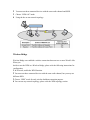
1. If you are in Classic Start menu view, click Start Settings Control
Panel Network Connections.
If you are in Start menu view, click Start Control Panel Network
Connections.
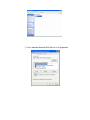
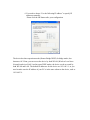
2. Double click “Local Area Connection”