1
8
Universal Badge Format (UBF)
User Manual
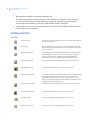
2. Enter the appropriate information and from the toolbar, click the Save Wiegand Format icon
from the menu bar, select Format, then Wiegand, then Save to save this badge format as
<filename>.wgd on your PC in the same folder as the ubf.exe file.
3. Once the new format has been saved to the PC, click the Save to Micro icon
select Micro, then Save to Micro.
, or
, or from the menu bar,
A message notifies you that the Micro will reset, and the format will be loaded into the micro.
4. Click OK to continue.
Once the micro resets, it connects to the micro again and displays the formats currently stored in the
micro.
5. Verify that all Format tabs are present.
6. Disconnect the PC from the micro.
Note:
At this time, if you have made changes to the IP address in the parameter block as discussed on page 3, make
sure you reset them to their original value.
7. Reset the micro.
8. Re-establish the Picture Perfect host connection.
9. Once the database is downloaded to the micro from the host, present a badge of each format type and
confirm that the proper Badge ID is indicated at the host.
How to load pre-defined Wiegand badge formats
1. From the menu bar, select Format, then Wiegand, then select either 2801 or 2802.
A new tab displays containing the label, 2801 or 2802, and populated with the information specific
to that badge format.
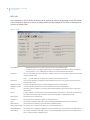
Figure 4. System-provided Wiegand formats