1
5
Configuration tab
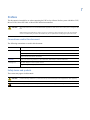
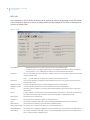
When the UBF application is launched, this is the only tab present. It is from this tab that you configure the
UBF application to connect to the micro and then create and load new badge formats to the micro.
Figure 1. Configuration tab
The instructions in
this document
apply to Picture
Perfect only.
Micro Type
• Picture Perfect
Select if the micro is flashed with Picture Perfect application code.
Note:
The instructions in this document apply to Picture Perfect only.
Micro IP Address
The network micro IP address. For example: 192.9.200.90 Obtain this information from the host system
administrator.
Connection Type
• Serial
Select this radio button if the micro is connected directly to the PC running the UBF application
using a serial connection.
Note:
Serial connection to a PXN must be made to the secondary port (J4) on the Power/
Communications board. The PX connects to the primary port (J3).
• Network
Select this radio button if the micro is connected to the PC running the UBF application via a
network connection.
Note:
The UBF Tool does not support a dialup modem connection to the micro. If the micro has a
modem, the user must use the FlashTool to set the micro to direct connect, load the
badge format(s) using the UBF Tool, then restore the micro to dialup.
COM Port
From the drop-down list, select the communication port being used in the PC running the UBF
application.
Baud Rate
Select the Baud Rate at which the Power/Communication board is configured. The available baud rates
are: 2400, 4800, 9600, or 19200,