1
PROJECTOR QUICK REFERENCE & CERTIFICATION
1. BASIC CONNECTIONS: ________ (initial here)
PC: VGA cable to connects from PC’s Monitor “output” to DA’s “Input” (you may have to unplug the existing monitor
cable to make this port available)
Use the monitor cable to connect between monitor and DA’s “Output 2” port
DA’s “Output 1” port is already connected (via VGA) to the wall plate
LAPTOP: Use provided cable to connect between the laptop’s VGA “output” and the DA’s “Input”
DVD/VCR: Plug the 3RCA (yellow/red/white) cables into corresponding “output” connections on DVD/VCR.
2. TURNING PROJECTOR ON & OFF: Turning the unit off properly will both conserve your lamp life, and extend the life of
the projector. The CPX300 is not meant to run for more than about 8-9 hours consecutively. Doing so causes
overheating, stresses internal parts, and shortens projector life. So be sure it’s turned off properly when not in use.
OFF: 1. Press the red “Standby/on” button on the remote control ; 2. When the “Power off?” message appears, press
the red “Standby/on” button again. __________ (initial here)
ON: Press “Standby/On” button on the remote control. The lamp will light up and Power indicator begins blinking green.
When power is completely on, indicator stops blinking and becomes steady green. __________ (initial here)
3. USING BLANK BUTTON: Use the remote control’s “Blank” button to blank out the screen _______ (initial here)
4. DISPLAYING PC & DVD/VCR SOURCES USING THE REMOTE CONTROL: Use the remote control’s “Computer” and
“Video” buttons to select & switch between display sources _____ (initial).
5. IF PROJECTOR IS RESET TO FACTORY SETTINGS: Contact your STS if projector resets to factory settings. STS will
restore image orientation (using Mirror feature), set Whisper Mode, & adjust Keystone if necessary. ______ (initial)
6. FILTER CLEANING: You may occasionally receive an onscreen message prompting you to clean the air filter. Contact
your STS if you receive this message. He or she will clean the filter and reset the timer.
7. BASIC TROUBLE SHOOTING: If you don’t see a displayed image, it may be helpful to check the following:
Be sure you’ve chosen the correct input source (PC, Video, etc …)
Ensure proper connections,
Ensure the screen “Blank” option is not selected (toggled via “Blank” button on remote control).
NEED HELP WITH YOUR HITACHI CP-X200 PROJECTOR?
1. If a problem arises, contact your School Technology Specialist. Instructors may also first utilize the ”Basic Trouble
Shooting” tips listed in #7 above. If this does not solve the issue, contact STS.
2. School Technician will utilize Advanced Trouble-Shooting Tips to eliminate user error.
3. School Technician will contact 1-800-HITACHI if additional troubleshooting. And call Troxell to arrange repair if
needed.
Suzanne Wright, Branch Manager 800-578-8858, ext. 4503
Troxell Communications, Salt Lake City
AUDIO QUICK REFERENCE & CERTIFICATION
1. BASIC SETTINGS:
Volume settings were appropriately set during installation
If instructor wishes to adjust volume, simply turn the corresponding nob on the receiver _____ (initial)
Receiver is always left “on”. Receiver automatically goes into standby/sleep mode when not used.
2. FIRST TIME USE:
Charge Batteries (this will likely be completed by your STS). If not already done for you, simply insert rechargeable
battery into microphone and connect to the AC Power charger, or receiver’s charging port)
Always use rechargeable batteries
You can use regular alkaline batteries (non-rechargeables) if needed. But, do not attempt to recharge them!
3.
DAILY USE:
1. Turn microphone on using the on/off switch (GREEN LIGHT comes on) ______ (initial)
2. Place microphone around your neck and connect the clasp ______ (initial)
3. At end of day, remove microphone, turn it off, and connect to charge cord ______ (initial)
4. Use MUTE button to temporarily block your microphone sensitivity (blinking green light) ______ (initial)
5. Charge microphone daily by using EITHER the receiver’s charger, OR, portable AC charger ______ (initial).
*NOTE: If you forget to charge your microphone, you can utilize regular alkaline batteries. But, be sure to replace with
the rechargeable ones at the end of the day. Do not attempt to recharge the microphone with regular (nonrechargeable) batteries installed.
*NOTE: The rechargeable battery will need to be replaced from time to time. Signs that a new rechargeable battery is
needed are: Microphone starts to need frequent charging ; Or, static is heard when microphone is on.
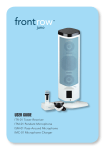
4. OPTIVOICE
Use Opti-voice feature to increase intelligibility and emphasize consonant sounds. Optivoice switch is located on
receiver. Turn to medium or high when desired (for ESL students, spelling tests, reading to young children, etc .. ),
Whenever Phonemic Awareness is especially critical ______ (initial)
5. PC AUDIO
Ensure mini stereo cable is connected at the wall plate and the PC’s audio out port ______ (initial)
Adjust volume at receiver if desired ______ (initial)
6. DVD/VCR AUDIO
Ensure the 3RCA cable (red/white/yellow cable) is connected into corresponding output ports on your DVD/VCR.
If properly connected, DVD/VCR audio can be played over the speaker system. ______ (initial)
7. Other audio sources: Portable audio sources may also be connected in one of 2 ways: ______ (initial)
Connect using the teacher microphones “Aux In” port
Or, connect using the wall plate’s inputs (dual RCA or mini stereo)
8. Training Video is available at the following link:
http://www.gofrontrow.com/classroom%20amplification/video/training/prodigital940training9MB.wmv
9. User manual is available at:
http://www.gofrontrow.com/classroom%20amplification/PDFs/userguides/prodigital940/prodigitalug.pdf
10. If you need help … Contact your STS
Suzanne Wright, Branch Manager 800-578-8858, ext. 4503
Troxell Communications, Salt Lake City