1
49
Application Note 19:
Barcode Readers
P122685 Issue 1
Introduction
The capabilities of the 7UHQG9LHZ# range of recorders can be extended by a Barcode Reader
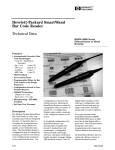
PCB option, which allows the recorder to receive data from a standard compatible Code 39
barcode reader wand, such as the Hewlett Packard HBSW-8300.
Using 7UHQG0DQDJHU#3UR , a barcode description of up to 19 characters may be entered and
the barcode printed out. As the barcode is "swiped" by the wand, it can set a Marker, signal the
beginning or end of an event; eg. beginning to use particular stocks, or finishing those stocks.
An event, in turn, may trigger an effect, such as "Stop Recording". Trigger options available
are indicated in the 7UHQG0DQDJHU#3UR Marker Effect dialog box.
The example on the next page shows a bar code for "Start Batch 14780" which is swiped by
the wand. The event is added to the bottom of the Events List on the recorder. The information
is saved to disk, then using 7UHQG0DQDJHU#3UR , the event of "Start Batch 14780" is indicated
on the graph.
Utilisation
A Barcode Reader can be an effective mechanism in areas of Production Control; User/
Operator ID, Batch Control, Work in Progress Reporting or as a Test Facility. Its use is unconstrained in circumstances where a start and stop time may have to be recorded and identified
as an event. Elimination of human error in respect of eg. transposing of figures may also be an
influencing factor in the selection of this tool.
: B a r co d e R ea d er s P 1 22 6 85 I ss u e 1
50
Data from Barcode
Reader PCB used
as Event description or to set Marker
Barcode Reader fitted to
7UHQG9LHZ Recorder
1. Swipe Barcode
2. Event appears on Event
List on the recorder
3. Save to disk
4. Event indicated in 7UHQG0DQDJHU#3UR
Figure 1
: Ba r co d e R e ad er s P 1 22 6 8 5 I ss u e 1
51
Installation
Ensure all power to the recorder is disconnected before attempting all maintenance procedures. Full anti-static precautions MUST be observed when in contact with the electronics of
your recorder. Upon completion of service procedures detailed in this manual two basic safety
tests should be performed in order to ensure continued safe operation of the instrument.
1. Earth Resistance; 25 Adc applied between case and protective earth, bonding resistance should be <
0.1 Ohm
2. Insulation Resistance; 500Vdc applied between the earth terminal, and the live and neutral terminal
shorted together, insulation resistance to be >2.0 MOhm. (Meg Ohm, NOT milli Ohm)
Removing the rear panel.
• To remove the rear panel of the recorder, loosen and remove the four No 6 x ¾ self tap
screws at each corner of the rear panel, taking care to retain the toothed washer under each
screw head. (Figure 2)
• If fitted, loosen and remove the mounting clamp screws
at the top and bottom of the extrusion to allow removal of
the back panel. NB. Only one of the two screws may have
to be removed while loosening the other will be sufficient.
• Disconnect the 2 pin connector carrying the brown and
blue wires from the power supply board.
• Disconnect the flying earth lead from the power supply
board to the earth terminal on the filtered mains connector on the rear panel.
Figure 2
• Loosen and remove the small earth screws (M3 x 6mm)
and toothed washers on either side of the extrusion to enable the PCB assembly to slide out.
WARNING ! Due to the internal wiring the PCB assembly will only slide out approx. 30mm.
Inserting the Barcode Reader Card .
• Fit the card in connector position (See Figure 3) J9 and J18 on
the left side of the motherboard
ensuring the pins are in the correctly corresponding ports. That
is, the pins on the communications card match the indents on
the ports. (i.e the card is placed
in its sockets so that pin 1 of the
card is fitted to pin 1 of the
socket)
Barcode Reader card
Motherboard
Figure 3
• Slide the PCB assembly carefully back into the extrusion via the
guide channels on the extrusion, until the fixing pillars on both
sides of the vertically aligned PCBs are in line with the single fixing holes on either side of the extrusion. Ensure that no internal
wiring is damaged as the PCB assembly is returned (Figure 4).
• Remove the appropriate plastic blanking plate safety cover on
the left of the rear panel by pushing out the push rivets from
behind to allow the Barcode Reader socket to fit though the rear
panel.
Figure 4
Replacing the rear panel. •
: B a r co d e R ea d er s P 1 22 6 85 I ss u e 1
52
• Replace and tighten the two small earth screws (M3 x 6mm) and toothed washers on
either side of the extrusion, torque to 120cNm.
• Reconnect the 2 pin connector carrying the brown and blue wires to the power supply
board.
• Reconnect the flying earth lead from the
power supply board to
the earth terminal on
the filtered mains connector on the rear
panel. (See Figure 5)
Flying earth lead
from power supply
board
Earth terminal
• Reposition the
toothed washers and
Figure 5
replace and tighten
the four No 6 x ¾ self tap screws at each corner of the rear panel.
• If fitted, replace and tighten the mounting clamp screws at the top and bottom of the
extrusion.
Configuration
Once the Barcode Reader PCB is installed, configure your recorder to recognise the
new hardware. Select the Factory option of the Special Setup menu (as described in Section 6.3.7 of the 7UHQG9LHZ#8VHU#0DQXDO ), select Hardware Options, then choose the
Barcode Reader option (this item will be ticked when enabled).
: Ba r co d e R e ad er s P 1 22 6 8 5 I ss u e 1
53
Printing a Barcode
In 7UHQG0DQDJHU#3UR select Data, then Print Barcode from the drop down menu (Figure 6).
The Barcode Printing dialog box will appear (Figure 7). Click in the Enter barcode string and
type the description as required using the characters available as a string of up to 19 characters, which is then automatically converted to a barcode
When completed, click OK, and the Print Set Up Box will appear. Ensure the correct printer
is selected, paper size is valid and orientation is as required, click OK.
Figure 7
Figure 6
Operation
To configure the barcode reader wand to set a Marker, select the Barcode Reader option
from the Marker Causes menu (see Section 6.3.6.1 of the 7UHQG9LHZ#8VHU#0DQXDO ). Each
swipe of the barcode will then activate a Marker in the same way as any other Marker cause.
When a barcode has been successfully read, the recorder will emit an audible "beep".
Select Events List from the Quick Menu (see Section 7.3.1.3 of the 7UHQG9LHZ#8VHU#0DQXDO ),
to see the time and date of the swipe and the code in the Description field.
: B a r co d e R ea d er s P 1 22 6 85 I ss u e 1
54
Barcode Reader Test Procedure
• In the Factory Hardware Options, ensure "Barcode Reader code 39" is selected.
• From the Marker menu choose and enable Marker 1.
• Set the Cause to be "Barcode Reader".
• Check the Effect "Mark on Chart" is selected.
• Connect the Barcode Reader to the 9-way connector of the rear of the recorder.
The Barcode Reader should now have a red light visible in the tip. If this is not visible, there
is a hardware fault. Once the light is visible swipe the barcode below, an audible "beep" should
be heard.
• Press the "Quick Menu" key (!) and select List Events.
• Check the text on the above barcode is shown at the bottom of the list.
• If a "beep" is audible but the text is corrupt, return to the Factory menu, re-select the Barcode Reader and repeat the test.
NB To refresh the Events List, exit the list and re-select it. This will display the most recent events.
: Ba r co d e R e ad er s P 1 22 6 8 5 I ss u e 1