1
Network Video Recorder User Manual
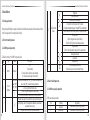
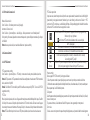
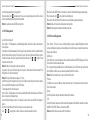
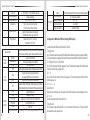
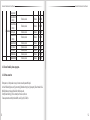
Icon
Instruction
1.Whenplayerisinnormalmode,itcontrolplayspeeddecrease,
following 16X, 8X, 1X, 1/2X, 1/4X, 1/8X
2. When player is in pause status, it is key-frame-backward
3.Whenplayerisinfastviewmode,itcontrolviewsteptimeincrease
Control play direction in backward
Pause
Playback Snapshot
Backup shortcut key, refer to “4.8BackUp”
Exit
Mute
Network Video Recorder User Manual
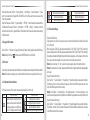
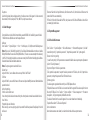
Icon
Instruction
1. When player is in normal mode,
it control play speed increase,
following 1/8X, 1/4X, 1/2X, 1X, 8X, 16X
2. When player isin pause status, it key-frame-forward
1.Begin to play
2.Control play direction in forward
Stop
Fast view mode key, refer to next chapter for details
Switch playback sub-screen mode,amongsinglesplit/4splits
Full-screen key to display only channel video.
In full-screen state, click the key to switch back
Switch playback video display in 4:3
resolution or full-window resolution
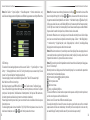
hen playback, the channel image arounded with green box shall be focus image, user can use the left mouse
button to click it for switching. If userhas accessed audio output device, they can connect the channel playback
voice of focus image directly.
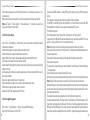
4.8 Backup
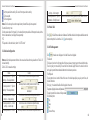
Enter<Toolbar>-<Backup>, as the following left figure:
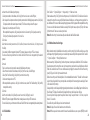
In the backup screen, click button into the backup screen directly. In the area of playback timeline , click the
right mouse button, then the backup line(black) appears, click the right mouse button again on other time lines,
the other backup line appear, click [ ] to pop the backup, the backup data shall be the recodingdata selected
by two backup scale lines. System will detect and show all of the backup device firstly, select the data type, video
type, disk group selection, channel selection , backup time and backup device that need to be backed up, click
〖Start〗key to start the backup of recording data.
Note 1: in the playback screen, user can cancel the setting of scale lines by clicking the right mouse.
Note 2: When user enters into the backup screen from playback screen, the video type, disk group selection,
and channel selection on backup screen all use the filter criteria of playback.
Note 3: If there is no backup device found, a prompt will appear to remind users of connecting USB device well.
Data Type: H.264 Raw, H.264 MP4 and H.264 AVI format. When backup in MP4 type, user need to use MP4 player.
After installed player active, user can use Windows Media Player to play video
User can click〖update〗to refresh the capacity of all the selected video after re-select the type or time of video.
When in the process of backup, the screen will show the current processing information.
Note: in the process of backup, click [Hide] to switch to the preview screen. In preview screen, click to go
back to the backup screen.
4.7.3 Fast playback
4.9 Picture and File Management
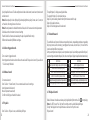
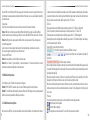
Fixed time viewing
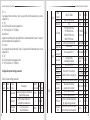
Click[ ], user can see the interval box of fast view mode:
after setting, user can fast
view the video by the setting interval time.
Custom viewing
Double-click mouse in timeline area toselect a play tick,drag the play tick to view video quickly.
27
4.9.1 Snapshot
Snapshot includes preview snapshot and playback snapshot.
Preview snapshot: Click〖 〗on<Toolbar>, user can capturemonitoringpicture of focus channel(channel
28