1
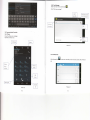
card has been removed safely. Then tap the Micro SD card located in the slot
your fingertips to pop out the Micro SD card.
[Note] Do not insertthe Micro SD card byforce; this card can only be applied in
one direction.
[Note] Do not remove the Micro card before unmounting it if the device is on, or
the card may be damaged.
[Note] lf the memory card is write-protected, data will not be formatted and
written, please remove the write protection before such operations.
[Note] Major brand memory card are recommended to avoid the risk of the
memory card not being compatible with the E-Ceros Motion S.
SD
1.2.8 Connecting to the Computer
Connect the small end of the USB cable to the micro USB slot on the E-Ceros
Motion S and then connect the larger end to a free USB port on a computer Select
"Settings > Developer options > USB debugging", and the device will be connected
with the computer, and you can copy files to the device.
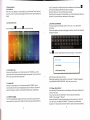
1.2.9 Browsing Files
Click " Explorer"
El, *h"r"
you
*ill
be able to see the files on the device
1.2.10 Starting Programs
Clie k an application icon you want to start and it will switch on. All apps
preinstalled on the E-Ceros Motion S will function with no issues, but E-Ceros can
not verify that all Android Apps downloaded off the Google Play Store are
compatible.
1.2.11 Closing Programs
Press the iconl continuously or the "ESC" key, and the device will close the
active program. You can also use the corresponding function in the management
list with currently running applications to close the program.
1.2.12 Screen Operation
You may zoom in and zoom out in applications which support zoom gestures, such
as photos, lE browser, mail, map etc. Zoom in or out the screen contents by
opening or closing your two fingers.
ln applications which support rolling gestures, such as photos, lE browser, mail and
map etc. you can scroll the screen contents by sliding your fingers on the screen. lf
you want to stop the rolling screen, you just need to touch it.
1.2.13 Home Screen
On the home screen, you can navigate to different pages by sliding your fingers on
the screen quickly.
To customize your home screen, press a blank area on the home screen interface
for a few seconds and an option named "Choose wallpaper from menu" will appear
from which you can then you can set the home screen.
To move or delete apps from the home screen, press icons of applications you
need to move or delete from the home for several seconds, this will bring up the
moving model (the icon of the application will be turn bigger), then drag the icon
to desired position, or move to the X to remove the app from your home screen.
[Note] Deleting a app icon from the home screen does not delete the app from the
memory on the E-Ceros Motion S.
To move the app icons to other pages on the home screen, press the app icons you
need to move until it enters into the moving model (the icon of application will be
turn bigger), then drag the icon to the left or right side of the home page, at which
time the next page will appean You can drop the icon on the page at your desired
location, or continue to move it to different iages.
1.2.14 Screen Gestures
1) Press/Click
When you wish to start an app from the home screen, want to navigate website
links, ect, press the screen on the app, link, ect.