1
EnGenius Quick Start Guide
ESR-1220 Wireless Broadband Router
Hardware Installation
1.
2.
3.
4.
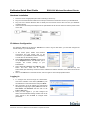
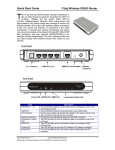
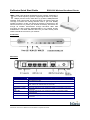
Place the unit in an appropriate place after conducting a site survey.
Plug one end of the Ethernet cable into the LAN port of the device and another end into your PC/Notebook.
Plug one end of another Ethernet cable to WAN port of the device and the other end into you cable/DSL
modem (Internet)
Insert the DC-inlet of the power adapter into the port labeled “DC-IN” and the other end into the power socket
on the wall.
IP Address Configuration
The default IP address of the device is 192.168.1.1 In order to log into this device, you must first configure the
TCP/IP settings of your PC/Notebook.
1.
2.
3.
4.
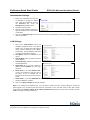
In the control panel, double click Network
Connections and then double click on the
connection of your Network Interface Card (NIC).
You will then see the following screen.
Select Internet Protocol (TCP/IP) and then click
on the Properties button. This will allow you to
configure the TCP/IP settings of your
PC/Notebook.
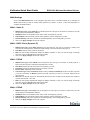
Select Use the following IP Address radio
button and then enter the IP address
(192.168.1.21) and
subnet mask (255.255.255.0). Ensure that the IP address and subnet mask are on the same subnet as the
device.
Click on the OK button to close this window, and once again to close LAN properties window.
Logging In
1.
2.
3.
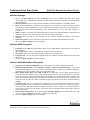
To configure the device through the web-browser,
enter the IP address of the device (192.168.1.1) into
the address bar of the web-browser and press Enter.
After connecting to the IP address, the web-browser
will display the login page. Specify admin for both the
User Name and Password and then click on the
Login or OK button.
Once you have logged in, you man configure the
WAN, LAN and Wireless settings. Please refer to the
user’s manual in the CD-ROM to configure these
parameters.
Quick Start Guide v.1.2
ESR-1220 Wireless Broadband Router
Please refer to the User’s Manual in the CD-ROM for complete instructions.
2