1
EnGenius Quick Start Guide
ESR-1220 Wireless Broadband Router
Administrator Settings
1.
2.
3.
4.
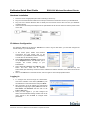
Before you commission the device it
is necessary to change the default
user name and password. Click on
the Password link under the
Management navigation menu.
Specify a new user name.
Specify a new password and then retype the password in the next field for
confirmation.
Click on the Apply Changes to save the new user name and password. Use the new settings to log into the
device in the future.
LAN Settings
1.
2.
3.
4.
5.
6.
7.
8.
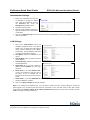
Click on the LAN Interface link on the
navigation drop-down menu. This feature
allows you to configure the LAN interface
using a static IP address or as a DHCP
server/client. This IP address is also used
to access the web-based interface.
IP Address: Enter an IP address for this
device.
Subnet Mask: Enter the subnet mask for
this IP address.
Default Gateway: Enter the IP address of
the default gateway.
DHCP-Static IP: If you use a Static IP
address, select Disabled from the dropdown list.
DHCP Client: If you select DHCP Client,
you are not required to enter the rest of
the fields, as the IP address will be
provided to the device by the AP or DHCP
server
DHCP Server: If you select DHCP Server from the drop-down list. This device will act as a DHCP server and
assign IP address to it clients.
Click on the Apply Changes to save the changes.
Note: If you change the IP address here, you may need to adjust your PC’s network settings to access the
network again. The computers (and other devices) connected to your LAN also need to have their TCP/IP
configuration set to DHCP or Obtain an IP address automatically. Please refer to the user’s manual in the CDROM to configure the advanced settings.
Quick Start Guide v.1.2
ESR-1220 Wireless Broadband Router
Please refer to the User’s Manual in the CD-ROM for complete instructions.
3