1
EnGenius Quick Start Guide
ESR-1220 Wireless Broadband Router
Wireless Settings
1.
2.
3.
4.
5.
6.
7.
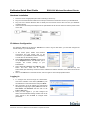
Click on the Basic Settings link under the Wireless menu on the navigation drop-down menu. These
options allow you to enable/disable the wireless interface, switch between the 11b/g and 11b radio band and
channel frequency
Wireless Interface: Place a check in this box to disable the wireless interface, it is enabled by default.
Band: Select the IEEE 802.11 mode from the drop-down list. For example, if you are sure that the wireless
network will be using only IEEE 802.11g clients, then it is recommended to select 802.11g only instead of 2.4
GHz B+G which will reduce the performance of the wireless network. You may also select 2.4GHz B or
2.4GHz G
SSID: The SSID is a unique named shared amongst all the points of the wireless network. The SSID must be
identical on all points of the wireless network and cannot exceed 32 characters.
Channel: Select a channel from the drop-down list. The channels available are based on the country’s
regulation.
Show Active Clients: Click on this button to view a list of clients that are associated with this device.
Click on the Apply Changes to save the changes.
Wireless WEP Encryption
1.
2.
3.
4.
5.
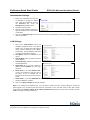
Encryption: Select WEP from the drop-down list in order to enable WEP security and then click on the Set
WEP key button.
Key Length: Select a 64-bit or 128-bit WEP key length from the drop-down list.
Key Format: Select a key format such as HEX or ASCII from the drop-down list.
Encryption Key: You may use up to four different keys for four different networks. Select the current key that
will be used.
Click on the Apply Changes to save the changes.
Wireless WPA/WPA2-Mixed Encryption
1.
2.
3.
4.
5.
6.
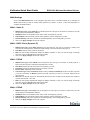
Encryption: Select WPA or WPA2-Mixed from the drop-down list in order to enable WPA security.
WPA Authentication Mode: Select Enterprise (Radius) or Personal (Pre-Shared Key). If you select
Enterprise (radius) then the pass key is located on the RADIUS server, however, if you select Personal (PreShared Key) then you may assign a key on this configuration page.
WPA / WPA2 Cipher Suite: Select TKIP or AES as the cipher suite. The encryption algorithm used to
secure the data communication. TKIP (Temporal Key Integrity Protocol) provides per-packet key generation
and is based on WEP. AES (Advanced Encryption Standard) is a very secure block based encryption. Note
that, if the bridge uses the AES option, the bridge can associate with the access point only if the access point
is also set to use only AES. The device negotiates the cipher type with the access point, and uses AES when
available.
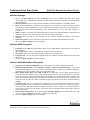
Pre-Shared Key: The key is entered as a pass-phrase of up to 63 alphanumeric characters in ASCII
(American Standard Code for Information Interchange) format at both ends of the wireless connection. It
cannot be shorter than eight characters, although for proper security it needs to be of ample length and
should not be a commonly known phrase. This phrase is used to generate session keys that are unique for
each wireless client.
Authentication Radius Sever: If you have selected Enterprise (Radius) as the authentication type then
you must specify the RADIUS port number, IP address, and password.
Click on the Apply Changes to save the changes.
Quick Start Guide v.1.2
ESR-1220 Wireless Broadband Router
Please refer to the User’s Manual in the CD-ROM for complete instructions.
5