1
•
the look and feel between 72 options,
•
update the distribution of Editing Areas between splitters, internal windows or frames,
•
change the language between English and Portuguese,
•
if the areas are saved automatically, ignored, or a message informing that the areas is
not saved should be presented,
•
if the configuration parameters of the filters should have an icon to clean them up or if
the content is cleaned when the mouse is shake over the field.
2.4 File compare
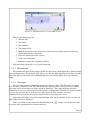
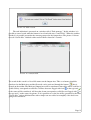
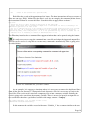
The FilterAny provides a quick way to compare the text between the editing areas. This can
be done bu the “Compare” menu. With this menu it is possible to compare any combination of the
editirng areas, as shown on picture: 16.
Picture 16: Menu to compare
text areas.
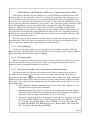
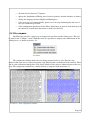
The comparison window shows the texts being compared side by side. The plus sign
indicates that some text as added and a minus sign indicates that a content has been removed. There
can be some indications though lines. This shows blocks of lines that are identical between the two
texts. The comparison window has a similar format as compared with the picture: 17.
Picture 17: File comparison window.
Page 14