1
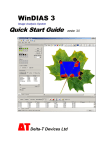
WinDIAS 3 Image Analysis System Quick Start Guide Delta-T Devices Ltd version 3.2 Overview Note: Not all TWAIN devices will work Page 2 Connect camera to PC PC detects camera, and runs camera Install Wizard(s) 2 3 Live video 8 4 7 6 10 5 NGW 15/4/2011 Long Leaf Conveyor Save image Measure If using conveyor set shutter speed to about 10 msec to minimise mains flicker Optimise camera settings Select camera and resolution Pick colours Live Video 9 Grab Image Enable Video Run WinDIAS & select Settings, Video Video Camera Operations Optimise and save camera settings 6 Pause Video to allow IDS uEye camera settings to be saved (within Advanced Camera Settings) 1 Video Camera Operations Page 3 Define diseased leaf Define healthy leaf Then click here 5 8 7 Area mode Save results to file Measure Specify % area Click here 4 6 Then click here Click here 2 3 Aquire image 1 Control Window Undo ge Im a a ry Pr im y Te rtia r r lou co Pic k m Image Window Click and drag to define optional area of interest Results Window Zo o ry da on Se c ag Dr ra t e lib Ca st int e re ao f Ar e To Measure % Diseased Leaf Area using a Video Camera To Measure % Diseased Leaf Area Page 4 PC Requirements: A dual core CPU, either an Intel Core Duo and later, or AMD X2 or later. Microsoft Windows XP (SP3), Vista (32 or 64 bit), Windows7 (32 or 64 bit). Minimum of 1 USB port for WinDIAS dongle, and 1 for camera or scanner. CD ROM drive if installing software from a CD Optional: Microsoft Excel for processing saved measurements Acrobat Reader for reading documentation. IDS uEye video camera driver version 3.8 (if using an IDS uEye camera) provided on WinDIAS 3.2 CD. Install Software 1) Disconnect the Video Camera 2) Insert the CD. It should auto run and display the CD Menu. If this does not happen, then, from the Start menu, browse to the CD and Run Setup.exe. If running Windows Vista or later, you may be asked to confirm to run Setup. 3) Install WinDIAS Select the link to the Installation Guide and read it. Then, when you are ready, click the Install WinDIAS 3 link. 4) Install the Video Camera driver Refer to the on-screen guidelines and instructions to guide you through installing the USB video camera driver. 5) Connect Video Camera to PC Use the USB cable to connect the camera to the PC. Windows should auto-detect that a new USB device has attached and integrate with it. How this process appears depends on your operating system. Windows 7 is really quite slick. Under XP the hardware detection wizard runs twice. Page 5 6) Insert Copy Protection Dongle Insert the WinDIAS Copy Protection USB dongle. 7) Run WinDIAS On first installation, when WinDIAS runs, it loads and displays a maple leaf image. If using a video camera go to step 6. If using a scanner, or a still digital camera, go to step 11. 8) Select the Video Camera Select Settings, Video, and check the Enable Video box. In the Video Capture Device choose your camera from the list offered. Click OK. The video image should now appear. If not, disconnect and reconnect the camera cable. Select the highest convenient resolution, (lower it to increase frame rate if too slow in conveyor mode). 9) Configure Camera Set the lens aperture and focus. In Settings, Video, Advanced Camera Config, Image parameters: ensure Auto Gain is disabled. In Image Processing: enable Colour Correction. In Color Settings: you want white to look white, so select a colour temperature which achieves this, or with live video enabled and looking at a white sheet of paper select “one shot”. To change shutter speed select Settings, Video, Advanced Video Config. Note: Other camera brands expose their settings differently. 10) Save Video Camera Settings To ensure the IDS camera settings persist from one session to the next select Settings, Video, and enable Pause Video. Then in Advanced Camera Config, Device, select Save Settings. Then click OK. Note this option is only available when the video stream is paused. Page 6 11) Using a Scanner or Digital Camera Any BMP, TIFF or JPEG image on your PC may be imported for measurement in WinDIAS using File, Import Image. WinDIAS can also import images directly from many, but not all, scanners and digital cameras having a TWAIN interface driver. 1. Install the scanner or digital camera software on your PC. 2. In the Settings, TWAIN window click on the down arrow to see what devices may be available. It is a matter of testing to see if it works. In this example you can see an HP G2710 scanner exposed more than one driver. The one with the word “TWAIN” in works OK with WinDIAS. 3. Select File, Import TWAIN to activate the scanner – it may pause a minute to warm up first. 4. When finished the TWAIN device will pass its image file into WinDIAS. 5. To save an image for batch processing later ensure the WinDIAS colour picking overlays are turned off, then select File, Export to save in .BMP format. See also Batch Processing. Lighting Cover windows and give lights 30 minutes to warm up. Poorly controlled illumination can dominate the accuracy of your results. Variations in lighting may also affect the accuracy of leaf images obtained by a flatbed scanner, due to the directional nature of the scanner light source and the finite thickness of, for instance, the ribs and veins in a leaf. To evaluate the magnitude of this source of variation, scan a particular leaf at different orientations, and Batch Process the data. How to Calibrate 1. 2. 3. Grab an image of a ruler. Click on the Calibrate tool. Drag the mouse cursor to draw a line a known distance along the ruler. 4. Enter its Value and Units. Note: see below for long leaf calibration. Page 7 Batch Processing Introduction to batch processing Batch Processing acts like a “Virtual Conveyor Belt” - quickly processing a large number of image files on your PC. It can measure BMP, JPEG or TIFF image file formats. It can be set to measure WinDIAS’s area or shape measurement functions. You point WinDIAS at a folder full of image files. WinDIAS loads each image in turn, measures it, and saves the results back into the same folder. Illustration showing the contents of a folder before and after using the Batch Process command If you previously saved a WinDIAS (.wd3 format) image file to this folder with the name “Reference.wd3” then WinDIAS will find it and use the settings from that file to process all the other images in that folder. If no image file called Reference.wd3 is found in the folder, WinDIAS will use its current threshold settings and magnification. Warnings: If no threshold settings have been set, the results will all be zero! If no magnification is set, the units will be in pixels! Page 8 How to Measure using Batch Processing 1. 2. 3. 4. 5. 6. 7. 8. Using File, Import Image, load an image file into WinDIAS, calibrate it, and set the detection thresholds by picking colours for the Primary, Secondary or Tertiary regions, whatever you require. Create a test folder for the tests and using File, Save, save the image as Reference.wd3 to this folder. Place all the images files you want processing into this folder. Select File Batch Processing to display the Batch process dialog Click on the browse button and select the test folder. Select Area or Object Measurement. These will measure according to the settings on your Area or Object Control windows in WinDIAS. Click Start Processing. Inspect the results as below. Batch Processing Results Results are saved to the same folder in a text file called “Results.txt” along with a second “Settings.txt” file The Results.txt file is formatted as tab-separated values for ease of importing into spreadsheets such as Excel. The Settings.txt file contains the reference file name and path, date and time, and the mid value and range for each of the colour zones picked. Tip: To extract a record of the colour threshold settings from any .wd3 image file, save a copy, naming it “Reference.wd3” to an empty folder and run the batch process command on that folder. A Settings.txt file will be created with the colour threshold settings in. Conveyor Operations WinDIAS can automatically grab and measure the area of leaves fed individually through the Conveyor, saving both individual readings and running totals. Leaves too long to be grabbed all at once can be measured using the Long Leaf mode. Conveyor operations only work with the video cameras, and work best with the global shutter camera supplied with the WinDIAS 3 Rapid System. Page 9 How to Measure Leaf Area by Conveyor 1. 2. 3. 4. 5. 6. 7. 8. 9. 10. 11. 12. 13. In Settings, Video, Advanced Video Config... set the video camera shutter speed to about 10ms. If the shutter speed is too slow the image blurs and accuracy is lost. If too fast the illumination beats with the mains frequency. In Settings, Video, Advanced Camera Config... optimise lens aperture and camera settings. It may be necessary to repeat steps 1& 2 to optimise the image. To save the camera settings select Settings, Video, Advanced Camera Config..., Device, Save Settings and press OK. Grab an image of a stationary ruler and Calibrate as described above. Grab an image of a stationary leaf and pick healthy and diseased areas. Enable Conveyor in the Area Control Window Select live Video. Turn on the Conveyor via its own Control Box. Note it can go forwards and backwards. When running correctly, each leaf is grabbed once, only when fully in the field of view (or Area of Interest, if defined). Feed leaves in and check they are being fully thresholded. If necessary, adjust the colour picking thresholds until you are satisfied. Clear any unwanted results using the delete button Enable Log data in the Area Control Window, and name a results file in the Save As dialog. Feed leaves carefully into the conveyor, one at a time. See also the online Help and WinDIAS User Manual. How to Measure Long Leaves Use this for leaves which are too long to be grabbed all at once. The Long Leaf mode requires a leaf of known area for calibration. Instead of grabbing each whole leaf once, the conveyor constantly measures a narrow vertical strip in the field of view, as the leaf continuously enters, producing a cumulative total proportional to the whole area. This is then scaled according to the known area of the reference leaf, which you have to determine independently. 1. Cut a short section from your long leaf and measure its area as described above in stages 1 to 13 of How to Measure Leaf Area by Conveyor. 2. Enable both Conveyor and Long Leaf modes, and select live Video. 3. 4. 5. Feed through your reference leaf again, and enter its known area when asked. The long leaf mode is now calibrated. Feed leaves carefully into the conveyor, one at a time. Page 10 Conveyor Operation Summary Operation Place the Conveyor on top of the light box. Avoid bright ambient light and sunlight. Adjust the belt tension – see Belt Tension Adjustment. Slide guide rods into position. Run WinDIAS software, and optimise camera, lens and threshold. Click on the Calibrate tool and calibrate with ruler. Toggle Conveyor on in the Area Control Window. SLACKEN THE BELTS AT FINISH Belt Speed Selection Choose the fastest speed that does not blur the image. Set the camera shutter to around 1-10 ms. The image should take about two seconds to cross the screen. Drop the idlers pulley in its slot to release the drive band tension. Remove the knurled nut from the motor shaft. Fit the desired pulley and lock it in place. Re-tension the drive band to eliminate slip. Do not over-tighten. Keep all liquids away from the drive band and pulleys. Belt Removal De-tension the belts. Remove the line-guides. Unlock and release the roller shafts. Lift out each belt and its pair of rollers. On re-assembly, locate the bottom roller inside the rubber drive band. Belt Renewal and Cleaning Cut the new material to length - top belt: 80 cm, bottom belt:104 cm. Make a butt-joint using clear adhesive tape on both sides. Clean the belts with anti-static spray or a damp soft cloth. Avoid abrasive cleaners and solvents. Belt Tension Adjustment The upper and lower conveyor belts are tensioned with four belt-tensioning nuts. Initially the belt tension should be minimal. Ensure that the tension is even and that the belts are centred. Inspect the belts for ripples - this indicates uneven or excessive tension. SLACKEN THE BELTS AT FINISH Page 11 Sources of information WinDIAS 3 On Line Help Documents installed on your Desktop along with WinDIAS 3 WinDIAS 3 User Manual uEye Camera User Manual WinDIAS 3.2 Quick Start Guide (this document) Service, Repairs and Spares Users in countries that have a Delta-T distributor or technical representative should contact them in the first instance. Spare parts for our own instruments can be supplied and can normally be despatched within a few working days of receiving an order. Spare parts and accessories for products not manufactured by Delta-T may have to be obtained from our supplier, and a certain amount of additional delay is inevitable. No goods or equipment should be returned to Delta-T without first obtaining the return authorisation from Delta-T or our distributor. On receipt of the goods at Delta-T you will be given a reference number. Always refer to this reference number in any subsequent correspondence. The goods will be inspected and you will be informed of the likely cost and delay. We normally expect to complete repairs within one or two weeks of receiving the equipment. However, if the equipment has to be forwarded to our original supplier for specialist repairs or recalibration, additional delays of a few weeks may be expected. For contact details see below. Technical Support Users in countries that have a Delta-T distributor or technical representative should contact them in the first instance. Technical Support is available on Delta-T products and systems. Your initial enquiry will be acknowledged immediately with a reference number. Make sure to quote the reference number subsequently so that we can easily trace any earlier correspondence. In your enquiry, always quote instrument serial numbers, software version numbers, and the approximate date and source of purchase where these are relevant. Delta-T Devices Ltd 130 Low Road, Burwell Cambridge CB25 0EJ UK Tel: +44 1638 742922 Fax: +44 1638 743155 e-mail: [email protected] web: www.delta-t.co.uk Page 12