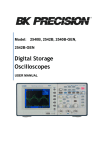
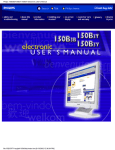
1
User’s Manual DSO-3000A Series Oscilloscope First Edition www.leaptronix.com Manual Print History The manual print history shown below lists all the printing dates and editions. The printing date changes when a new edition is released. The latest editions can be downloaded from our website. December 2009 ………………………………. First Edition 2 Warranty This Leaptronix instrument product is warranted against defects in material and workmanship for a period of two years from the date of shipment. Other items such as test fixtures, test cables are warranted for 90 days from the date of shipment. During the warranty period, we will, at our option, either repair or replace products which prove to be defective. For warranty service or repair, this product must be returned to a service facility designated by Leaptronix. Purchaser shall prepay shipping charges to Leaptronix and Leaptronix shall pay for the return of the product to Buyer. However, Buyer shall pay all shipping charges, duties, taxes, and any other charges for products returned to Leaptronix from another country. 3 Limitation of Warranty This warranty does not apply to defects resulting from improper or inadequate maintenance and care by Buyer, Buyer-supplied software or interfacing, unauthorized modification or misuse, operation outside of the environmental specifications for the product, or improper site preparation or maintenance. No other warranty is expressed or implied. Leaptronix specially disclaims the implied warranties of merchantability and fitness for a particular use. Leaptronix’s responsibility to repair or replace defective products is the sole and exclusive remedy provided to the customer for breach of this warranty. Leaptronix shall not be liable for any direct, indirect, special, incidental, or consequential damages, whether based on contract, tort, or any other legal theory. 4 Safety Precautions The following safety precautions must be observed to avoid injury and prevent damage to this product or any products connected to it. To avoid potential hazards, read the operating information carefully before using the product and use this product only as specified. NOTE: This product complies with INSTALLATION CATEGORY I as well as POLLUTION DEGREE 2. This product is an INDOOR USE product. Ground the Instrument Before operating the instrument, make sure the instrument chassis is grounded with the 3-pole power cable. Don’t operate in an explosive atmosphere To prevent explosion or file, don’t operate the instrument in the presence of inflammable gases or fumes. Use the proper fuse Replace the broken fuse with the same type and rating for continuous protection against fire hazard. Keep away from live circuits Don’t remove the instrument covers when operating the 5 instrument. Component replacement and internal adjustment can only be done by qualified personnel. Don’t replace components with the power cable connected. Dangerous voltage may remain even after the power cable has been disconnected. Always remove the power cable from the instrument and discharge circuits before touching them. 6 Contents Contents Contents.........................................................................................7 1.Getting Started..........................................................................10 Inspect Package Contents......................................................10 Front Panel............................................................................11 Rear Panel.............................................................................18 Naming Regulation................................................................19 Interpreting the Display.........................................................20 2.Basic Operation..........................................................................22 Probe Compensation.............................................................22 Using Quick Help...................................................................24 Using Autoset........................................................................25 Vertical Controls....................................................................27 CH1, CH2 Menu..............................................................29 MATH Functions............................................................40 REF Function..................................................................46 7 Contents Horizontal Controls...............................................................49 Trigger Controls.....................................................................60 ACQUIRE Menu.....................................................................74 UTILITY Menu........................................................................84 MEASURE Menu..................................................................101 SAVE/LOAD Menu...............................................................118 CURSOR Menu.....................................................................129 DISPLAY Menu.....................................................................133 RUN Controls.......................................................................136 Short-Cut Controls...............................................................137 3.Application Examples...............................................................138 Make Simple Measurements...............................................138 Capture a Single-Shot Signal................................................140 Reduce the Random Noise on a Signal................................142 Trigger on a Video Signal.....................................................144 PASS/FAIL Measurement.....................................................146 8 Contents Waveform Recorder............................................................148 Cursor Measurements.........................................................152 4.System Message and General Problems..................................158 System Message..................................................................158 Gerneral Problems..............................................................162 5.Specifications and Characteristics............................................164 Specifications......................................................................164 Characteristics.....................................................................165 9 Getting Started 1.Getting Started Inspect Package Contents Inspect the shipping container for damage. If the shipping container or cushioning material is damaged, it should be kept until the contents of the shipment have been checked for completeness and the oscilloscope has been checked mechanically and electrically. Verify that you received the following items and any optional accessories you may have ordered. DSO-3000A Series Oscilloscope Two oscilloscope probes Power cord User’s Manual If the contents are incomplete, if there is mechanical damage or defeat, please contact us. 10 Getting Started Front Panel This section provides an introduction to the front panel of the DSO-3000A Series Oscilloscope. Generally, you set up the front panel controls first and then perform a measurement. The keys or knobs on the front panel bring up softkey menus on the display that provide further access to oscilloscope features. Entry knob is usually used to select or input values. Five softkeys are located along the right side of the display screen. The following figure shows the front panel of the DSO3000A Series Oscilloscope. Front panel 11 Getting Started 1. Trademark and Model Indicate the oscilloscope model and trademark of the manufacturer. 2. Bandwidth and Sample Rate Indicate the bandwidth and sample rate of the current oscilloscope model. 3. MENU ON/OFF Key Press this key to toggle menu display on and off. 4. ◄ ► Key Press the ◄ ► key to read a previous or next page of the help information. 5. Entry Knob The Entry knob is used to select items from menus and input values. Its function changes when different menu is displayed. The curved arrow symbol above the Entry knob illuminates when the Entry knob is active and can be used to input a value or select a menu item. When the Entry knob is inactive, the Entry knob can be used to adjust the intensity of the waveforms displayed on the screen. 6. AUTO Key When you press the AUTO key, the oscilloscope will quickly 12 Getting Started determine which channels are active, and it will turn these active channels on and scale them to display the input signals. 7. MENU Keys When you press a menu key on the front panel, the oscilloscope will display the corresponding menu on the right side of the screen. The menu shows the options that are available when you press the softkeys directly to the right of the screen. There are totally five menu keys available: UTILITY Activate the system utility functions, such as System Setup, Language Setup, I/O Setup, and Print Setup etc. MEASURE Perform automated voltage and time measurements of displayed waveforms. ACQUIRE The ACQUIRE menu lets you set the oscilloscope to acquire in Normal, Peak Detect, or Average mode, and lets you select Real Time or Equivalent sampling. SAVE/LOAD You can save your current setup and waveform to the oscilloscope’s internal memory or to an USB mass storage device, and then retrieve the setup or waveform later. 13 Getting Started CURSOR Press the CURSOR key to activate the cursors that you can use for making custom voltage or time measurement on scope signals. DISPLAY You can change the appearance of waveforms and the display screen, select the color schemes and adjust the brightness or intensity etc. 8. RUN Control Keys The RUN/STOP key will illuminate in green when the oscilloscope is looking for a trigger. When the trigger mode is set to Normal mode, the display will not update until a trigger is found. If the trigger mode is set to Auto mode, the oscilloscope looks for a trigger, and if no trigger is found, it will be triggered automatically and the waveform of input signals will be showed immediately. Press the RUN/STOP key again to stop acquiring data and the RUN/STOP key will illuminate in red. Now you can pan across and zoom in on the acquired waveform. Press SINGLE key to make a single acquisition of data. The key will illuminate in yellow until the oscilloscope is triggered. 9. Trigger Controls 14 Getting Started These controls are used to control how the oscilloscope triggers to capture waveforms. 10. Vertical Controls You can use the vertical position control knob to move the waveforms up and down on the display. There is one vertical position control knob for each channel. You can press the channel key CH1 or CH2 to switch the channel on or off, or access the channel’s menu in the softkeys. There is one channel on/off key for each channel. You can press the MATH key to access FFT (Fast Fourier Transform), multiply, subtract, and add functions. You can press the REF key to save or load a reference waveform from the internal memory or external USB mass storage device. You can use the vertical scale control knob to change the vertical scale of a waveform. The waveform display will contract or expand relative to the ground reference level. There is one vertical scale control knob for each channel. 11. Horizontal Controls When the oscilloscope is running, the horizontal position control knob lets you set the acquisition window relative to the trigger point. When the oscilloscope is stopped, you can turn this knob to pan through the data horizontally. This let you see the 15 Getting Started captured waveform before or after the trigger. Press the horizontal MENU key to access the menu where you can split the oscilloscope display in Main and Delayed section, and where you can select X-Y and Roll modes. Turn the horizontal sweep speed control knob to adjust the sweep speed. This changes the time base on the display. When adjusted after the waveform has been acquired and the oscilloscope is stopped, this has the effect of stretching out or squeezing the waveform horizontally. 12. Short-Cut Keys These four short-cut keys: TRIGSET, P/F, FFT and COUNTER provide another quick direct approach to access the trigger SETUP, Pass/Fail, FFT menus, and hardware frequency counter function. 13. External Trigger Input This is the external trigger input BNC connector. 14. Channel Input BNC This is the channel’s input BNC connector. Connect the oscilloscope probe or BNC cable to the BNC Connector. 15. Softkeys Five softkeys are used to select control and parameter functions. Each softkey has a softkey label along its left side. 16 Getting Started 16. PRINT Key Press this key to print the current waveform display to a USB mass storage device. 17. Probe Compensation Terminals Use these two probe compensation terminals to match each probe’s characteristics to the oscilloscope channel to which it is connected. 18. USB Host Connector USB host connector can be connected to an USB mass storage device. 19. LCD Display The 320*234 matrix (5.6 inch) color TFT LCD displays captured channel waveforms, setup information, measurement results and softkeys for setting up parameters. 17 Getting Started Rear Panel Rear panel 1. Line Input Receptacle AC power cord receptacle. Attach to an AC power line with safety ground. 2. Pass/Fail Output Connector Isolated Pass/Fail output connector, a pull-up resistor must be connected to output the Pass/Fail signal. 3. RS232 Interface Connector RS232 interface connector can be connected to a controller or a computer. 4. USB Device Connectors USB device connector can be connected to a controller or a computer. 18 Getting Started Naming Regulation Take DSO-3102A as an example to describe the naming regulation of the DSO-3000A Series Oscilloscope. TDO 3 10 2 A Real -time Sample Rate 400Msps Number of Channel Signal Bandwidth 02: 25MHz 3000 Series Manufacture Abbreviation Naming regulation 19 06: 60MHz 10: 100MHz Getting Started Interpreting the Display The oscilloscope display contains channel acquisitions, setup information, measurement results, and softkeys for setting up parameter. Interpreting the display 1. The USB icon illuminates when a USB disk is inserted and ready to be operated. 2. Readout shows the trigger position relative to the horizontal center of the screen. 3. The square brackets show the location of current display window within the whole record. The record line color 20 Getting Started consists with the active waveform color. 4. Horizontal center position icon shows the horizontal center location within the record. 5. Trigger position icon shows the trigger location within the record. 6. Acquisition status readout shows AUTO, STOP, WAIT, Trig’d , Trig? or ROLL. 7. Softkey menu which allows you to set up additional parameters from front-panel softkeys. 8. The display area contains the waveform acquisitions, channel identifiers, trigger and ground level indicators. Each channel’s information appears in corresponding color. 9. Trigger readout shows trigger information such as trigger source, trigger type as well as trigger level. 10. Horizontal readout shows the Main or Delayed time base. 11. Channel readouts show the scale factor, coupling, bandwidth limit, digital filter, and invert status. 12. Waveform baseline icons show the zero-volt level of the waveforms. The icon colors correspond to the waveform colors. 21 Basic Operation 2.Basic Operation Probe Compensation Perform this adjustment to match your probe to the input channel. This should be done whenever you attach a passive probe for the first time to any input channel. A poorly compensated probe can introduce measurement errors. 1. Set both the probe and the oscilloscope attenuation factor to X10 respectively. 2. Connect the oscilloscope probe to channel 1. Attach the probe tip and reference lead to the 3Vp-p@1kHz terminal and to the chassis terminal, then press AUTO key. 3. Use a nonmetallic tool to adjust the trimmer capacitor on the probe for the flattest pulse possible. The trimmer capacitor is located on the probe BNC connector. Perfect compensated Over compensated Under compensated 22 Basic Operation 4. Connect probes to channel 2. Repeat the procedure. This matches each probe to each channel. 23 Basic Operation Using Quick Help DSO-3000A Series Oscilloscope has a Quick Help system that provides help for each front-panel key and softkey. Press and hold down the key or softkey for which you would like to view help information. The help information will be displayed and remain at the center of the screen as shown below until another key is pressed or a knob is turned. If there are more help information pages, press the ◄ ► key to browse the previous or next pages. 24 Basic Operation Using Autoset DSO-3000A Series Digital Storage Oscilloscope provides the Autoset function which sets the vertical, horizontal, and trigger controls properly and automatically. Autoset function detects, turns on, and scales any channel with a repetitive waveform that has a frequency of at least 50Hz, a duty cycle greater than 0.5%, and an amplitude of at least 10mV peak-to-peak. Any channels that do not meet these requirements are turned off. When you are using more than one channel, the Autoset function sets the vertical controls for each channel and used the channel 1 to set the horizontal and trigger controls. To configure the oscilloscope quickly and automatically, press the AUTO key to display the connected signals that are active. To configure the oscilloscope to display multiple cycles, press Multi-Cycle softkey in the AUTO menu. To configure the oscilloscope to display a single cycle, press Single Cycle softkey in the AUTO menu. To undo the effects of Autoset, press the Undo Autoset softkey in the AUTO menu before pressing any other key. This is useful when you have unintentionally pressed the AUTO key or do not 25 Basic Operation like the settings Autoset has selected and want to return to your previous settings. Autoset of oscilloscope channel 1 26 Basic Operation Vertical Controls Vertical controls Vertical Position Control (CH1, CH2) Turn the small vertical position knob above the channel key to move the channel’s waveform and its ground level icon ( ) up or down on the display. The voltage value momentarily displayed in the bottom left portion of the display represents the voltage difference between the vertical center of the display and the ground level( ). 27 Basic Operation Press the small vertical position knob above the channel key to bring the channel’s waveform and its ground level icon ( ) directly back to the vertical center of the display. Channel Key CH1, CH2, MATH, REF Press the channel key from the front panel to display the channel’s menu and turns the display of the channel on or off. The channel is displayed when the key is illuminated. You must be viewing the menu of a channel before you can turn it off. For example, if CH1 and CH2 are both displayed and the CH2 menu is now displayed. In order to turn CH1 off, you should press the CH1 key first and CH1 menu will be displayed, then press CH1 key again to turn off CH1. Vertical Scale Control (CH1, CH2) Turn the large vertical scale knob below the channel key to set the scale factor for the channel. The vertical scale knob changes the channel scale in a 1-2-5 step sequence. The channel scale factor value is displayed in the bottom left portion of the display. Press the large vertical scale knob to toggle between Fine and Coarse. When fine is selected, you can change the channel’s vertical sensitivity in smaller resolution. When coarse is selected, the vertical scale knob changes the channel scale in a 1-2-5 step sequence. 28 Basic Operation CH1, CH2 Menu Press the channel key CH2 to display the channel’s menu and turns the display of the channel on. Channel Coupling Press the channel key CH2, then press the Coupling softkey to select AC coupling mode. AC coupling places a high pass filter in series with the input signal that blocks the DC component of the input signal. AC coupling is useful for viewing waveforms with large DC offsets. AC Coupling 29 Basic Operation Press the channel key CH2, then press the Coupling softkey to select DC coupling mode. DC coupling passes both AC and DC components of the input signal. DC coupling is useful for viewing low frequency waveforms that do not have large DC offsets. DC Coupling 30 Basic Operation Press the channel key CH2, then press the Coupling softkey to select GND coupling mode. GND mode blocks both AC and DC components of the input signal and connect the input to the ground level. GND Coupling 31 Basic Operation BW Limit When BW Limit is on, the maximum bandwidth for the channel is approximately 20MHz. For waveforms with frequencies below this, turning bandwidth limit on removes unwanted high frequency noise from the waveform. The bandwidth limit also limits the trigger signal path of any channel that has BW Limit turned on. Press the channel key CH2, then press the BW Limit softkey to turn the bandwidth limit off for the selected channel 2. BW Limit off mode passes both the high and low frequency components. BW Limit off 32 Basic Operation Press the channel key CH2, then press the BW Limit softkey to turn the bandwidth limit on for the selected channel 2. BW Limit on mode blocks the high frequency components over 20MHz. BW Limit on 33 Basic Operation Probe Attenuation Setting Probes are available with various attenuation factors which affect the vertical scale of the signal. You can manually select the factor that matches the attenuation of your probe. For example, to match a probe set to 10X connected to CH2, press the channel key CH2, and then press the Probe softkey and select 10X. Press the channel key CH2, then press the Probe softkey and select 1X, when a probe with 1:1 attenuation factor is connected to CH2. Set Probe Attenuation Factor to 1X 34 Basic Operation Digital Filter Press the channel key CH1, then press the Digital Filter softkey to display the FILTER-CH1 menu. Four kinds of filter types are available: Low pass filter High pass filter Band pass filter Band block filter Press the Upper Limit or Lower Limit softkey and then adjust the Entry knob to set the high and low frequency range for the filter. Digital Filter is off 35 Basic Operation Digital Filter is on 36 Basic Operation Vertical Scale Turn the large vertical scale knob below the channel key to set the scale factor for the channel. The channel scale factor value is displayed in the bottom left portion of the display. Press CH2→ More 1/2 → Volts Scale to select Coarse or Fine adjustment. You can also press the large vertical scale knob to toggle between Fine and Coarse. When Coarse is selected, the vertical scale knob changes the channel scale in a 1-2-5 step sequence. When Fine is selected, the vertical scale knob changes the channel scale in a smaller resolution. Fine Vertical Scale 37 Basic Operation Vertical Invert Press CH2→ More 1/2 → Invert to set Invert on or off. When Invert is turned on, the voltage values of the displayed waveform are inverted. Invert affects how a channel is displayed, but does not affect triggering. If the oscilloscope is set to trigger on a rising edge, it remains set to trigger on the same edge after the channel is inverted. Inverting a channel will also change the result of any math function selected in the MATH menu or any measurement. Vertical Invert off 38 Basic Operation Vertical Invert on 39 Basic Operation MATH Functions Dual Waveform Calculation Press MATH channel key to turn on the MATH menu page1/2. Softkey Operate Source A Source B Invert More 1/2 Options A+B A-B A×B Description Add A and B Subtract B from A Multiply A by B FFT CH1 CH2 Access FFT menu Select CH1 as Source A Select CH2 as Source A CH1 CH2 ON OFF ---- Select CH1 as Source B Select CH2 as Source B Math invert ON Math invert OFF Select page 2/2 40 Basic Operation Press softkey More 1/2 to display MATH menu page 2/2. Softkey Operate Options A+B A-B A×B FFT Display Mode Split Screen Full Screen ---- More 2/2 41 Description Add A and B Subtract B from A Multiply A by B Access FFT menu Vertical scale control Vertical position control Split the display into Main and Math sections Display Math waveform in full screen Select page 1/2 Basic Operation For example, we select the A+B math function, select CH1 as the Source A, and select CH2 as the Source B, then we will get the math waveform like this. Math A+B 42 Basic Operation FFT Spectrum Analysis You can use the FFT function to measure harmonic component and distortion in systems, to characterize noise in DC power supplies and to analyze vibration. Press MATH channel key to turn on the MATH menu page 1/2, and then press Operate softkey to select FFT. The FFT menu page 1/2 will be displayed. Press softkey More 1/2 to display FFT menu page 2/2. Softkey Options Description Operate A+B Add A and B A-B Subtract B from A Multiply A by B A×B Source FFT CH1 CH2 Access FFT menu Select CH1 for FFT Select CH2 for FFT Window Rectangular Use Rectangular window Scale Hanning Hamming Blackman Flattop dBV RMS More 1/2 V RMS ---- Use Hanning window Use Hamming window Use Blackman window Use Flattop window Vertical scale in dBV RMS Vertical scale in V RMS Select page 2/2 43 Basic Operation Softkey Operate Options A+B A-B A×B FFT Display Mode Split Screen Full Screen More 2/2 ---- 44 Description Add A and B Subtract B from A Multiply A by B Access FFT menu Vertical scale control Vertical position control Split the display into Main and Math sections Display Math waveform in full screen Select page 1/2 Basic Operation For example, we select CH1 as the source for FFT, select Rectangular window, set vertical scale to dBV RMS, and then we will get the FFT waveform like this. We can also measure the amplitude and frequency of the corresponding point with the manual cursors. FFT Spectrum Analysis 45 Basic Operation REF Function You might make measurement on a known good system, save the result to the internal memory or to an USB mass storage device, then make the same measurement on a test system and recall the reference waveform to see the difference. Press REF channel key to turn on the REF menu page 1/2. Softkey Options Description Source CH1 Save CH1 as reference CH2 Save CH2 as reference REF vertical scale control REF vertical position control Coarse vertical scaling Volts Scale Coarse Fine Fine vertical scaling More 1/2 ---- Select page 2/2 46 Basic Operation Press softkey More 1/2 to display REF menu page 2/2. Softkey Options Description Invert ON REF invert ON OFF REF invert OFF Internal Storage INTERNAL menu Save the reference waveform to the internal memory. External Storage EXTERNAL menu Save the reference waveform to the USB mass storage device. More 2/2 ---- Select page 1/2 Press REF channel key to turn on the REF menu page 1/2, press softkey More 1/2 to display REF menu page 2/2. Load the latest saved reference waveform from the internal memory or locate and load reference waveform file from the external memory. You can use the horizontal position and scale control knob to change the time base of the reference waveform. 47 Basic Operation Press or softkey and turn the Entry knob to change the vertical scale or position of the reference waveform. Press REF→ Internal Storage →Save to save the waveform of the Source channel as the reference waveform to the internal memory. Save a Reference waveform Note: The reference waveform function is unavailable when X-Y mode is selected. 48 Basic Operation Horizontal Controls Use the horizontal controls to adjust the time base, adjust the trigger location, and to examine waveform details more closely. Horizontal Controls 49 Basic Operation Horizontal Position Control When the oscilloscope is running, this control lets you set the acquisition window relative to the trigger point. When the oscilloscope is stopped, you can turn this knob to pan through the data horizontally. This lets you see the captured waveform before the trigger or after the trigger. The trigger position is marked with the indicator “ ” at the top of the graticule and also in the waveform record icon at the top of the screen. The small inverted triangle () is the time reference indicator. When you change the horizontal scale, the waveforms contract or expand about this point. Press the horizontal position control knob key to set the time delay to zero, and the trigger position indicator ( ) overlays the time reference indicator(). Note: The horizontal position control is unavailable when X-Y horizontal mode is selected. Horizontal Scale Control Use the horizontal scale control to adjust the time base. The scale expands or contracts around the center of the screen. The horizontal scale factor can be set in a 1-2-5 sequence. 50 Basic Operation Press the horizontal scale control knob to toggle between Main and Delayed horizontal display mode. Horizontal MENU key Press the horizontal MENU key to display the HORIZONTAL menu. This menu lets you select the horizontal mode: Main, Delayed, Roll, or X-Y. Press the horizontal MENU key to display the HORIZONTAL menu page 1/2. Softkey Main Delayed X-Y Roll -More1/2 Options Description √ Main mode is ON ---√ ---√ ---√ Main mode is OFF Delayed mode is ON Delayed mode is OFF X-Y mode is ON X-Y mode is OFF Roll mode is ON ---- Roll mode is OFF ---- Select page 2/2 51 Basic Operation Press softkey More 1/2 to display the HORIZONTAL menu page 2/2. Softkey Options Description Trig-Offset Reset ---- Reset the delay time to zero. -More2/2 ---- Select page 1/2 Main Horizontal Mode Main horizontal mode is the normal viewing mode for the oscilloscope. When the oscilloscope is stopped, you can use the horizontal controls to pan and zoom the waveform. When the oscilloscope is running in Main mode, use the horizontal scale knob to change horizontal scale factor and use the horizontal position knob to set the delay time. When the oscilloscope is stopped, use the horizontal control knobs to pan and zoom the waveform. The time base (second/division) value is displayed at the bottom of the screen. Press the horizontal MENU key and then press the Main softkey to select the main horizontal mode. 52 Basic Operation Main Horizontal Mode 1. Readout shows the delay time or the trigger location within the record relative to the time reference point (). 2. The square brackets show the location of current display window within the record. 3. Trigger position within the record. 4. Trigger position on the current waveform display window. 53 Basic Operation Delayed Horizontal Mode Delayed horizontal mode is an expanded version of main mode. When Delayed mode is selected, the display divides in half. The top half of the display shows the normal waveform and bottom half displays the delayed waveform. Delayed waveform is a magnified portion of the normal waveform. You can use delayed waveform to locate and horizontally expand part of the normal waveform for a more detailed analysis of signals. The area of the normal display that is expanded is marked on each end with a vertical shadow area. The unshadowed area shows what portion of the normal waveform is expanded in the lower half. To change the time base for the delayed window, turn the horizontal scale knob. As you turn the knob, the time base for the delayed window is displayed just above the main time base. To change the time base for the normal window, press the Main softkey, then turn the horizontal scale control knob. Connect a triangle signal source to CH1, press the horizontal MENU key and then press the Delayed softkey to enter the Delayed mode. You can also press the horizontal scale control knob key to toggel between Main and Delayed mode directly. 54 Basic Operation Delayed Horizontal Mode 55 Basic Operation X-Y Horizontal Mode X-Y mode changes the display from a volts-versus-time display to a volts-versus-volts display. The time base is turned off. CH1 amplitude is plotted on the X axis and CH2 amplitude is plotted on the Y axis. You can use X-Y mode to compare frequency and phase relationships between two signals. X-Y mode can also be used with transducers to display strain versus displacement, flow versus pressure, volts versus current, or voltage versus frequency. In order to get a better view of the waveform, proper vertical scale should be selected before enter the X-Y mode. Use X-Y mode to compare two signal with same frequency and different phase. Connect the two signal to CH1 and CH2 respectively. Press horizontal MENU key and then X-Y softkey to select X-Y mode. 56 Basic Operation X-Y Horizontal Mode 57 Basic Operation Roll Horizontal Mode Roll mode causes the waveform to move slowly across the screen from right to left. It only operates on time base settings of 500 ms/div or slower. If the current time base setting is faster than the 500 ms/div limit, it will be set to 500ms/div when Roll mode is selected. In Roll mode there is no trigger. The fixed reference point on the screen is the right edge of the screen and refers to the current moment in time. Events that have occurred are scrolled to the left of the reference point. Since there is no trigger, no pretrigger information is available. If you would like to pause the display after a full screen of acquisition in Roll mode, press the SINGLE key. To clear the display and restart another full screen acquisition in Roll mode, press the SINGLE key again. Use Roll mode on low-frequency waveforms to yield a display much like a strip chart recorder. It allows the waveform to roll across the display. Press the horizontal MENU key and then press the Roll softkey to select the Roll mode. The waveform moves slowly across the screen from right to left. The fastest time base is 500 ms in roll mode. 58 Basic Operation Roll Horizontal Mode 59 Basic Operation Trigger Controls The trigger controls determine when the oscilloscope starts to acquire and display the waveform. When a trigger is found, the oscilloscope will acquire sufficent data to display the waveform. Trigger controls are functional when the oscilloscope works under Main or Delayed horizontal mode. Trigger Controls 60 Basic Operation Trigger Control MENU key Press the trigger control MENU key to show the TRIGGER menu and then press the Type softkey to select Edge, Pulse or Video. Set to 50% key Press the 50% key to set the trigger level to the 50% amplitude level of the trigger source waveform. Force Trigger key Press the FORCE key to force an immediate trigger event, even in the absence of a signal. This function is useful in following situations. If you do not see a waveform on the screen when using Normal trigger mode, press the FORCE key to acquire the signal baseline to verify that it is on the screen. After you press the SINGLE key to set up for a single shot acquisition, you can press the FORCE key to do a practise acquisition to verify the control settings. Trigger Level Control Use the trigger level control knob to adjust the trigger level. When you change the trigger level, a horizontal red line temporarily appears to show you the level position on screen. 61 Basic Operation After the line disappears, the trigger level is marked with a small left arrow. Auto and Normal Trigger Modes Press the trigger MENU key to display the TRIGGER menu and press the Mode softkey to select Auto or Normal trigger mode. Auto mode Use the auto trigger mode for signals other than low-repetitiverate signals and for unknown signal levels. To display a DC signal, you must use Auto trigger mode since there is no edge to trigger on. When you press RUN/STOP key to start acquiring, the oscilloscope first fill the pre-trigger buffer. It starts to search for a trigger after the pre-trigger buffer is filled, and continues to flow data through this buffer while it searches for the trigger. While searching for the trigger, the oscilloscope overflows the pretrigger buffer; the first data put into the buffer is the first pushed out. When a trigger is found, the pre-trigger buffer will contain the events that occurred just before the trigger. If no trigger is found, the oscilloscope generates a trigger and displays the data as though a trigger had occurred. In this case, the background of the Auto indicator at the top of the display will flash, indicating that the oscilloscope is force triggered. When you press the SINGLE key, the oscilloscope will fill the 62 Basic Operation pre-trigger buffer, and continue to flow data through the pretrigger buffer until the Auto trigger overrides the searching and forces a trigger. At the end of the trace, the oscilloscope will stop and display the results. Normal mode Use Normal trigger mode for low repetitive-rate signals or when Auto trigger is not required. In Normal mode the oscilloscope must fill the pre-trigger buffer with data before it will begin searching for a trigger event. While searching for the trigger, the oscilloscope overflows the pretrigger buffer; the first data put into the buffer is the first pushed out. When the trigger event is found, the oscilloscope will fill the post-trigger buffer and display the results. If the acquisition was initiated by RUN/STOP, the process repeats. If the acquisition was initiated by SINGLE, then the acquisition stops. In either Auto or Normal mode, the trigger may be missed. This is because the oscilloscope will not recognize a trigger event until the pre-trigger buffer is full. 63 Basic Operation Holdoff Function Holdoff sets the amount of time that the oscilloscope will wait before rearming the trigger circuit. You can use the holdoff function to stabilize the display of complex waveforms. With the holdoff function, you can synchronize triggers. The oscilloscope will trigger on one edge of the waveform, and ignore further edges until the holdoff time is up. The oscilloscope will then rearm the trigger circuit to wait for the next edge trigger. This allows the oscilloscope to trigger on a repeating pattern in a waveform. Turn the Entry knob to increase or decrease the trigger hold off time shown in the Holdoff softkey. To get a stable trigger on the pulse burst shown on the screen, set the holdoff time to be slightly less than the period of the pulse burst. 64 Basic Operation Holdoff Function 65 Basic Operation Edge Trigger Use the Edge triggering to trigger on the rising or falling edge of the input signal at the trigger threshold. 66 Basic Operation Press trigger control MENU key to display the TRIGGER menu, then press Type softkey to select Edge trigger. Softkey Options Type Video Video triggering Edge Edge triggering Pulse Pulse width triggering CH1 Trigger on CH1 CH2 Trigger on CH2 EXT Trigger on EXT Source EXT/5 AC Line Slope Description Trigger on EXT/5 Trigger on AC line signal A lte rn a tin g Trigger on CH1 and CH2 alternately Rising edge of a signal Falling edge of a signal Mode Auto Trigger even without a valid event. Normal Trigger only on a valid event Pulse Width Trigger Pulse width triggering sets the oscilloscope to trigger on a positive or negative pulse of a specified width from 20ns to 10s. 67 Basic Operation Press trigger control MENU key to display the TRIGGER menu page 1/2, then press Type softkey to select Pulse trigger. Softkey Options Description Type Source Video Video triggering Edge Edge triggering Pulse Pulse width triggering CH1 Trigger on CH1 CH2 Trigger on CH2 EXT Trigger on EXT EXT/5 Trigger on EXT/5 Alternating CH1 and CH2 alternately Positive greater than Pulse Mode Positive equal Positive within Positive less than Negative greater than Negative equal Negative within Negative less than Pulse Setup More 1/2 Set the pulse width ---- Select page 2/2 68 Basic Operation Press trigger control MENU key to display the TRIGGER menu, press Type softkey to select Pulse trigger and then press the More 1/2 softkey to display TRIGGER menu page 2/2. Softkey Options Type Video Video triggering Edge Edge triggering Pulse Pulse width triggering Auto Trigger even without a valid event. Trigger only on a valid event Select trigger SETUP menu. Select page 1/2 Mode Normal Trigger Setup ---- More 2/2 ---- Description Video Trigger Choose video triggering to trigger on the odd fields, even fields, or on all the lines of a NTSC, PAL/SECAM video signal. 69 Basic Operation Press trigger control MENU key to display the TRIGGER menu, then press Type softkey to select Video trigger. Softkey Options Type Video Video triggering Edge Edge triggering Pulse Pulse width triggering CH1 Trigger on CH1 CH2 Trigger on CH2 EXT Trigger on EXT Source EXT/5 Alternating Polarity Description Trigger on EXT/5 Trigger on CH1 CH2 alternately Positive polarity and Negative polarity Sync Odd Field Trigger on odd fields Even Field Trigger on even fields All Lines Line # More 1/2 ---- 70 Trigger on all lines Trigger on specific line. Select page 2/2 Basic Operation Softkey Type Standard Options Video Edge Pulse NTSC PAL/SECAM Mode Normal Auto Trigger Setup More 2/2 ------- Description Video triggering Edge triggering Pulse width triggering Trigger on NTSC signal Trigger on PAL or SECAM signal Trigger only on a valid event Trigger even without a valid event Select trigger SETUP menu. Select page 1/2 Press softkey More 1/2 to display the TRIGGER menu page 2/2. 71 Basic Operation Press softkey Trigger Setup from the TRIGGER menu page 2/2 to display the trigger SETUP menu. Softkey Sensitivity Options • Description Set the trigger sensitivity by turning the entry knob Coupling AC AC coupling DC DC coupling LF Reject Reject low frequencies HF Reject Reject high frequencies Holdoff Set up the holdoff time • between two consecutive triggers Holdoff Reset the holdoff time to ---Reset default value 100ns ---Return to the TRIGGER menu Note: You can display the trigger SETUP menu simply by pressing the short-cut key TRIGSET directly. Note: There will be no coupling menu item when video trigger mode is selected in the trigger SETUP menu. 72 Basic Operation Following figures show the video waveforms triggered on odd fields and specific line 6. Trigger on odd fields Trigger on specific line 6 73 Basic Operation ACQUIRE Menu Press the ACQUIRE menu key to show the ACQUIRE menu. ACQUIRE Menu key Normal acquisition mode yields the best display for most waveforms. Average mode lets you average multiple triggers to reduce noise and increase resolution. Peak Detect mode should be used to display narrow pulses that occur infrequently. It’s useful when looking for very narrow pulses at very slow time base. Equivalent sampling mode is useful to display high frequency repetitive signals. Real Time sampling mode is useful to capture the single-shot signals. 74 Basic Operation Press Mode softkey to select Normal mode. Softkey Options Mode Normal Normal acquisition. Average Average acquisition. Peak Detect Sampling Record Description Peak detect acquisition Equivalent Equivalent sampling. Real Time Real time sampling. ---- Select Record menu 75 Basic Operation Press Mode softkey to select Average mode. Softkey Options Description Mode Normal Normal acquisition. Average Average acquisition. Peak Peak detect Detect acquisition Averages Set the average number to 2, 4, 8, 16, 32, 64, 128, or 256. Sampling Equivalent Equivalent sampling. Real Time Real time sampling. Record ---Select Record menu Press Mode softkey to select Peak Detect mode. Softkey Options Description Mode Normal Normal acquisition. Average Average acquisition. Peak Peak detect acquisition Detect Sampling Equivalent Equivalent sampling. Real Time Real time sampling. Record ---Select Record menu 76 Basic Operation Connect a sine signal to the CH1 channel, press ACQUIRE → Mode to select Average mode. Turn the Entry knob to set the number of averages to 16. The following two figures show the difference between Normal acquisition and Average acquisition. Random noise on the displayed waveform 77 Basic Operation 16 Averages used to reduce random noise 78 Basic Operation Record the Wavefrom Press ACQUIRE → Record to show the RECORD menu. Softkey Options Description Mode Record Record the waveform Play Play back the record Back Save Save/Recall from internal or external /Recall memory. OFF Exit Record function Source CH1 Record CH1 channel CH2 Record CH2 channel Pass/Fail Record Pass/Fail Out output waveform Interval Set the time interval End Maximum record frame Frame Operate Record Stop 79 Basic Operation Play Back the Record Press ACQUIRE → Record to show the RECORD menu. Press Mode softkey to select Play Back function. Softkey Options Description Mode Record Record the waveform Play Back Save /Recall OFF Operate Save/Recall from internal or external memory. Exit Record function Play Stop Play Mode Current Frame More 1/2 Play back the record Loop play Single play Select a specific frame ---- 80 Select menu page 2/2 Basic Operation Press ACQUIRE → Record to show the RECORD menu. Press Mode softkey to select Play Back function. Press More 1/2 softkey to show RECORD menu page 2/2. Softkey Interval Start Frame End Frame Msg Display More 2/2 Options ON OFF ---- Description Interval between two frames Set the start frame to playback. Set the end frame to playback. Record message on Record message off Select menu page 1/2 Note: The interval time must be greater than 1ms + signal period + sampling interval time + frame storage time . Note: Frame length is the waveform storage depth. Maximum 1000 frames of waveform can be stored. 81 Basic Operation Save/Recall the Record Press ACQUIRE → Record to show the RECORD menu. Press Mode softkey to select Save/Recall function. Softkey Options Description Mode Record Record the waveform Play Play back the record back Save Save/Recall from internal or external /Recall memory. OFF Exit Record function Start Set the start frame to Frame playback. End Set the end frame to Frame playback. Internal ---Save/Recall from internal memory. Storage External ---Save/Recall from external memory. Storage 82 Basic Operation Exit Record Function Press Mode softkey to select OFF option and return to the ACQUIRE menu. Softkey Mode Options Description Record Record the waveform Play back Save /Recall Play back the record OFF ---- 83 Save/Recall from internal or external memory. Exit Record function Return to ACQUIRE menu Basic Operation UTILITY Menu Press the UTILITY menu key to show the UTILITY menu. UTILITY Menu key 84 Basic Operation Press the UTILITY key to display the UTILITY menu page 1/2. Softkey Options Description I/O Setup ---- Select I/O SETUP menu Print Setup System Setup Language ---- Select PRINT menu ---- Select SYETEM menu More 1/2 简体中文 Simplified Chinese 繁軆中文 Traditional Chinese English English language 한국어 Korean language 日本語 Japanese language Русский Russian language Français French language Español Spanish language Polski Persian language Português Portuguese language ---- Select menu page 2/2 85 Basic Operation Press the More 1/2 softkey to display the UTILITY menu page 2/2. Softkey Options Service ---Pass/Fail ---Self-Cal RUN/STOP AUTO Fast-Cal ON More 2/2 OFF ---- 86 Description Select Service menu Select PASS/FAIL menu Start self-calibration Exit self-calibration. Fast calibrate the vertical position. Close the fast calibration. Select menu page 1/2 Basic Operation I/O Setup Press UTILITY → I/O Setup to display the I/O SETUP menu. Softkey Options Type USB Device RS232C Baud Rate ---- 87 Description Select USB IF Select RS232C IF Available baud rate: 2400, 4800, 9600, 19200, 38400 Return to the UTILITY menu Basic Operation Print Setup Press UTILITY → Print Setup to display the PRINT menu. Softkey Print to File Type Options File Description Print to file BMP(8Bit) 8-Bit BMP file format BMP(24Bit) 24 Bit BMP file format CSV Screen CSV file format Normal Normal BMP picture Inverted Inverted color BMP picture ---- Return to the UTILITY menu Connect an USB mass storage device to the USB host connector on the front panel. Press File Type softkey to select the file format you want. Press the PRINT key to save the file to the USB mass storage device. 88 Basic Operation System Setup Press UTILITY → System Setup to display the SYSTEM menu page 1/2. Softkey Key Sound Alarm Sound Counter More 2/2 Options Description ON Key press sound on Key press sound off Alarm sound on Alarm sound off Frequency counter on OFF Frequency counter off ---- Select menu page 1/2 89 Basic Operation Press the More 1/2 softkey to display the SYSTEM menu page 2/2. Softkey Key Lock Options ON OFF ---- Description Key Lock function on Key Lock function off, a password is required when Password is ON. Password protection on Password protection off, a password is required when Password is ON. The old password is required to change the password. Return to the UTILITY menu Password ON OFF ---- Select menu page 1/2 Change Password More 2/2 Note: The dufault password is “111111” 90 Basic Operation Press UTILITY → System Setup → Key Lock to lock the front panel operation, all the keys and controls are disabled except MENU ON/OFF key and the five softkeys. When front panel is locked a red lock icon is displayed at the top-left corner of the screen. Correct password is required to unlock the front panel operation when Password is ON as shown below. The default password is “111111”. 91 Basic Operation Press Password softkey from the SYSTEM menu 2/2 to to turn off the Password protection function, correct password is required as shown below. 92 Basic Operation Press Change Password softkey from the SYSTEM menu page 2/2 to display the CHANGE menu. The old password is required before entering the new password and confirming the new password as shown below. 93 Basic Operation Service Press UTILITY → Service to display the Service menu. Softkey Options Description System ---Display system Information information: Model, Serial number, Software version, Installed modules. Screen ---Test the LCD screen Test Key Test ---- Check the key and control operation. ---- Return to the UTILITY menu 94 Basic Operation Press UTILITY → Service to display the Service menu, and then press the System Info softkey to display the system informations, such as Model, Serial number, Power up times, Software version and a list of installed modules. System Information 95 Basic Operation Pass/Fail The oscilloscope first measures the input source signal and compares it with Pass/Fail regulations and then outputs the Pass/Fail result. Press UTILITY → Pass/Fail to display the PASS/FAIL menu 1/2. Softkey Enable Test Operate Setup Mask ---- Description Pass/Fail function on Pass/Fail function off Source signal CH1 Source signal CH2 Start Pass/Fail test Stop Pass/Fail test Set up the regulations More 1/2 ---- Display the menu 2/2 Source Options ON OFF CH1 CH2 96 Basic Operation Press More 1/2 to display the PASS/FAIL menu 2/2. Softkey Msg Display Output Options ON OFF PASS PASS+ FAIL FAIL+ Stop on Output More 2/2 ON OFF ------- Description Pass/Fail count message on Pass/Fail count message off Output on Pass waveforms Output and alarm on Pass waveforms Output on Fail waveforms Output and alarm on Fail waveforms Stop sampling on output Continue sampling on output Return to the UTILITY menu Display the menu page 1/2 Note: Pass/Fail function is not available when X-Y mode is selected. 97 Basic Operation Press UTILITY → Pass/Fail → Setup Mask to display the MASK menu 1/2. Softkey X Mask Options Y Mask Create Mask Set vertical tolerance. ------- More 1/2 Description Set horizontal tolerance ---- 98 Create the PASS/FAIL tolerance mask. Return to the PASS/FAIL menu Display the menu 2/2 Basic Operation Press More 1/2 to display the MASK menu 2/2. Softkey Internal Storage Options ---- External Storage ---- ---More 2/2 ---- 99 Description Store the PASS/FAIL tolerance mask to internal memory. Store the PASS/FAIL tolerance mask to external USB mass storage device. Return to the PASS/FAIL menu Display the menu page 1/2 Basic Operation Self-Calibration If you want to maximize the measurement accuracy, you can perform the self-calibration. Self-calibration uses the internally generated signals to optimize circuits that affect channel scale, offset and trigger parameters. Disconnect all inputs and allow the oscilloscope to warm up at least 30 minutes before performing this sele-calibration. Press UTILITY → Self-Cal to display the self-calibration page. Press AUTO key to exit the Self-Calibration, press RUN key to start the self-calibration. Self Calibration Note: Warm up the oscilloscope at least 30 minutes before performing self-calibration. 100 Basic Operation MEASURE Menu MEASURE Menu key 101 Basic Operation Press MEASURE menu key to display the MEASURE menu. Softkey Source Voltage Options CH1 CH2 ---- Time ---- Clear ---- Measure All ON OFF 102 Description Measure CH1 Measure CH2 Select the Voltage measurement menu. Select the Time measurement menu Turn off the current measurement readouts Display all measurements Close all measurements Basic Operation Voltage Measurements Max High Peak-Peak Amplitude Low Min Voltage parameter definitions Press MEASURE → Voltage to display the VOLTAGE menu page 1/4. Softkey Peak-Peak Options ---- Amplitude ---- Max ---- Min ---- More 1/4 ---- 103 Description The Peak-Peak value is the difference between maximum and minimum values. The Amplitude value is the difference between its High and Low values. Max is the highest value in the waveform display. Min is the lowest value in the waveform display Display menu page 2/4 Basic Operation Press More 1/4 softkey to display the VOLTAGE menu page 2/4. Softkey High Options ---- Low ---- Average ---- RMS ---- More 2/4 ---- 104 Description High value is the mode (most common value) of the upper part of the waveform. Low value is the mode (most common value) of the lower part of the waveform. Average value is the sum of the samples divided by the number of samples over the entire waveform. RMS value is the true Root Mean Square voltage over the entire waveform. Display menu page 3/4 Basic Operation Press More 2/4 softkey to display the VOLTAGE menu page 3/4. Softkey Cycle Avg Options ---- Cycle RMS ---- Overshoot ---- Preshoot ---- More 3/4 ---- 105 Description Cycle Avg value is the sum of the samples divided by the number of samples over one period. Cycle RMS value is the true Root Mean Square voltage over one period. Overshoot value is distortion that follows a major edge transition expressed as a percentage of amplitude. Preshoot value is distortion that precedes a major edge transition expressed as a percentage of amplitude. Display menu page 4/4 Basic Operation Rising Edge Overshoot = Max - High Falling Edge Overshoot = Low - Min Amplitude Amplitude × 100 × 100 Overshoot High Low Overshoot Rising Edge Preshoot = Falling Edge Preshoot = Low - Min Amplitude × 100 Max - High Amplitude × 100 Preshoot High Low Preshoot 106 Basic Operation Press More 3/4 softkey to display the VOLTAGE menu page 4/4. Softkey Options ---- More 4/4 ---- 107 Description Return to the MEASURE menu Display menu page 1/4 Basic Operation Time Measurements RiseTime FallTime 90% 50% 10% -Width +Width Period Time parameter definitions 108 Basic Operation Press MEASURE → Time to display the TIME menu page 1/5. Softkey Options Description Frequency ---Frequency is defined as 1/period of the first cycle. Period ---Period is the time period of the first complete waveform cycle. Rise Time ---Rise Time is the time that the first positivegoing edge takes to rise from 10% to 90% of its amplitude. Fall Time ---Fall Time is the time that the first negative-going edge takes to fall from 90% to 10% of its amplitude. More 1/5 ---Display menu page 2/5 109 Basic Operation Press More 1/5 softkey to display the TIME menu page 2/5. Softkey Options Description +Width ---Positive Width is the time between the 50% amplitude points of the first positive pulse. -Width ---Negative Width is the time between the 50% amplitude points of the first negative pulse. +Duty ---Positive Duty is the ratio of the first positive width to its period, expressed as a percentage. -Duty ---Negative Duty is the ratio of the first negative width to its period, expressed as a percentage. More 2/5 ---Display menu page 3/5 110 Basic Operation Press More 2/5 softkey to display the TIME menu page 3/5. Softkey Delay Options ---- Delay ---- Delay ---- Delay ---- More 3/5 ---- 111 Description The time between the 50% amplitude points of the first positive-going edge of each channel. The time between the 50% amplitude points of the first negative-going edge of each channel. The time between the first positive-going edge of CH1 and the first negative-going edge of CH2 at each 50% amplitude point. The time between the first negative-going edge of CH1 and the first positivegoing edge of CH2 at each 50% amplitude point. Display menu page 4/5 Basic Operation CH1 Delay CH2 Delay definition 112 Basic Operation Press More 3/5 softkey to display the TIME menu page 4/5. Softkey Phase 1→2 Options ---- Phase 2→1 ---- X at Max ---- X at Min ---- More 4/5 ---- 113 Description Phase 1→2 is the ratio of Delay 1→2 to the period of CH1, expressed in degrees. Phase 2→1 is the ratio of Delay 2→1 to the period of CH2, expressed in degrees. X at Max is the X axis value (refer to Trigger point) at the first displayed occurrence of the waveform Maximum, starting from the left side of the display. X at Min is the X axis value (refer to Trigger point) at the first displayed occurrence of the waveform Minimum, starting from the left side of the display. Display menu page 5/5 Basic Operation Phase 1→2 = CH2 50% Time - CH1 50% Time × 360 CH1 Period Phase 2→1 = CH1 50% Time - CH2 50% Time × 360 CH2 Period Period CH1 Delay CH2 Phase 1→2 definition 114 Basic Operation Press More 4/5 softkey to display the TIME menu page 5/5. Softkey Options ---- More 5/5 ---- 115 Description Return to the MEASURE menu Display menu page 1/5 Basic Operation Automatic Measurement Procedure Press MEASURE → Measure All to turn on all Auto Measurements. Up to 20 kinds of measurements of current channel are displayed on the center of the screen. Press Measure All again to turn off all Auto Measurements. Press MEASURE → Voltage to display the VOLTAGE menu or press MEASURE → Time to display the TIME menu. Press softkey of voltage or time parameters you want to measure. 116 Basic Operation The selected parameter will be displayed on the bottom of the display. Press Clear softkey to clear all displayed measurement parameter. Note: Up to three parameters can be displayed at the same time on the bottom of the display. Press the parameter softkey to add a new parameter when three parameters are already displayed. The first parameter will be pushed out of the display window and the new parameter will be displayed on the bottom right of the display screen. Note: “****” will be displayed when a parameter can not be measured correctly. 117 Basic Operation SAVE/LOAD Menu SAVE/LOAD MENU key Press SAVE/LOAD key to display the SAVE/LOAD menu. Softkey Internal Storage Options Description ---Display the INTERNAL menu. External Storage ---- Display the EXTERNAL menu. Factory ---- Set the instrument to the factory default configuration. 118 Basic Operation Internal Storage Press SAVE/LOAD→Internal Storage→Storage type display the INTERNAL menu and select Trace storage type. Softkey Options Description Storage Traces Trace file format type Setups Setup file format Tracexx Select a trace file from Trace01 to Trace10. Save ---Save the display to current trace file. Load ---- Load the current trace file. ---- Return to the SAVE/LOAD menu 119 to Basic Operation Press SAVE/LOAD→Internal Storage→Storage type to display the INTERNAL menu and select Setups storage type. Softkey Options Description Storage Traces Trace file format type Setups Setup file format Setupxx Select a setup file from Setup01 to Setup10. Save ---Save the current configuration to the current setup file. Load ---Load from the current setup file. ---Return to the SAVE/LOAD menu 120 Basic Operation External Storage Press SAVE/LOAD→External Storage to display the EXTERNAL menu. Softkey New Options ---- Rename ---- Load ---- Delete ------- Description Create a new file or folder in the external memory. Rename the current file or folder. Load the current file. Delete the current file or folder. Return to the SAVE/LOAD menu Note: The External Storage menu and operations will not be aveilabel unless the external USB mass storage devide is installed. 121 Basic Operation Press SAVE/LOAD→External Storage→New to display the New menu. Softkey New File Options ---- Description Display the New File menu. New Folder ---- Display the New Folder menu. ---- Return to the EXTERNAL menu 122 Basic Operation Press SAVE/LOAD→External Storage→New→New File to display the New File menu. Softkey Save as Options Setups Traces ---- Description Save as setup files Save as trace files Save as waveform files Save as BMP files Save as CSV files Enter the selected character and go to the next character position. Delete the selected character. Save the new file. ---- Return to the New menu Waveforms Enter Character Delete Character Save BMP CSV ---- ---- Note: Maximum length of a file name is 8 characters. Press Enter Character to select a character position in the file name.Turn the entry knob to select a character. Press Delect Character to delete the current selected character. Press Enter Character to enter the selected character and go to the next character position. Press SAVE/LOAD→External Storage→New→New Foler to display the New Folder menu. Softkey Options 123 Description Basic Operation Enter Character ---- ---- Enter the selected character and go to the next character position. Delete the selected character. Save the new folder. Delete Character Save ---- ---- Return to the New menu 124 Basic Operation Press SAVE/LOAD→External Storage→Rename to display the Rename menu. Softkey Enter Character Options ---- Delete Character ---- OK ------- 125 Description Enter the selected character and go to the next character position. Delete the selected character. Rename the selected file or folder. Return to the EXTERNAL menu Basic Operation Press SAVE/LOAD→External Storage→Delete to display the Delete menu. Softkey OK Options ---- Cancel ------- 126 Description Confirm to delete the selected file or folder. Cancel the delete operation. Return to the EXTERNAL menu Basic Operation Software Update Press SAVE/LOAD→External Storage to display the EXTERNAL menu. Turn the entry knob to select the correct update file. File DSO3000.UPT is selected as shown in the following figure. Press Load softkey to start the update operation. A Loading and then an updating progress bar will be displayed and indicate the process of the update operation. Finally, information “Restart to complete updating” will be displayed to remind you to restart the instrument. 127 Basic Operation If the software update is failed, repeat the above procedures to update again. Note: The default file extension of the update file is ”.upt”. Select the correct update file according to the model of the oscilloscope. Error message “Incompatible file ” will be displayed when the model is not match. Note: The power supply of the oscilloscope can not be turned off during the updating process. If this happens, you will have to return the instrument to factory for service. 128 Basic Operation CURSOR Menu You can measure waveform data using cursors. Cursors are horizontal and vertical markers that indicate X-axis values (usually time) and Y-axis (usually voltage) on a selected waveform source. The position of the cursors can be moved by turning the entry knob. Cursor Menu key The oscilloscope provides three kinds of cursor measurement modes: Manual, Auto and Track. 129 Basic Operation Manual Mode In the manual mode, you can move the cursors to measure the voltage or time on the select source waveform. Press CURSOR→Mode to display the CURSOR menu and select the Manual mode. Press the Type softkey to select Voltage measurement. Softkey Options Description Mode Manual Manual cursor measurement Source Type Auto Auto cursor measurement Track Track cursor measurement CH1 Measure CH1 CH2 Measure CH2 FFT Measure FFT Voltage Time Y1-Y2-- Measure voltage value Measure time value Press this softkey to active Y1, Y2, or both Y1 and Y2 cursors for adjustment. Current voltage values for Y1 and Y2 are displayed in the softkey or on the top right ∆Y ---- corner when menu is off. The difference value between Y1 and Y2 cursors. 130 Basic Operation Press CURSOR→Mode to display the CURSOR menu and select the Manual mode. Press the Type softkey to select Time measurement. Softkey Options Description Mode Manual Manual cursor measurement Auto Auto cursor measurement Track Track cursor measurement Source CH1 Measure CH1 CH2 Measure CH1 FFT Measure FFT Type Voltage Measure voltage value Time Measure time value X1-Press this softkey to select X1, X2, or both X1 and X2 X2-cursors for adjustment. Current time values for X1 and X2 are displayed in the softkey or on the top right ∆X 1/∆X ---- corner when menu is off. ∆X is the time difference value between X1 and X2 cursors. 1/∆X is the frequency between X1 and X2 TRACK Mode Two cross hair cursors are displayed on the screen in the track mode. The cross hair cursors track the waveform automactically. You can move the cross hair cursors horizontally by turning the entry knob. The X,Y values of each cross hair cursor are displayed in the softkey area, or on the top right cornor when menu is off. 131 Basic Operation Press CURSOR→Mode to display the CURSOR menu and select the Track mode. Softkey Options Mode Manual Auto Track Cursor A CH1 CH2 None Cursor B CH1 CH2 None Ax-Ay-- Description Manual cursor measurement Auto cursor measurement Track cursor measurement Track CH1 with Cursor A Track CH2 with Cursor A Turn off Cursor A Track CH1 with Cursor B Track CH2 with Cursor B Turn off Cursor B Press this softkey to select Cursor A for adjustment. Current X, Y axis values for tacking point of Cursor A are displayed in the softkey or on the top right corner when menu is off. Bx-Press this softkey to select Cursor B for adjustment. By-Current X, Y axis values for tacking point of Cursor B are displayed in the softkey or on the top right corner when menu is off. AUTO Mode The Auto mode cursors are displayed only when auto measurement function is enabled. The oscilloscope displays the auto cursors corresponding to the latest auto measurement parameter. No Auto cursors will be displayed when no auto measurement parameter is selected. 132 Basic Operation DISPLAY Menu Display Menu key 133 Basic Operation Press DISPLAY menu key to display the DISPLAY menu page 1/2. Softkey Type Options Vector Dots Persist ON OFF Clear Persistence ---- Intensity More 1/2 ---- 134 Description Vector mode fills the space between adjacent sample points in the waveform. Dot mode only displays the sample points The scope updates the waveform without erasing the previous sample points. Turn off the persistence function Press the softkey to erase the previous sample points as well as the loaded trace waveform. Adjust the display intensity of waveforms. Display menu page 2/2. Basic Operation Press More 1/2 softkey to display the DISPLAY menu page 2/2. Softkey Options Description Grid Display both grids and axes. Turn off the axes. Turn off the grids. Turn off both grids and axes. Brightness Adjust the brightness of the grids. Color ---Select Color scheme Setup Menu Adjust the menu hold Display on time More 2/2 ---Display menu page 1/2. 135 Basic Operation RUN Controls Run controls Press the SINGLE key to execute a single-shot acquisition. The key will illuminate in yellow until the oscilloscope is triggered. Press the RUN/STOP key to make the oscilloscope start looking for a trigger. The RUN/STOP key will illuminate in green. When the trigger mode is set to Normal mode, the display will not update until a trigger is found. If the trigger mode is set to Auto mode, the oscilloscope looks for a trigger, and if no trigger is found, it will be triggered automatically and the waveform of input signals will be showed immediately. Press the RUN/STOP key again to stop acquiring data and the RUN/STOP key will illuminate in red. Now you can pan across and zoom in on the acquired waveform. 136 Basic Operation Short-Cut Controls These four short-cut keys provide alternate quick accesses to some most frequently used functions or menus. Press TRIGSET short-cut key to display the trigger SETUP menu directly. Press P/F short-cut key to display the PASS/FAIL menu directly. Press FFT short-cut key to display the FFT menu directly. Press COUNTER short-cut key to turn on or off the hardware frequency counter function when the oscilloscope is not in remote status. Otherwise when the oscilloscope is in the remote status, press this same key to resume the front panel operation. 137 Application Examples 3.Application Examples This section presents 7 typical application examples. These simplified examples highlight the features of the oscilloscope and give you ideas of how to solve your own test problems. Make Simple Measurements You need to measure the amplitude and frequency of an unknown signal on CH1. Perform following steps to quickly display the signal. Connect the channel 1 probe to the unknown signal. Press the AUTO key. The oscilloscope automatically sets vertical, horizontal, and trigger controls. You can adjust any of these controls manually if you need to optimize the display of the waveform. When you are using both CH1 and CH2 channels, the Autoset function sets the vertical controls for each channel and uses the CH1 channel to set the horizontal and trigger controls. The oscilloscope can take automatic measurements of the displayed signals. Perform following steps to measure signal 138 Application Examples amplitude and frequency. Press the MEASURE key to display the MEASURE menu. Press the Voltage softkey to display the VOLTAGE menu. Press the Amplitude softkey to measure the Amplitude. The amplitude value will be displayed at the bottom of the screen. Press MEASURE key again to display the MEASURE menu. Press Time softkey to display the TIME menu. Press the Frequency softkey to measure the frequency. The frequency value will be displayed at the bottom of the screen to the right of the voltage value. 139 Application Examples Capture a Single-Shot Signal Digital Storage Oscilloscope can easily be used to capture the single-shot or unrepeatable signal. Perform following steps to capture a single-shot signal. Connect the channel 1 probe to the unknown signal. Press the trigger MENU key to display the TRIGGER menu. Press the Source softkey to select CH1. Press the Mode softkey to select the Auto trigger mode. Adjust the vertical and horizontal controls to observe the the signal roughly. And find out the right Trigger Type and Trigger mode. Press the Type softkey from the TRIGGER menu page to select Pulse trigger type. Press More 1/2 sofkey to display the TRIGGER menu page 2/2. Press Mode softkey to select Normal Trigger mode. Press More 2/2 sofkey to display the TRIGGER menu page 1/2. Press Pulse Mode softkey to select (positive less than). Rotate the entry knob ( ) to set up the pulse width. Press the SINGLE key to start the acquisition system and 140 Application Examples search for the trigger condition. The SINGLE key is illuminated in yellow. When trigger condition is met, the captured waveform is displayed, the SINGLE key is extinguished and the RUN/STOP key is illuminated in red. 141 Application Examples Reduce the Random Noise on a Signal If the test signal is noisy, you can set up the oscilloscope to reduce the noise on the displayed waveform. First, you stablize the displayed waveform by removing the noise from the trigger path. Second, you reduce the noise on the displayed waveform. Connect a signal to the oscilloscope. Press AUTO key to display the signal quickly. Press the Trigger MENU key to display the TRIGGER menu. Press Type softkey to select Edge trigger type. 142 Application Examples Press Trigger Setup softkey to display the trigger SETUP menu Press Coupling softkey to select HF Reject or LF Reject coupling mode to reduce the noise from the trigger channel. Press the ACQUIRE key to display the ACQUIRE menu. Press the Mode softkey to select Average mode. Rotate the entry knob ( ) to set the number of averages that best eliminates the noise from the displayed waveform. 143 Application Examples Trigger on a Video Signal Video trigger can be used to capture the standard video signals. The trigger circuit detects the vertical and horizontal interval of the waveform and produces triggers based on the Video trigger setting you have selected. Trigger on Odd or Even Fields of the Video Signal Press the Trigger MENU key to display the TRIGGER menu. Press the Type softkey to select the Video trigger mode. Press Source softkey to select CH1. Press Polarity softkey to select negative polarity Press Sync softkey to select Odd Field or Even Field. 144 . Application Examples Trigger on a Specific Line or All Lines of the Video Signal Press the Trigger MENU key to display the TRIGGER menu. Press the Type softkey to select the Video trigger mode. Press Source softkey to select CH1. Press Polarity softkey to select negative polarity . Press Sync softkey to select Line # or All Lines. 145 Application Examples PASS/FAIL Measurement The oscilloscope measures and compares the input signal with predefined Pass/Fail thresholds. If the input signal is within the thresholds, PASS signal will be outputted. If the input signal exceeds the thresholds, FAIL signal will be outputted. Perform following steps to make a PASS/FAIL measurement. Press UTILITY key to display the UTILITY menu page 1/2. Press More 1/2 softkey to display the UTILITY menu page 2/2/ Press Pass/Fail softkey to display the PASS/FAIL menu. Press Enable Test softkey to turn on the PASS/FAIL measurement. Press Setup Mask softkey to display the MASK menu. Press X Mask softkey and then rotate the entry knob to setup the horizontal threshold. Press Y Mask softkey and then rotate the entry knob to setup the vertical threshold. Press Creat Mask softkey to update the thresholds. Press Press More 1/2 softkey to display the PASS/FAIL menu softkey to return to the PASS/FAIL menu. page 2/2. Press Msg Display softkey to display the Pass/Fail measurement results on the top left corner of the screen. Press the Output softkey to set how to output the 146 Application Examples measurement results. Press More 2/2 to display the PASS/FAIL menu page 1/2. Press the Operate softkey to start PASS/FAIL measurement. 147 Application Examples Waveform Recorder Waveform recorder lets you record waveforms, playback waveforms and save the waveforms. Perform the following steps to record waveforms. Press the ACQUIRE key to display the ACUQIRE menu. Press the RECORD softkey to display the RECORD menu. Press the Mode softkey to select Record mode. Press the Source softkey to select the source channel CH1. Press the Operate key to start recording, total recorded frame count is displayed on the top left screen. Press the Operate key again to stop recording. 148 Application Examples Perform the following steps to playback the waveforms. Press the ACQUIRE key to display the ACUQIRE menu. Press the RECORD softkey to display the RECORD menu. Press the Mode softkey to select Play back mode. Press Play Mode softkey to select or mode. Press the More 1/2 softkey to display the RECORD menu page 2/2. Press Start Frame softkey and turn the entry knob to set the start frame. Press End Frame softkey and turn the entry knob to set the end frame. Press Interval softkey and turn the entry knob to set the interval time. Press the More 2/2 softkey to display the RECORD menu page 1/2. Press Operate softkey to playback the waveform. 149 Application Examples 150 Application Examples Perform the following steps to save the waveform recorded. Press the ACQUIRE key to display the ACUQIRE menu. Press the RECORD softkey to display the RECORD menu page 1/2. Press the Mode softkey to select Save/Recall mode. Press Start Frame softkey and turn the entry knob to set the start frame. Press End Frame softkey and turn the entry knob to set the end frame. Press the Internal Storage softkey to Save or Load the recorded waveform from the internal memory. 151 Application Examples Cursor Measurements You can use the cursors to quickly make time and voltage measurements on a waveform. You can use the cursors to measure the amplitude and frequency of a FFT waveform. You can also use the cursors to measure the phase difference between two signals with the same frequency when X-Y horizontal mode is selected. Measure the time and voltage on normal waveform Perform the following steps to take time and frequency measurements. Press the CURSOR key to display the CUROSR menu. Press Mode softkey to select the Manual mode. Press Type softkey to select the Time type. Press X1--/ X2—softkey or press the entry knob to select X1 cursor. Rotate the entry knob Press X1--/ to move the X1 cursor. X2—softkey or press the entry knob to select X2 cursor. Rotate the entry knob to move the X2 cursor. ΔX and 1/ΔX are displayed in the softkey area. ΔX is the time difference between X1 and X2; 1/ΔX is the frequency between X1 and X2. Perform the following steps to take voltage measurement. 152 Application Examples Press the CURSOR key to display the CUROSR menu. Press Mode softkey to select the Manual mode. Press Type softkey to select the Voltage type. Press Y1--/ Y2—softkey or press the entry knob to select Y1 cursor. Rotate the entry knob Press Y1--/ to move the Y1 cursor. Y2—softkey or press the entry knob to select Y2 cursor. Rotate the entry knob to move the Y2 cursor. ΔY displayed in the softkey area is the voltage difference between Y1 and Y2. 153 Application Examples Measure the frequency and amplitude on FFT waveform Perform the following steps to take frequency measurement. Press the MATH key to display the Math menu. Press the Operate softkey to select FFT and display the FFT menu. Press the CURSOR key to display the CUROSR menu. Press Mode softkey to select the Manual mode. Press Source softkey to select FFT. Press Type softkey to select the Time type. Press X1--/ X2—softkey or press the entry knob to select X1 cursor. Rotate the entry knob Press X1--/ to move the X1 cursor. X2—softkey or press the entry knob to select X2 cursor. Rotate the entry knob to move the X2 cursor. ΔX displayed in the softkey area is the frequency difference between X1 and X2. 1/ΔX is the time difference between X1 and X2. Perform the following steps to take voltage measurement. Press the MATH key to display the Math menu. Press the Operate softkey to select FFT and display the FFT menu. Press the CURSOR key to display the CUROSR menu. Press Mode softkey to select the Manual mode. 154 Application Examples Press Source softkey to select FFT. Press Type softkey to select the Voltage type. Press Y1--/ Y2—softkey or press the entry knob to select Y1 cursor. Rotate the entry knob Press Y1--/ to move the Y1 cursor. Y2—softkey or press the entry knob to select Y2 cursor. Rotate the entry knob to move the Y2 cursor. ΔY displayed in the softkey area is the voltage difference between Y1 and Y2. 155 Application Examples Measure the Phase Difference Between Two Signals of the Same Frequency under X-Y Display Mode. Connect a sine wave signal to CH1 and a sine wave signal of the same frequency but out of phase to CH2. Press horizontal MENU key to display the Horizontal menu. Press X-Y softkey to select X-Y display mode Center the signal on the display with the vertical control knob of each channel. Use the vertical scale control knob of each channel to expand the signal for convenient view. Press the CURSOR key to display the CUROSR menu. Press Mode softkey to select the Manual mode. Press Source softkey to select CH2. Press Type softkey to select the Voltage type. Press Y1--/ Y2—softkey or press the entry knob to select Y1 cursor. Rotate the entry knob to move the Y1 cursor to the top of the signal. Press Y1--/ Y2—softkey or press the entry knob to select Y2 cursor. Rotate the entry knob to move the Y2 cursor to the bottom of the signal. ΔY displayed in the softkey area is the voltage difference D (or 2B) between Y1 and Y2. 156 Application Examples Press Y1--/ Y2—softkey or press the entry knob to select Y1 cursor. Rotate the entry knob to move the Y1 cursor to the upper intersection of the signal and Y axis. Press Y1--/ Y2—softkey or press the entry knob to select Y2 cursor. Rotate the entry knob to move the Y2 cursor to the lower intersection of the signal and Y axis. ΔY displayed in the softkey area is the voltage difference C (or 2A) between Y1 and Y2. Calculate the phase difference using the formula below. θ = ± arcsin C A or θ = arcsin . D B 157 System Message and General Problems 4.System Message and General Problems System Message Function is not available: The control knob, key, or softkey is not available under a specific operating condition. This message will be displayed when you try to operate these knob, key , or softkey. The control is at its limit: This message will be displayed when the maximum or minimum value is reached by turning the Entry knob, Vertical Control knobs, Horizontal Control knobs, or Trigger Level knob. Total is at its maximun: This message will be displayed when the maximum value of Total count for PASS/FAIL is reached. Record is completed: This message will be displayed when the number of waveforms (set in the End Frame softkey) have been recorded or when you press the Operate softkey to stop the record process manually. No external memory: This message will be displayd when you 158 System Message and General Problems try to save a file to an external mass storage device which has not been installed. Save error: This message will be displayed when you fail to save a file to the internal or external memory. Empty storage memory: This message will be displayed when you try to load a file which does not exist from the internal memory. Unrecognized file: This message will be displayed when you try to load a file which can not be recognized by the oscilloscope from the external memory. Update failed: This message will be displayed when software update is failed. No record data: This message will be displayed when you try to save or playback a record without record data. Record is aborted: This message will be displayed when Operate softkey is pressed to stop record process without any waveform data recorded. Fatory setup is recalled: This message will be displayed when the default factory configuration is recalled. No signal is found: This message will be displayed when you press the AUTO key without any signal connected to each 159 System Message and General Problems channel. Invalid data: This message will be displayed when you try to save a *.CSV , *.TRC or *.WFM file without any valid waveform data. Load finished: This message will be displayed when a file has been successfully loaded from the internal or external memory. Save finished: This message will be displayed when a file has been successfully saved to the internal or external memory. Incompatible file: This message will be displayed when the update software is not match with the model type. Load error: This message will be displayed when you fail to load a file from the internal or external memory. Restart to complete updating: This message will be displayed to let you restart the oscilloscope when the software update is successfully finished. USB device is installed: This message will be displayed when a USB device is connected and recognized by the oscilloscope. USB device is removed: This message will be displayed when a USB device is removed from the oscilloscope. USB host error: This message will be displayed when the USB 160 System Message and General Problems host control circuit is not working normally. No help file: This message will be displayed when no help file is loaded or the loaded help file is destroyed. Digital filter is closed: This message will be displayed when digital filter is closed automatically. 161 System Message and General Problems Gerneral Problems If there is no display on the screen. Check that the power cord is connected to the oscilloscope and to a live power source. Check that the power switch is on. Check that the display contrast is adjust properly. Contact our engineer if there is still no display. If there is no waveform displayed. Check that the oscilloscope probe lead wires are securely inserted into the connector assembly and that the probe clips make good contact with the probe lead wires. Check that the probe clips are securely connected to points in the circuit under test and that the ground is connected. Check that the circuit under test is power on. Press the AUTO key again. If the waveform display is not stable. Check that the trigger Source channel is actually the channel to which the trigger signal is connected. Check that the proper trigger type is selected. Video type is only used to trigger a Video signal. Proper trigger type is essential to acquire a stable display. Try to use the HF Reject or LF Reject to reduce the noise of the trigger signal. 162 System Message and General Problems If the amplitude is not identical with the actual voltage. Check that the attenuation factor of the probe is identical with the attenuation factor set in the channel menu. 163 Specifications and Characteristics 5. Specifications and Characteristics Specifications All specifications are warranted. Specifications are valid after a 30 minutes warm-up time and within ±5℃ of last “Self-Cal” temperature. Bandwidth DC Vertical Gain Accuracy 25MHz: DSO-3022A 60MHz: DSO-3062A 100MHz: DSO-3102A 2 mV/div, 5 mV/div: ±4% 10 mV/div to 5 V/div: ±3% 164 Specifications and Characteristics Characteristics All characteristics are the typical performance values and are not warranted. Characteristics are valid after a 30 minute warmup time and within ±5℃ of last “Self-Cal” temperature. Vertical system Scope channels Bandwidth 2 channels plus external trigger input. 25MHz: DSO-3022A 60MHz: DSO-3062A Calculated rise time 100MHz: DSO-3102A <14.0ns: DSO-3022A (=0.35/bandwidth) <5.83ns: DSO-3062A Coupling BW Limit DC Vertical Gain Accuracy DC Measurement <3.50ns: DSO-3102A AC, DC and GND 20MHz selectable except DSO-3022A 2 mV/div, 5 mV/div: ±4% 10 mV/div to 5 V/div: ±3% 2 mV/div to 5 mV/div: ±(4% × reading + 0.1 × V/div + 0.5 mV) 10 mV/div to 5 V/div: Position range Attenuation factor Channel common mode rejection Lower frequency limit, AC coupled Channel to channel crosstalk Input Impedance Maximun input ±(3% × reading + 0.1 × V/div + 1.0 mV) ±8 divisions away from the center of the screen ×1, ×10, × 100, × 1000 100:1 at 60Hz 20:1 at 10MHz[1] ≤5Hz at BNC ≤1Hz when using a 10X passive probe ≥100:1 at 1MHz ≥100:1 at 10MHz[1] 1MΩ||18pF 400Vpk @1MΩ 165 Specifications and Characteristics Differential delay ±150ps when vertical scale and coupling settings are identical [1] Bandwidth reduced to 6MHz with a 1X probe. 166 Specifications and Characteristics Horizontal system Time base range DSO-3022A: 10 ns/div to 50 s/div, 1-2-5 step DSO-3062A: 5 ns/div to 50 s/div, 1-2-5 step Modes Time base accuracy Input of X-Y mode Bandwidth of X-Y mode DSO-3102A: 5 ns/div to 50 s/div, 1-2-5 step Main, Delayed, Roll and X-Y ±0.01% Channel 1 is the horizontal X-axis input Channel 2 is the vertical Y-axis input 25MHz: DSO-3022A 60MHz: Phase error of X-Y mode DSO-3062A 100MHz: DSO-3102A ±3° 167 Specifications and Characteristics Measurements Voltage measurement Time measurement Math Cursors Counter Max, Min, VPP, High, Low, Amplitude, Average, RMS, Overshoot, Preshoot, Cycle average, Cycle RMS Frequency, Period, Rise time, Fall time, +Width, -Width, +Duty, -Duty, Delay, Phase, X@MAX, X@MIN CH1-CH2, CH1+CH2, CH1×CH2, FFT (1k points) Manual, Auto, and Track Built-in 5-digit frequency counter. Count up to the oscilloscope’s maximum bandwidth. 168 Specifications and Characteristics Trigger system Source Modes Coupling Type Trigger level range CH1, CH2, EXT, EXT/5, AC Line, Alternating. Auto, Normal, Single DC, AC, LF-Reject, HF-Reject Edge, Pulse, Video Internal: ±8 divisions from screen center EXT: ±1.6V Trigger sensitivity EXT input impedance EXT maximum input Video Standard Holdoff Range Trigger Level Accuracy SET LEVEL TO 50% Pulse Width Trigger mode Pulse Width Range EXT/5: ±8V 0.1div to 1.0 div user adjustable 1MΩ||18pF 400Vpk @1MΩ Supports NTSC, PAL, and SECAM broadcast systems for any field or any line 100ns to 1.5s Internal: ±0.3 div×volts/div Operates with input signal ≥50 Hz. Trigger when Less than, Greater than, Equal, Positive pulse , Negative pulse 20ns to 10s 169 Specifications and Characteristics Storage and I/O Internal memory File format Standard ports 10 setups and trace files can be saved and recalled internally. Setup file(*.STP), Waveform file(*.WFM), Trace file(*.TRC), BMP file(*.BMP), CSV file(*.CSV) USB host USB device RS232C PASS/FAIL OUT 170 Specifications and Characteristics Acquisition system Max real time 400MHz sample rate Max equivalent 10GHz sample rate Memory Depth Single channel ON: 2.4Mpts Vertical resolution Sample mode Autoset Double channel ON: 1.2Mpts 8 bits Normal, Average, Peak Detect Finds and displays all active channels, sets edge trigger mode on channel 1, set vertical sensitivity on scope channels and time base to display one or five periods. Requiires minimum voltage >10mVpp, 0.5% duty and minimum frequency >50Hz. 171 Specifications and Characteristics Display system Display Resolution Colour Brightness Language Display area 5.6-inch TFT LCD display. 234 vertical by 320 horizontal pixels 24 bit true color Adjustable Simplified Chinese, Traditional Chinese, English, Korean, Japanese, Russian, French, Spanish, Persian, Portuguese Menu ON: 8 vertical by 10 horizontal divisions or 200 vertical by 250 horizontal pixels Menu OFF: 8 vertical by 12 horizontal divisions Display mode Interpolation Persistence or 200 vertical by 300 horizontal pixels Vector, Dots Sinx/x, Linear OFF, Infinite persistence 172 Specifications and Characteristics Power and environmental requirments Line voltage Range Line frequency Power consumption Operating temperature Non-operating temperature Humidity Operating altitude Non-operating altitude 99V to 242VAC 47Hz to 440Hz Less than 50VA 0°C to40°C -20°C to 55°C Maximum relative humidity 80% for temperatures up to 31°C decreasing linearly to 50% relative humidity at 40°C ≤3000m ≤15000m Physical size and Weight Instrument height Instrument width Instrument depth Net weight 156.5 mm 320 mm 123 mm Approximately 2.5 kg Calibration interval Recommended calibration interval One year 173