1
5. Advanced operation
5.7
SoftGlow Wall light
About the SoftGlow Wall light
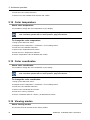
The Coronis Uniti is equipped with a SoftGlow Wall light. This allows you to have light on the wall at the
back of your display in a dark environment. The brightness of the SoftGlow Wall light can be adjusted.
To enable/disable the SoftGlow Wall light:
1. Bring up the OSD main menu.
2. Navigate to the Configuration > Lights menu.
3. Enter the SoftGlow Wall light submenu.
4. Select Enabled/Disabled as desired and confirm.
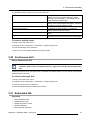
To adjust the SoftGlow Wall light brightness:
1. Bring up the OSD main menu.
2. Navigate to the Configuration > Lights menu.
3. Enter the SoftGlow Wall light brightness submenu.
4. Set a SoftGlow Wall light brightness value as desired and confirm.
5.8
DPMS mode
About DPMS mode
Enabling the Display Power Management System (DPMS) mode on your display will optimize its diagnostic lifetime by automatically switching off the backlight when the display is not used for a specified period
of time. By default, DPMS mode is enabled on your display, but it also needs to be activated on your
workstation. To do this, go to the “Power options properties” window of your workstation.
Barco recommends setting DPMS activation after 20 minutes of non-usage.
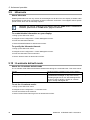
When DPMS mode is enabled on your display, an additional OSD power saving function
becomes available: hibernate. Please refer to "Hibernate", page 32 for more information
on hibernation and how to enable this function.
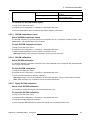
To enable/disable DPMS mode on your display:
1. Bring up the OSD main menu.
2. Navigate to the Configuration > Power Management menu.
3. Enter the DPMS Mode submenu.
4. Select Enabled/Disabled as desired and confirm.
K5902079 CORONIS UNITI 19/12/2014
31