1
NA260A
Rackmount External PCIe to GPU Enclosure
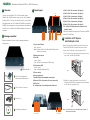
3. Insert a PCIe add-on/graphics card into PCIe ×16 slot and
tighten it with a screw. If you are installing a graphics card
that requires extra power resources, connect the 6 pin PCI
Express power resource provided by NA260A to the 6 pin
PCI Express power connector on graphics card, or connect
the 6+2 pin PCI Express power resource provided by
NA260A to the 8 pin PCI Express power connector on
graphics card.
5. Fan Speed Adjustment
7. Power On TurboBox Rac NA260A
You are able to adjust the speed of 120×120×25 mm cooling
fan inside TurboBox Rac NA260A. To do so, pull the cooling
fan out, and you will see five sets of jumpers labeled with
F, 1, 2, 3, and 4 respectively from left to right on the board.
The default setting is the jumper being placed over pin 9 and
pin 10 for label 4, meaning the slowest speed of fan. If the
jumper is placed over pin 1 and pin 2 for label F, the fan will
spin at full speed. From label 1 to label 3, the fan speed
decreases. If all of the pins are open (meaning no jumper is
placed over the pins), the fan will not spin.
2
4
6
8
10
1
3
5
7
9
6. Installation of Host Adapter and Cable
Connection
5. Connect the end of PCIe ×8 cable to PCIe ×8 connector on
rear panel of TurboBox Rac NA260A. Also, connect the end
of power cord to power receptacle on TurboBox Rac NA260A
and the other end of power cord to a grounded outlet or
power strip.
8. Power On Server or Workstation
In order to let the BIOS of server or workstation identify and
assign resources appropriately, make sure to power on
TurboBox Rac NA260A first, and then power on server or
workstation.
4. Place the top cover back to TurboBox Rac NA260A, and
tighten the two thumbscrews to fasten the top cover.
Step 4
Power on the TurboBox Rac NA260A by pressing the power
button for two seconds.
Before following the installation procedure, disconnect the
server or workstation from power source to prevent electric
shock or damage to add-on/graphics card.
1. Install TurboBox Rac PCIe 2.0 ×8 host adapter
into an available PCIe ×8 connector (compatible with
×16 connector) in server or workstation. Secure the host
adapter with a screw.
Step 5
There is no software required for proper configuration of
TurboBox Rac by server or workstation’s operating system;
however, as a third party PCIe card is installed in TurboBox Rac,
a request for the driver of the third party PCIe card will be
prompted by the operating system. Please follow the instruction
provided by the third party PCIe card.
9. Remove TurboBox Rac from Server or
Workstation
To remove TurboBox Rac NA260A from server or workstation,
power off server or workstation first, and then power off
TurboBox Rac.
10. Verify Installation
Note:
there are three hot-swappable
120×120×25 mm cooling
fans for ventilation inside
TurboBox Rac NA260A.
You may simply draw the
cooling fans out by pulling
the L type metal handle on
the fan modules.
PCIe ×8 cable
motherboard
2. Connect the other end of PCIe ×8 cable to TurboBox Rac
PCIe 2.0 ×8 host adapter on server or workstation.
To remove TurboBox Rac NA260A from server or workstation,
power off server or workstation first, and then power off
TurboBox Rac.
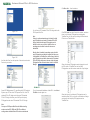
‧For Windows operating system
When you want to verify a successful installation on Windows
operating system, go to My Computer and right click the icon of
My Computer. Select Manage from the menu (see figure 10-1),
and click Device Manager in the left side of window of Computer
Management (see figure 10-2).