1
CONTROLS
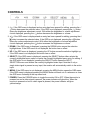
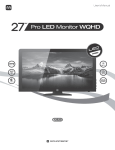
1. -/ : If the OSD menu is displayed and an entry has been opened for editing, pressing the -/
button decreases the selected value. If the OSD is not displayed, pressing the -/ button
opens the brightness adjustment control. With either the brightness or volume adjustment
control displayed, pressing the -/ button decreases the brightness or volume.
2. +/ : If the OSD menu is displayed and an entry has been opened for editing, pressing the +/
button increases the selected value. If the OSD is not displayed, pressing the +/ button
opens the volume adjustment control. With either the brightness or volume adjustment
control displayed, pressing the +/ button increases the brightness or volume.
3. DOWN: If the OSD menu is displayed, pressing the DOWN button moves the selection
highlight down. If the OSD menu is not displayed, the button has no effect.
4. UP: If the OSD menu is displayed, pressing the UP button moves the selection highlight up.
If the OSD menu is not displayed, this button has no effect.
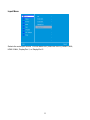
5. SELECT: If the OSD menu is displayed, pressing the SELECT button either selects the
currently highlighted menu option or opens the currently highlighted menu entry for editing. If
the OSD menu is not displayed, pressing the SELECT button opens the INPUT
SELECTION menu and selects the currently highlighted video input. Note that if only a
single video signal is present on any input, the monitor will automatically switch to the active
input.
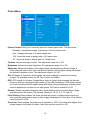
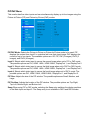
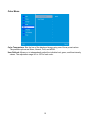
6. MENU: If the OSD menu is not displayed, pressing the MENU button opens the OSD menu.
If the OSD menu is displayed pressing the MENU button will back out of a submenu or close
the OSD menu if already at the top menu level.
7. POWER: Press the POWER button to toggle the monitor ON or OFF. When the monitor is
powered on and a video signal is present, the power indicator will glow blue. When the
monitor is powered on but no video signal is present, the power indicator will glow
yellow/orange.
6