1
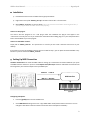
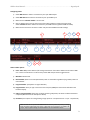
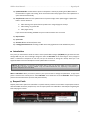
XEditor User Manual - - - - - - - - - - - - - - - - - - - - - - - - - - - - - - - - - - - - - - - - - - - - - - - - - - - - - - - - - - - - -HyperSynth Installation 1) Download the latest version of XEditor from Hypersynth website. 2) Right Click on the zip file “XEditor_vX.X.zip” and select “Extract All” or “Extract here”. 3) Move XEditor_vX.X folder to your VST folder. (You must move the entire folder containing all its files, if you only copy *.dll file the editor will not work properly) How to run VST plug-in? You need a VST host program to run a VST plug-in. After the installation the plug-in must appear in the "instruments" menu of your host. If you need further information about adding plug-ins in your host please take a look at the handbook of your host program. How to run Standalone version? Simply click on XEditor_vX.X.exe. For quick access to *.exe file you can create a shortcut and move it on your desktop. If you want to run only the standalone version there is no need for step 3, you can place the extracted folder in any location on your PC and click on XEditor_vX.X.exe. Setting Up MIDI Connection 2 Hardware Connections: You need two MIDI cables for setting up a bi-directional connection between your synth and MIDI interface. However if you don’t need Request Patch/Save Sysex function unidirectional connection will be enough from your interface output to the synth MIDI Input. MIDI Out > MIDI In MIDI Interface MIDI IN < MIDI Out MIDI Controller Keyboard (optional) Configuring Xenophone: Press the [global] button to enter Global menu. Go to Midi Channel setting and set it to 1. (By default Editor sends/receives data on channel 1. You can change this later but the channel number must be the same in Xenophone and Editor) 2