1
14
CHAPTER 4.
USING KEYTOUCH
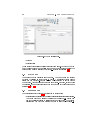
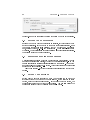
Figure 4.1: Here you can select the action to perform when the key is pressed.
4.3
Setting your preferences
Because you want to work as comfortable as possible, keyTouch allows you to
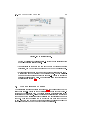
set your preferences. If you want to do this go to the "Preferences" tab. Here
you can set your "Documents" directory, the URL of your home- and search
page, internet browser, e-mail- and chat program. These values will be used
by plugins. The "Preferences" tab also contains a list of special action plugins.
This will be thread in the next paragraph.
4.4
Importing special action plugins
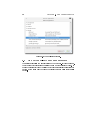
A special action is a plugin which can be executed if a key is pressed. You can
import new special action plugins, by going to the "Preferences" tab. Now you
can see all currently available plugins installed on your system. To import a
new plugin click on the "Import..." button. After doing this the new plugin will
appear in the list of plugins.
Click the "Download..." button to download extra plugins from the keyTouch
website.
4.5
Saving your settings
If your want to save the changes you made, you can click the "OK" or the
"Apply" button at the bottom of the main window. If you click the "Apply"
button, only the changes will be saved. If you click the "OK" button, the
changes will be saved and keyTouch will be closed. You can also discard the
changes and close keyTouch by clicking the "Cancel" button.