1
Chapter 4
Using keyTouch
This chapter describes how to use keyTouch.
4.1
Selecting your keyboard
The rst thing you want to do is selecting the keyboard you use. To do this
go to the "Keyboard" tab and click the "Change..." button. Because you need
root privileges to change the keyboard, you will be asked for the root password.
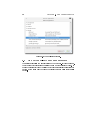
After that a window will appear. This window contains a list with all available
keyboards. Select your keyboard from the list and click the "OK" button.
After choosing the keyboard, keytouch will be restarted and the key list will
contain the extra function keys of your keyboard.
If your keyboard is not in the list, check the keyTouch website if there is
a keyboard le available for your keyboard. For list of available keyboard les
go to http://keytouch.sourceforge.net/dl-keyboards.html. Click the "Import..."
button after downloading the correct keyboard le. A window will appear where
you can select the keyboard le. After this your keyboard will be visible in the
list of available keyboards.
4.2
Changing the settings of the keys
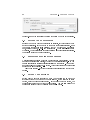
To dene what happens if you press a key, you should go to the "Key settings"
tab and select the key you want to congure from the list.
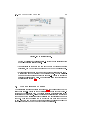
There are three options (see also gure 4.1) for what happens when the key
is pressed:
• Default setting: This is the default setting of the key, it can either be a
program or a special action.
• Program: The program you lled in will be executed. You can ll in the
command of the program or click the "Choose..." button to select the
program from a list of applications (see section 3.4).
• Special action: A the selected function of the selected plugin will be exe-
cuted (You can import new plugins at the "Preferences" tab.).
13