1
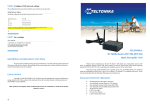
3G Mobile Router
User Manual
TELTONIKA
3G Mobile Router (RUT100)
User Manual v1.05
1
3G Mobile Router
User Manual
LEGAL NOICE
Copyright © 2008 TELTONIKA Ltd. All rights reserved. Reproduction, transfer,
distribution or storage of part or all of the contents in this document in any form without the prior
written permission of TELTONIKA Ltd is prohibited.
Other product and company names mentioned herein may be trademarks or trade names of their
respective owners.
ATTENTION
All wireless devices for data transferring are susceptible to
interference, which could affect performance
Before using the device we strongly recommend read this user
manual.
The device is not water-resistant. Keep it dry.
IMPORTANT NOTES!
It is mandatory to read the notes and manual carefully before starting to use the device.
2
3G Mobile Router
User Manual
Table of Contents
1 FOR YOUR SAFETY......................................................................................................................................4
2 PRODUCT OVERVIEW...............................................................................................................................5
2.1 Introduction................................................................................................................................................5
2.2 Package contents........................................................................................................................................5
2.3 System requirements..................................................................................................................................5
2.4 Hardware. LED's and connections.........................................................................................................6
2.4.1 Back panel............................................................................................................................................6
2.4.2 Front panel..........................................................................................................................................6
3 GETTING STARTED....................................................................................................................................7
3.1 Initial setup..................................................................................................................................................7
3.2 Connect to network...................................................................................................................................7
4 ROUTER CONFIGURATION....................................................................................................................8
4.1 Connect to router WEB configuration tool using LAN connection................................................8
4.2 Connect to router WEB configuration tool using wireless LAN connection.................................9
4.3 WEB configuration interface structure................................................................................................12
4.4 Status..........................................................................................................................................................12
4.4.1 System Information.........................................................................................................................13
4.4.2 Interfaces...........................................................................................................................................13
4.4.3 Wireless..............................................................................................................................................14
4.5 Configuration............................................................................................................................................14
4.5.1 3G Network......................................................................................................................................14
4.5.2 Network.............................................................................................................................................15
4.5.3 Wireless..............................................................................................................................................16
4.5.4 Port forwarding................................................................................................................................19
4.5.5 Service................................................................................................................................................20
4.6 Admin........................................................................................................................................................21
4.6.1 Account..............................................................................................................................................21
4.6.2 Maintenance .....................................................................................................................................22
4.7 Tools..........................................................................................................................................................23
4.7.1 Site Survey.........................................................................................................................................23
5 TECHNICAL SPECIFICATION...............................................................................................................25
6 TECHNICAL SUPPORT CONTACTS....................................................................................................27
3
3G Mobile Router
User Manual
1 FOR YOUR SAFETY
In this document you will be introduced how to use 3G mobile router safely. We suggest you
to adhere to following recommendations to avoid any damage to person or property.
You have to be familiar with the safety requirements before starting to use the device!
3G Mobile Router is used to provide a mobile Internet access using a GSM network. To
avoid user injures it is important to follow safety requirements listed below.
Installation and technical support of the device can be performed
only by a service personnel or a person who has enough
knowledge about this device and safety requirements.
When the device is not working or working bad the technical service of device can perform
only qualified personnel. We strongly recommend to hand the device to repairer or manufacturer.
Do not mount or serve device during a thunderbolt.
To avoid mechanical damage of the device, it is recommended to transport the device
packed in damage-proof pack.
Signal level of the device depends on the environment in which it is working.
The power of connected device should satisfy power of release device.
4
3G Mobile Router
User Manual
2 PRODUCT OVERVIEW
2.1 Introduction
Teltonika 3G Mobile Router provides WAN connectivity to wired and wireless clients using
the 3G cellular data network. It allows multiple users to get a IEEE 802.11 compliant connection
within your wireless broadband network with a single 3G data access account and card. 3G Mobile
Router is extremely useful for mobile work teams or emergency crews that need access to the
broadband Internet but have no permanent base. The 3G/IEEE 802.11 router might be an easy
solution to provide Internet connection for commuter vehicles, such as trains or company buses.
Quickly set up a IEEE 802.11 hotspot Internet connection to check email and browse the web or
share file.
2.2 Package contents
•
•
•
•
•
•
•
3G mobile router (RUT100)
2 external Wireless LAN antennas
External GSM antenna
Power adapter
CAT5 LAN cable
CD with User Manual
Leaflet “Quick Start Guide”
Note: The manufacturer does not supply the SIM card, which is mandatory for setting up a
connection to the GSM network! The SIM card may be purchased from your GSM (mobile) service
provider!
Note: Using a power supply with a different voltage rating than the one included with the
RUT100 will cause damage and void the warranty for this product.
Note: If any of the components is missing or damaged, please contact the retailer or reseller
from which this product was purchased.
2.3 System requirements
A computer with Windows®, Macintosh®, or Linux-based operating systems with a network
connection (wired or wireless).
A web browser Internet Explorer 6.0, Netscape Navigator™ 6.0, Opera 9.0 or Mozilla 5.0
for configuration.
Note: The screenshots in this manual were taken with Internet Explorer 7.0.
5
3G Mobile Router
User Manual
2.4 Hardware. LED's and connections
2.4.1
Back panel
Figure 1. Router back panel view.
1. Wireless LAN antenna connection.
2. GSM antenna connection.
3. Wireless LAN antenna connection.
2.4.2
Front panel
Figure 2. Router front panel view.
1. 3G LED. A solid light indicates proper connection of the 3G.
2. Reset button.
3. Ethernet socket.
4. Ethernet LED. A solid light indicates proper connection of the Ethernet. A blinking
light indicates data transfer.
5. Power LED. A solid light indicates a proper connection to the power supply.
6. SIM card socket.
7. Power Adapter socket.
6
3G Mobile Router
User Manual
3 GETTING STARTED
3.1 Initial setup
3G Mobile Router enables to access network using a wireless connection from virtually
anywhere within the operating range of wireless network. Before finding place to set up access point.
some things should be considered:
1. Make sure the power outlet is nearby as the router requires power supply.
2. Keep the access point as central in work area as possible.
3. The number of walls and ceilings between the router and other network devices should be
kept to a minimum as each wall or ceiling probably will reduce adapter’s range from 1-30
meters. Signal strength and speed fall off with distance.
4. Higher is often better. Set up the router on the top shelf of a bookcase rather than the
bottom one, if it is possible. The antenna usually works best if oriented to point straight up.
5. Building Materials make a difference. A solid metal door or aluminum studs may have a
negative effect on range. Try to position access point and computers so that the signal passes
through drywall or open doorways. Materials and objects such as glass, steel, metal, walls
with insulation, mirrors, file cabinets, bricks, and concrete will degrade wireless signal.
6. Keep router away (at least 1-2 meters) from electrical devices or appliances that generate RF
noise.
7. If you are using 2.4GHz cordless phones or X-10 (wireless products such as ceiling fans,
lights, and home security systems), your wireless connection may degrade dramatically or
drop completely. Make sure your 2.4GHz phone base is as far away from your wireless
devices as possible. The base transmits a signal even if the phone in not in use.
3.2 Connect to network
1. Attach Wireless LAN and GSM antennas.
•
Remove the antenna from its plastic wrapper.
•
Screw the antenna in a clockwise direction to the back panel of the unit.
•
Position the antenna upward at its connecting joint. This will ensure optimal reception.
2. Insert the SIM card which was given by your GSM (mobile) service provider
3. Insert the Ethernet cable into LAN Port if the router will be configured using wired
connection.
4. Connect the power adapter to the receptor on the front panel of 3G Mobile Router. Then
plug the other end of the power adapter into a wall outlet or power strip.
Note: SIM card is mandatory for setting up connection to the GSM network. However, the
manufacturer of this equipment does not supply the SIM card. The SIM card can be purchased from
your GSM (mobile) service provider! For APN, user name and password please contact your GSM
(mobile) service provider. The 3G Mobile Router must be powered off while inserting or taking out
the SIM card. If the SIM card will be inserted or taken out from the modem while the power is on –
it may cause damage to the modem or the SIM card. In this case, the modem will not be replaced or
repaired by the guarantee.
7
3G Mobile Router
User Manual
4 ROUTER CONFIGURATION
4.1 Connect to router WEB configuration tool using LAN connection
Step 1 Connect device to the same LAN as Administrator computer.
Step 2 Setup Local Area Network adapter on your computer (Go to Start > Settings >
Network Connections Right click on Local Network Connection by selecting Properties:
Step 3 Setup the Local Area network adapter’s IP address (choose Internet Protocol
(TCP/IP) and click Properties):
8
3G Mobile Router
User Manual
Step 4 Setup the Local area network adapter to Obtain an IP address automatically or
assign static IP address manually within 192.168.0.2 - 192.168.0.254 address range with mask
255.255.255.0, gateway 192.168.0.1 and DNS server 192.168.0.1. Open the Web browser and type
the default IP address of the router (192.168.0.1):
Step 5 Enter the 3G Mobile Router administrator login details to access the Web
management tool:
The default administrator login settings are:
Login:
admin
Password:
admin01
Note: It is strongly recommended to change the password after the first router configuration.
4.2 Connect to router WEB configuration tool using wireless LAN
connection
Note: the Wireless network function is shipped disabled by default and the configuration for
the first time can be made only using wired connection.
Step 1 Connect the power adapter to the device.
Step 2 Setup wireless network adapter on your computer (Go to Start>Settings>Network
Connections>Right click on Wireless Network Connection associated with the wireless adapter)
by selecting Properties:
9
3G Mobile Router
User Manual
Step 3 Setup the wireless network adapter’s IP address (choose Internet Protocol
(TCP/IP) and click Properties):
Step 4 Setup the wireless network adapter to Obtain an IP address automatically or
assign the wireless client static IP address manually within 192.168.0.2 - 192.168.0.254 address range
with mask 255.255.255.0, gateway 192.168.0.1 and DNS server 192.168.0.1.
Step 5 Enable the wireless network connection:
10
3G Mobile Router
User Manual
Step 6 Choose the wireless device with default SSID www.teltonika.lt from the list of
available wireless network:
Step 7 Open the Web browser and type the 3G Mobile Router device default IP address of
wireless interface 192.168.0.1 .
Step 8 Enter the 3G Mobile Router administrator login details to access the Web
management:
The default administrator login settings are:
Login:
admin
Password:
admin01
Note: It is strongly recommended to change the password after the first router
configuration.
Step 9 After successful administrator log on you will see the main page of the 3G Mobile Router
Web configuration interface. The device now is ready for configuration.
11
3G Mobile Router
User Manual
4.3 WEB configuration interface structure
The main Web management menu is displayed after successful login into the system (see the
figure below). From this menu all essential configuration pages are accessed.
Figure 3. Main Management Menu
By default the Statistics | System Information menu is activated and the main system
information is displayed. The active menu is displayed in a different color. The web management
menu has the following structure:
Status
System Information – displays general information of the device.
Interfaces – displays main network statistics of the device.
Wireless – displays statistics of the wireless interfaces of the device.
Configuration
3G Network – 3G network settings.
Network – Ethernet network settings.
Wireless – IEEE 802.11 network settings.
Port forwarding – Port forwarding settings.
Services – SSH, HTTPS services management.
Admin
Account – change administrator’s password.
Maintenance – new firmware upgrade, reboot or reset to factory defaults the device.
Tools
Site Survey – shows information about wireless networks in the local geography.
4.4 Status
Use the Status menu to check the device current status (this is the default page when
accessing the administration web management interface). There are five sections of the status
information:
•
System Information
•
Interfaces
•
Wireless
12
3G Mobile Router
User Manual
4.4.1
System Information
System Information menu displays general devices status (device name, firmware version,
hardware revision, uptime, system memory, average load), license status and short information about
current skin.
Figure 4. System Information
Uptime – displays the time since the system was last rebooted.
Device name – displays the device type.
Firmware version – displays current version of the firmware.
Average system load – displays the average load of the device processor in the period of
the last 1minute, 5 minutes and 15 minutes (a larger value means a larger average load on the
processor).
•
<1.0 – System is idle
•
=1.0 – Normal load
•
>1.0 – Processor is busy.
System memory – displays total and free system memory [kB].
Refresh – click to renew system information page.
4.4.2
Interfaces
The Interfaces page displays the main network configuration and receive/transmit statistics
of all interfaces.
Figure 5. Interfaces
13
3G Mobile Router
User Manual
Network statistics – displays detailed receive and transmit statistics of each interface.
Network configuration – displays the main parameters of the interfaces (MAC address, IP
address, Subnet mask).
Refresh – click to renew network statistics information.
4.4.3
Wireless
The Wireless page displays the main statistics of wireless LAN interface.
Figure 6. Wireless LAN Statistics
Wireless Statistics – displays detailed statistics of each wireless interface.
Wireless Configuration – displays the main information of the device radio.
Refresh – click to renew wireless statistics information.
4.5 Configuration
Use the Configuration menu to manage device configuration:
•
3G Network – to setup 3G network settings.
•
Network – to setup main Ethernet network settings.
•
Wireless – to setup Wireless LAN network settings.
•
Port forwarding – to setup port forwarding settings.
•
Services – to setup SSH, HTTP services.
4.5.1
3G Network
To get all the configuration data please contact your GSM (mobile) service provider.
Figure 7. 3G Network configuration.
14
3G Mobile Router
User Manual
Phone Number: Phone number acquired from your service provider.
APN: Access Point Name (APN).
User Name: Enter your User Name for your 3G connection.
Password: Enter your Password for your 3G connection.
Apply – click to save 3G Network information.
4.5.2
Network
This section will allow you to change the local network settings of the router and to
configure the DHCP settings
Figure 8. Network settings.
Router IP address. The IP address of the router. The default IP address is 192.168.0.1.
Subnet mask. The Subnet Mask of the router. The default subnet mask is 255.255.255.0.
Enable DHCP server. Check the box to enable the DHCP server on your router. Uncheck
to disable this function
When DHCP server function is enabled the following screen appears:
Figure 9. Network settings.
15
3G Mobile Router
User Manual
IP address from. Starting IP addresses for the DHCP server’s IP assignment.
IP address to. Ending IP addresses for the DHCP server’s IP assignment.
Subnet mask. The Subnet Mask of the router. The default subnet mask is 255.255.255.0.
Lease time. Determines how long IP addresses are assigned for you. During the lease time,
the DHCP server cannot assign that IP address to any other clients. The purpose of a lease is to limit
the length of time that a client may use an IP address. A lease prevents unused clients from taking up
IP addresses when there are more clients than addresses. Enter the Lease time in seconds.
WINS address. If WINS (Windows Internet Naming Service ) server is specified, the
router at system startup, will register its name and IP address with the WINS server. WINS server is
used for mapping host names to network addresses. This results in fast and efficient host name
resolution. Specify WINS server IP address.
Domain. Enter the domain name for the Router. Some ISPs require it for identification.
Check your ISP to see if your broadband Internet service has been configured with a domain name.
In most cases, leaving these fields blank will work.
4.5.3
Wireless
This section will allow you manage wireless network settings.
Figure 10. Wireless network settings.
Country code. Select the country where the wireless network will be created.
Figure 11. Wireless network settings.
Enable radio. Check the box to enable the wireless function. If you do not want to use
wireless, uncheck the box to disable all the wireless functions
SSID. Specify a unique name for your wireless network.
16
3G Mobile Router
User Manual
Figure 12. Wireless network settings.
IEEE mode. Specify the wireless network mode [B,G, mixed B/G].
Dynamic turbo. The dynamic function allows the router to automatically search for
channels with less noise and interference. By default, this feature is disabled. You can enable this
feature by selecting the checkbox. (For G mode only.)
Current Channel. Indicates the channel setting for the router.
Channel. Select the channel for the wireless network.
Data rate. Set the maximum wireless network data rate.
Transmit power. Set the maximum transmitter radiation power.
ACK timeout. Set ACK timeout in order to adjust the timeout value for long distance
operation.
Fragmentation. specify the fragmentation threshold (in bytes), which determines whether
data frames will be fragmented and at what size [256-2346/off/auto]. On a 802.11 wireless LAN,
frames exceeding the fragmentation threshold will be fragmented, i.e., split into smaller units suitable
for the circuit size. Data frames smaller than the specified fragmentation threshold value are not
fragmented. Default: off.
17
3G Mobile Router
User Manual
Note: Setting a lower fragmentation threshold value can help improve connection reliability
in noisy environments (where radio interference is present). This mechanism does add overhead and
therefore reduces effective throughput.
RTS. specify the maximum packet size beyond which the wireless LAN card invokes it’s
RTS/CTS mechanism [0-2347/off/auto]. Packets that exceed the specified RTS threshold trigger
the RTS/CTS mechanism. The card transmits packets smaller than this threshold without using
RTS/CTS. Default: off.
Note: Setting a lower RTS threshold value can improve connection reliability and
throughput in crowded wireless LAN environments (where many clients are trying to communicate
simultaneously). It adds a certain amount of overhead, but can compensate for this by reducing
bandwidth lost due to collisions.
Enable VLAN. Enable Virtual Local Area Networks (VLAN) function.
Throughput enhancements (available only on G mode).
Fast Frames – packet aggregation and timing modifications.
Packet Bursting – more data frames per given time period.
Compression – standards based (Lempel Ziv) real-time hardware compression.
Quality of service (WMM). Check box to enable applications such as audio, video and
voice applications have higher priority than less-sensitive data applications.
User isolation. Check the box to isolate the wireless clients from communicating with each
other.
Inter AP client isolation. Check the box to enable internal wireless network users isolation.
Figure 13. Wireless network authentication settings.
Broadcast SSID. Check the box to enable SSID broadcast.
Authentication Method. Choose the authentication method for wireless network.
Open system – no encryption.
WPA-PSK-AES – choose the WPA security with passphrase
Passphrase – specify the passphrase [8-63 characters].
WPA-PSK-TKIP – choose the WPA security with passphrase, encrypted by the
TKIP (Temporal Key Integrity Protocol) algorithm.
Passphrase – specify the passphrase [8-63 characters].
WPA2-PSK-AES – choose the WPA2 security with passphrase, encrypted by the
AES algorithm.
18
3G Mobile Router
User Manual
Passphrase – specify the passphrase [8-63 characters].
WPA2-PSK-TKIP – choose the WPA2 security with passphrase, encrypted by the
TKIP (Temporal Key Integrity Protocol) algorithm.
Passphrase – specify the passphrase [8-63 characters].
4.5.4
Port forwarding
This section will lest to manage port forwarding.
Figure 14. Port forwarding settings.
Application name. Set the name of the application.
Port type. Select TCP, UDP, or BOTH
Incoming port. Set incoming port value or range
Destination address Enter the IP address and/or port of the computer on your local
network that you want to allow the incoming service to be forwarded.
Example 1: Forward TCP port 40000 to IP address 192.168.0.100
19
3G Mobile Router
User Manual
Example 2: Forward UDP port 40000 to IP address 192.168.0.100 port 50000.
Example 3: Forward TCP and UDP ports range 40000 - 70000 to IP address 192.168.0.100
port 50000.
4.5.5
Service
In this section is possible to enable/disable HTTP, SSH services which are important for
remote control management.
Figure 15. SSH service
Enable SSH. Check the box to enable SSH service.
Port. Set port value of the SSH service.
20
3G Mobile Router
User Manual
Figure 16. HTTP service
Enable management trough HTTP. Check the box to enable management though
HTTP.
4.6 Admin
Use the Admin menu to define access settings to the device, or to use the following system
utilities:
•
•
4.6.1
Account – change administrator’s password.
Maintenance – new firmware upgrade, reboot or reset to factory defaults the device.
Account
The Administrative Account menu is for changing the existing administrators’ password.
Figure 17. Change administrator password
Username – displays the username of the current connected administrator. This parameter
is not changeable.
Old password – enter the old administrator password.
New password – enter the new administrator password for user authentication.
Verify password – re-enter the new password to verify its accuracy.
Apply – click to save new administrator settings.
Note: The only way to gain access to the web management if you forget the administrator
password is to reset the device factory default settings.
Note: Default administrator login settings are:
User Name: admin
Password: admin01
21
3G Mobile Router
User Manual
4.6.2
Maintenance
Use the Maintenance menu to upgrade system firmware, reboot the device or set the device
to factory default values.
To update your device firmware use the Firmware upgrade section, select the firmware file
and click the Upload button:
Figure 18. Firmware update
Current Firmware Version – displays version of the current firmware.
Browse… – click the button to select the new image from a folder on the PC.
Upload – upload the new firmware.
The new firmware image is uploaded to the controller’s temporary memory. It is necessary to
save the firmware into the controller’s permanent memory. Click the Upgrade button.
Use the Reboot section to reboot the device:
Figure 19 . Reboot Device
Reboot. Reboot device with the last saved configuration.
After clicking the Reboot button, the confirmation message appears:
Figure 20. Reboot Confirmation
Reboot. Click to finish the device reboot process.
Cancel. Do not reboot the device.
Use the Factory Defaults menu to reset device parameters into factory defaults:
Figure 21. Resetting Device to Factory Defaults
22
3G Mobile Router
User Manual
Reset – click to reset the device to factory default values.
After clicking the Reset button, the confirmation message appears:
Figure 22. Reset to Factory Defaults Confirmation
Reset. Click to reset the device to factory default values.
Cancel. Click to cancel reset process.
Note: Resetting the device is an irreversible process. Current configuration and the
administrator password will be set back to the factory default.
If there are any problems with router the troubleshoot file may be downloaded. It contains
router configuration information, messages and troubleshoot data.
Figure 23. Troubleshoot file download
4.7 Tools
Use the Tools menu to use the following device applications:
•
Site Survey – to view the list of wireless networks in local graphical area.
4.7.1
Site Survey
The Site Survey test shows overview information for wireless networks in a local geographic
area. Using this test, an administrator can scan for working access points, check their operating
channels, encryption and see signal/noise levels. An administrator can use this feature to identify a
clear channel to set the device.
Note: Note that Site Survey function can take several minutes to perform.
A Site Survey test is performed every time on the startup of the device, therefore the results
of the last performed Site Survey test and its time can be found on the page. Thus, to obtain the
results, the initiation of the scan is not necessary. To perform the Site Survey test currently, click the
Scan button:
23
3G Mobile Router
User Manual
Figure 24. Site Survey Table
Note: The Site Survey function is impossible if the selected wireless interface is disabled.
24
3G Mobile Router
User Manual
5 TECHNICAL SPECIFICATION
Wireless IEEE 802.11 network
Standards
IEEE 802.11b: 11Mbps, 5.5Mbps, 2Mbps, 1Mbps
IEEE 802.11g: 54Mbps, 48Mbps, 36Mbps, 24Mbps, 18Mbps, 12Mbps, 9Mbps,
6Mbps, automatically fall back to 5.5Mbps, 2Mbps, 1Mbps
Transmitter output power at antenna connector
IEEE 802.11b:
1-11Mbps
20dBm
IEEE 802.11g:
6-24Mbps
20dBm
36Mbps
19dBm
48Mbps
17dBm
54Mbps
16dBm
Receiver sensitivity at antenna connector
IEEE 802.11b:
-92 dBm @ 1Mbps
-87 dBm @ 11Mbps
IEEE 802.11g:
-90 dBm @ 6Mbps
-70 dBm @ 54Mbps
Security
WPA/WPA2
Wireless Frequency Range
2.412GHz to 2.484GHz
External Antenna Type
Single detachable reverse SMA
Management
User-friendly Web GUI
Wired and wireless network status.
Site survey test.
Traffic monitoring.
Firmware upgradeable.
25
3G Mobile Router
User Manual
HSDPA/UMTS 850/1900/2100 MHz
Power Class 3 (+24dBm)
HSDPA 7.2: categories 1-4, 11 and 12
HSDPA 3.6: categories 5 and 6
HSDPA 7.2: category 7 and 8
UMTS: 384 kbps operation in downlink and uplink
EDGE 850/900/1800/1900 MHz
GSM Power Class 4 (2W) for 850/900 bands
GSM Power Class 1 (1W) for 1800/1900 bands
EDGE class E2 (+27 dBm in 850/900 bands, +26 dBm in 1800/1900 bands)
GPRS/EGPRS Multislot Class 12 (4 slots Rx, 4 slots Tx)
GPRS/EGPRS Class B Type 1 MT
GPRS CS1-CS4; EGPRS MCS1-MCS9
CSD: 14.4 and 9.6 kbps
Temperature & Humidity
Operation 0˚ to 40˚ C
Maximum humidity 80%
Transit/Storage 0˚ to 40˚ C maximum humidity 80% (no condensation)
LEDS
Power
Cellular Network Activity
Wireless LAN Activity
LAN Activity
Host Operating System
Microsoft Windows® 98SE/ME/NT4.0/2000/XP, Unix, Linux and MacOS
Dimensions
L = 100mm
W = 85mm
H = 36mm
Weight
280g
26
3G Mobile Router
User Manual
6 TECHNICAL SUPPORT CONTACTS
If you face any problems related to the device, which you are not able to solve by yourself,
you are always welcome to address our technical support department by e-mail
[email protected]. We will be very glad to help you.
27