1
Dfine® 2.0
Chapter 5: Dfine 2.0 Interface
View Modes
User Guide
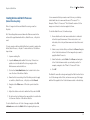
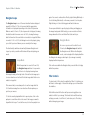
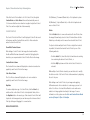
Side-by-side Preview
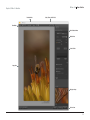
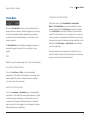
Dfine 2.0 offers different views to let you preview the noise
reduction effect on your image within the interface.
Two separate previews
appear. The portion on the
left or on top shows the
image prior to applying the
filter; the portion on the
right or at bottom shows the
image after the filter has
been applied.
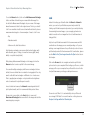
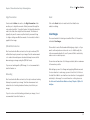
Single Image View
In this view, the entire image is displayed, with the noise
reduction effect applied across the preview area. To see the effect
before and after, toggle the Preview option on and off.
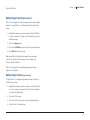
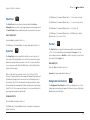
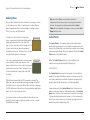
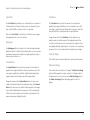
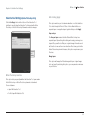
Split View
The image is displayed with a red line
running either vertically or horizontally
through it. The portion to the left or
above the red line shows the image
prior to applying the filter; the portion
to the right or below the red line shows
the image after the filter has been
applied.
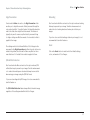
You can move the image with the Pan
Tool or click and drag the red line to
observe the effect on the image’s detail.
Click the Rotate Preview button to alternate between vertical
and horizontal split.
The previews are linked for zooming and panning. This lets you
see the before- and after-images as a whole, or at the fine-detail
level.
Click the Rotate Preview button to alternate between vertical
and horizontal layout.
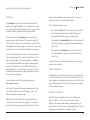
Preview
The Preview checkbox enables you to toggle the noise reduction
effect applied to the image on or off. When the Preview checkbox
has a check within it, the noise reduction effect is being applied to
your image. When the checkbox is unchecked, the image displayed
has no noise reduction applied.
21