1
Chapter 6: Contract Template Each member entered into the software has a Member Type. This is the member’s contract name, or
Contract ID. Before you can start entering members into the software you will need to set up at least one
contract template in the Contract Template Manager.
The Contract Templates section can be found in both the AAC Check-In and Point of Sale drop down menus.
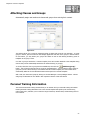
Open either application and click Configuration
Members
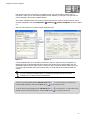
Contract Templates, as shown in Figure
6-1.
Add, view, edit, and print out contract template information here.
Figure 6-1.
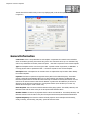
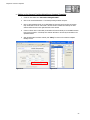
Figure 6-2.
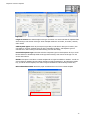
Contract templates allow you to minimize your data entry. After you setup each of your templates, the
default values will be automatically filled when entering new contracts in the Contract Wizard. This will
dramatically reduce the time it takes to enter a contract, as well as reduce the chance of data entry errors.
You can override most fields during actual contract entry, so not all fields in the Contract Template are
required.
If you are utilizing the Package feature you should enter packages through the inventory
manager prior to creating contracts with Packages.
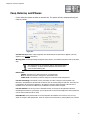
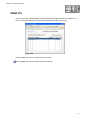
To add a new contract template click the “Add new record” button
contract template information, then click the “Save” button
or use your [Insert] key. Then enter the
or use your [F3] key to save.
To edit an existing contract template click the “Edit Record” button
all fields except for the Contract Id and Type. Click the “Save” button
or use the [F11] key. You will be able to edit
or use your [F3] key to save.
76