1
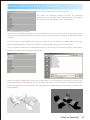
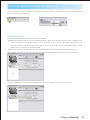
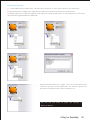
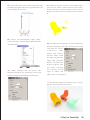
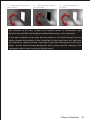
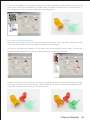
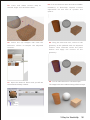
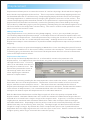
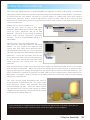
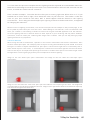
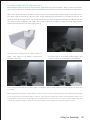
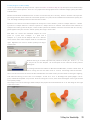
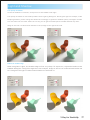
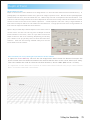
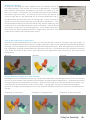
06. Go to the Front view, select the move tool
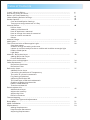
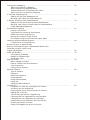
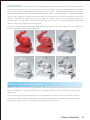
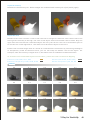
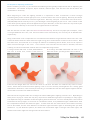
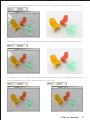
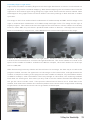
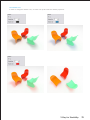
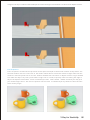
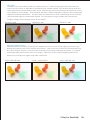
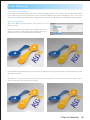
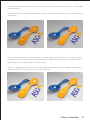
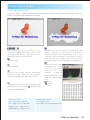
07. Render it and you will get a very bright image
and drag the light to the top, approximately 4X
like the one below. That's because the V-Ray's
of the height of the chair.
default setting of the Rectangular Light is set to
No Decay. Please follow the steps below to adjust
it.
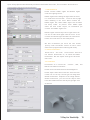
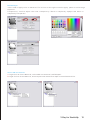
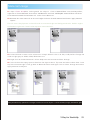
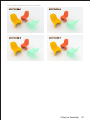
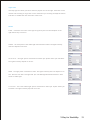
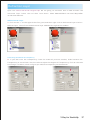
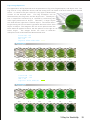
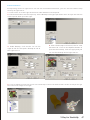
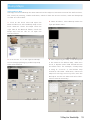
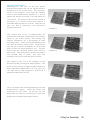
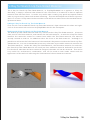
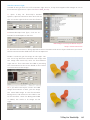
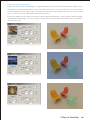
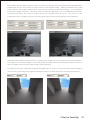
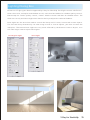
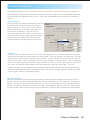
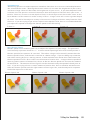
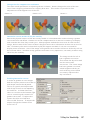
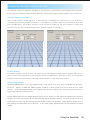
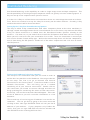
08. Select the Rectangular Light. Right
click on Object, select V-Ray for SketchUP and
click Edit Light.
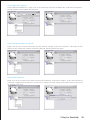
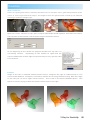
09. Uncheck the No Decay. This will make the
distance between the light and objects being
considered
while
rendering.
That
means the object
further away from
the light will get less
light and become
darker. To make the
object brighter, you
can either increase
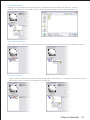
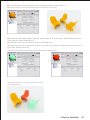
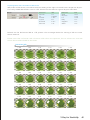
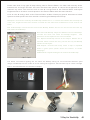
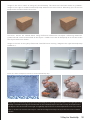
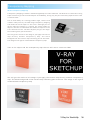
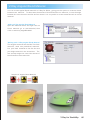
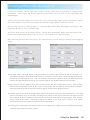
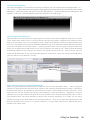
10. When uncheck the No Decay, the
default setting of the intensity is set to 30.
Please change the Multiplier from 30 to 4.
the intensity of the
light or move the
light closer to the object.
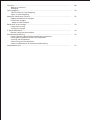
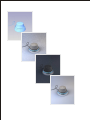
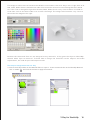
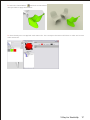
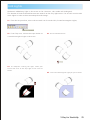
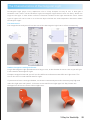
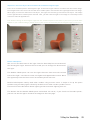
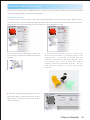
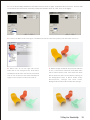
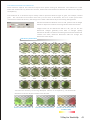
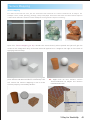
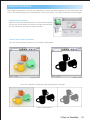
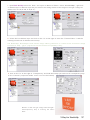
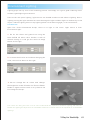
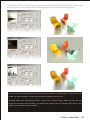
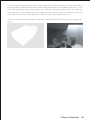
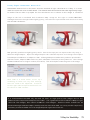
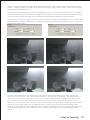
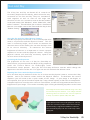
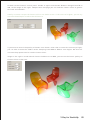
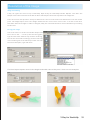
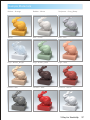
11. Hit Render again and you will get a much
better result like this one below.
V-Ray for SketchUp
26