1
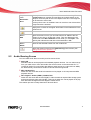
Tabs
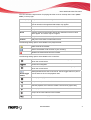
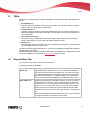
Burn Jukebox
Disc
Opens the Nero Express splash screen with a Juxebox Audio CD
project already enabled - You can compile music files for a jukebox
disc here.
Burn Data Disc
Opens the Nero Express start screen. The Data category is already
selected and you can decide whether to burn a CD or a DVD.
Nero Burning ROM can also be also be used for this task as an additional Nero application. If you choose this to perform the tasks, the
selection screen in which you can select the files for a data disc
opens.
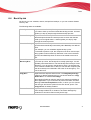
Burn Video Disc
Opens the Nero Express start screen. The Videos/Images category
is already selected and you can decide whether to create a video
CD, a Super-video CD, or DVD video files.
Nero Burning ROM can also be also be used for this task as an additional Nero application. If you choose this to perform the tasks, the
New Compilation window, in which you can choose the disc type
and set the options for the disc format, opens.
Copy Disc
Opens the Nero Express start screen. The Images/Project/Copy
category is already selected and you can decide whether to Copy
Entire Disc or create a Disc Image.
Nero Burning ROM can also be also be used for this task as an additional Nero application. If you choose this to perform the tasks, the
New Compilation window, in which you can choose the disc type
and set the options for the disc format, opens. The Copy CD task is
already enabled.
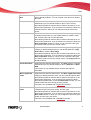
Create SecurDisc
Opens the Nero Express start screen. The Data category is already
selected and you can decide whether to burn a Data CD or a Data
DVD.
This function is only available with a recorder that supports
SecurDisc.
Burn LightScribe
Label
Opens the Nero Express start screen. The Burn LightScribe Label
category is already selected. Here, you can create and print a label.
Nero Burning ROM can also be also be used for this task as an additional Nero application. If you choose this to perform the tasks,
Nero Burning ROM opens. In the CD Label Editor window, you can
create a label and print it during the burn process.
This task is only available with a LightScribe recorder.
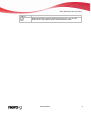
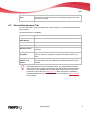
Burn Labelflash
Label
Opens the Nero Express Burn Label window, in which you can
configure the print area, print quality, and disc type.
Nero Burning ROM can also be also be used for this task as an additional Nero application. If you choose this to perform the tasks, the
Burn Label window, in which you can configure the print area, print
quality and disc type, also opens.
This task is only available with a Labelflash recorder.
Nero StartSmart
34