1
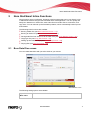
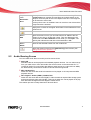
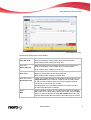
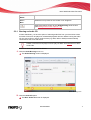
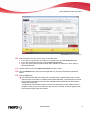
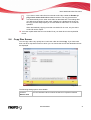
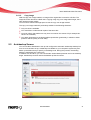
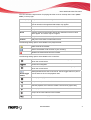
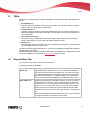
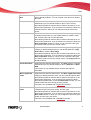
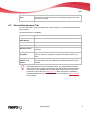
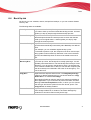
User interface Rip and Burn Offers you a choice of frequently occurring ripping and burning projects. These are pre-configured and therefore can be easily and quickly executed. Create and Edit Offers pre-configured projects for quickly and easily creating slide shows and disc labels, editing videos, converting audio files, and much more. Home Entertainment Offers pre-configured projects for playing and recording videos, playing audio files, viewing and recording live television programs, and much more. Back Up Provides additional pre-configured projects for backing up data, restoring backups, scheduling future backups, creating a disaster recovery disc, and just copying a disc. The menu icons on the left side of the Nero StartSmart start screen each represent the socalled inline functions. These are optimally pre-configured, frequently-used processes that can be run directly in Nero StartSmart without having to launch another Nero Suite application (see Nero StartSmart inline functions 14). The following menu icons are available: Data Burning Displays the Burn Data Disc screen, where you can quickly burn a selection of files. First name the disc and select a destination drive, add the files to be burned, and click Burn. Audio Burning Displays the Burn Audio CD screen. Here, you can quickly and easily create audio CDs, MP3 Jukebox discs, or Jukebox discs in the Nero Digital™ Audio+ format. Audio Ripping Displays the Rip Audio CD screen. Select the destination drive, output file format, and the target directory, and click Rip. It's that fast and easy to save tracks from an audio CD. Copy Disc Displays the Copy Disc screen. Here, you only need to specify the source and destination drives and click Copy to get a copy of your disc. Autobackup Displays the Autobackup screen. You can set up and configure the Autobackup feature, which automatically backs up monitored folders. Displays the Play File screen. You can play audio and video files and create a playlist here. Play File In the Launch Applications area, you can configure which applications you want to have immediate access to when Nero Suite starts up. Nero StartSmart 7