1
24
9.8
Date and Time
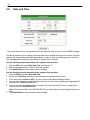
The current date and time can be entered from the Date and Time screen or from an SNMP manager
The date is entered in the mm/dd/yyyy format and the time is entered in the hh:mm:ss format. The date
and time will need resetting following a power failure or reboot unless your Building Access Controller
32 is equipped with the real-time clock option or network time is enabled.
Use the following steps to manually set the system's time and date:
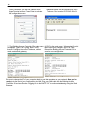
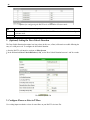
1. From the Edit menu, select Date and Time, see Figure 2.31.
2. Enter the appropriate date, the day of the week, and time.
3. Click Submit Data to save the data and time settings.
Use the following steps to manually set the system's time and date:
1. From the Edit menu select Date and Time.
2. Click on the Time Zone drop-down menu and select the appropriate time zone.
3. Put a check next to Observe DST if you are in an area that observes daylight saving.
4. You may also change the server IP Address that the unit syncs with by entering a the appropriate IP
address in the Time Server IPA field.
5. If you do not want your Building Access Controller 32 to sync with an NTP server, simply set the
Time Server IPA to 255.255.255.255.
Note: If Time Server IPA is set to 255.255.255.255, you will be able to manually adjust the date and
time.
6. Click Submit Data to save the date and time settings.