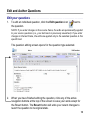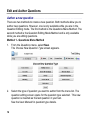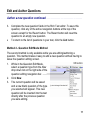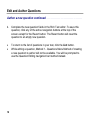
1
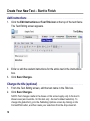
Create Your New Test – Start to Finish Add instructions . . . . . . . . . . . . . . . . . . . . . . . . . . . . . . . . . . . . . . . . . . . . . . . . . . . . 1. Click the Edit Instructions or Test Title icon at the top of the test frame. The Test Editing screen appears. 2. Enter or edit the student instructions for the entire test in the Instructions box. 3. Click Save Changes. Change the title (optional) . . . . . . . . . . . . . . . . . . . . . . . . . . . . . . . . . . . . . . . . . . 1. From the Test Editing screen, edit the test name in the Title box. 2. Click Save Changes. NOTE: Font changes made in the boxes on this screen apply only to the text in these boxes (and override for this text only the test’s default selection). To change the global font, go to the Publishing Options screen by clicking on the Format/Print button, and then make your selections from the dropdown list. 10