1
Quantum Series
140 MPM 204 00sc
In the synchronous mode, SCIOCFG runs in the background waiting for you to select the module in the
Concept generic I/O parameter configuration menu. When this occurs, SCIOCFG reads the data from the
Concept generic I/O parameter configuration menu, and activates the appropriate I/O parameter configuration
menu. When you click the SCIOCFG OK button, the new data is sent to Concept.
Set up SCIOCFG as follows to run the utility from Concept:
1. Identify the path in which to install SCIOCFG, for example, C:\SCIOCFG\. You will probably use the
A: drive for the installation disk.
2. Using Windows Explorer, copy the SCIOCFG.EXE file from the installation disk to the desired
directory. Then add a shortcut to the Windows desktop or add the program to the Windows taskbar
using standard Windows techniques.
NOTE
You may create a desktop shortcut to the program by locating the sciocfg.exe file on your drive,
right click and select copy the file and then right click and paste a shortcut to your desktop.
3. Now SCIOCFG EXE is ready to run as a background task when Concept is used to change the
configuration registers of the module. For more about its use, see “ Setting Zoom Registers Using
Concept.”
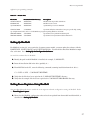
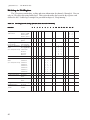
Making Bit Settings for Zoom Registers
One parameter (zoom) register is assigned to each input channel, for a total of eight registers. Note that some
data needs to be the same for channel pairs. For example, quadrature mode must be selected on two adjacent
channels, since quadrature inputs use two channels. Also, the input range is controlled with one multiplexer for
an input pair. Thus each channel pair must have the same input range.
For zoom registers, you can make bit settings from either ModSoft or Concept software. This section first
describes the layout of the register and then tells how to set the bits from both programs.
30