1
Organizing Your Messages
Deleting a Message
As a safeguard against inadvertent deletions, two steps are used to delete a
message from your PC: first you put the message in the Trash, then you empty the
Trash.
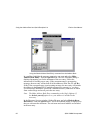
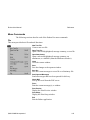
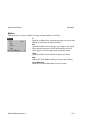
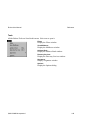
To put a message in the Trash, select the message then select Delete from the
Message menu, or select Trash from the Transfer menu, or press the delete key.
The message is transferred to the Trash mailbox.
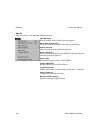
To delete the messages in the Trash mailbox (removing them permanently from
your PC), select Empty Trash from the Special menu.
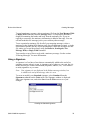
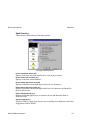
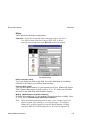
You can set up Eudora to warn you if you try to delete unread, queued, or unsent
messages. To do this, use the Extra Warnings Options to turn on those options.
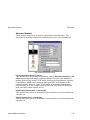
Quitting Eudora empties the contents of the Trash mailbox when the Empty
Trash when exiting option in the Miscellaneous Options is turned on. Finally, if
you want to delete just a few messages from the Trash mailbox, select them, then
select Delete from the Message menu or press the delete key. Deleting a message
from the Trash removes it completely.
Automatically Deleting Attachments
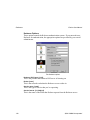
When you delete messages, you can have their attachments automatically deleted.
To do this, turn on the Delete attachments when emptying Trash option in the
Attachments Options, and be sure the attachments are still in the Attach
Directory (or the directory you have specified for attachments). If you have this
option on, and want to delete a message but save its attachment, move the
attachment into another directory before deleting the message.
QUALCOMM Incorporated
77