1
Eudora User Manual
Creating Messages
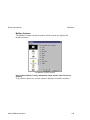
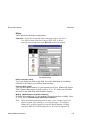
Message Header
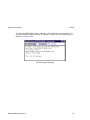
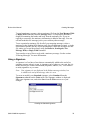
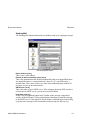
Outgoing mail headers consist of the following fields: To, From, Subject, Cc,
Bcc, and Attachments. Each field is described below. The To, Subject, Cc, and
Bcc fields can be directly edited. To move the cursor from field to field, press the
tab key or click in the desired field with the mouse.
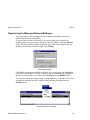
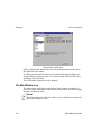
To resize the Header region of the outgoing message window, drag the separator
up or down.
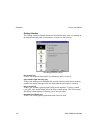
To
The intended recipients’ e-mail addresses, or nicknames you have defined (see the
section “Using the Address Book and Quick Recipient List”). Multiple addresses
and nicknames must be separated by commas.
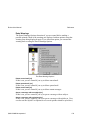
From
The sender’s e-mail address. This is usually your POP account plus your real
name. You can use a return address other than your POP account by entering the
address in the Return address field of the Personal Info Options.
Subject
Some brief text indicating the contents of the message. This field can be left blank
(though it is a breach of e-mail etiquette to do so).
Cc
The e-mail addresses or nicknames of people to whom a copy of the message is to
be sent. These recipients are displayed in the message header for all recipients to
see. Multiple addresses must be separated by commas. This field can be left
blank.
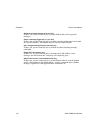
Bcc
The e-mail addresses or nicknames of people to whom a copy of the message is to
be sent. These recipients are not displayed in the message header, and the
recipients in the To or Cc fields will not know that a copy went to these
addresses. Multiple addresses must be separated by commas. This field can be left
blank.
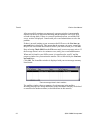
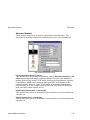
This field can also be used to put a copy of the message in one of your mailboxes.
To do this, right click in the body of the message and select the mailbox from the
Fcc menu. The name of the mailbox is inserted into the Bcc field preceded by an
“ƒ,” and when the message is sent, a copy is put in that mailbox.
QUALCOMM Incorporated
31