1
Ocularis Administrator
Ocularis Administrator User Manual
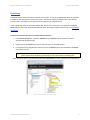
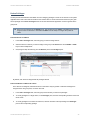
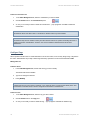
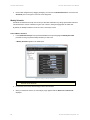
TO DELETE A CLASSIFICATION
1.
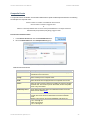
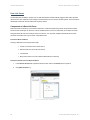
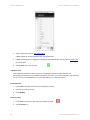
In the Table Management tab, select the classification you wish to delete.
2.
Click the Delete button in the Classifications pane.
3.
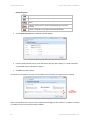
An “Are you sure that you want to delete this classification…” pop-up appears. Click Yes to delete the
classification.
Note:
Classifications which have been used in a bookmark or handled event may not be deleted.
Note:
Classifications may also be created on the fly from the Ocularis Client as an operator is handling the event or
creating a bookmark. Classifications, however, may only be modified or deleted through the Ocularis
Administrator.
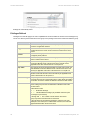
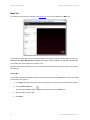
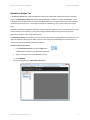
Configure Tags
When operators handle events or create bookmarks in the Ocularis Client, he or she may assign a tag or keyword to
the event. Administrators may modify or delete tags entered by operators in the Ocularis Administrator Table
Management tab.
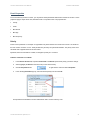
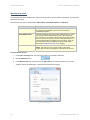
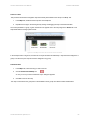
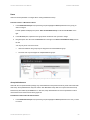
TO MODIFY A TAG
1.
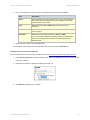
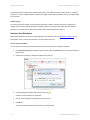
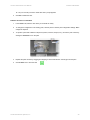
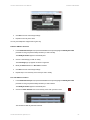
In the Table Management tab, double-click the tag you wish to modify.
The field should become editable.
2.
Type in text changes as desired.
3.
Press [ENTER].
Note:
Modifying the name of a tag is global. Therefore, If you modify the name of a tag that has already been used
in a bookmark or handled event, it will also change in that bookmark or handled event.
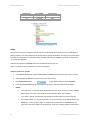
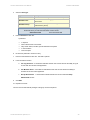
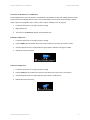
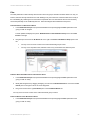
TO DELETE A TAG
78
1.
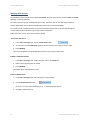
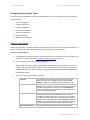
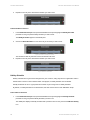
In the Table Management tab, select the tag you wish to delete.
2.
Click the Delete button in the Tags pane.
3.
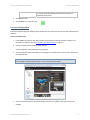
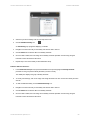
An “Are you sure that you want to delete this tag…” pop-up appears. Click Yes to delete the tag.
On-Net Surveillance Systems, Inc.