1
Live Monitoring with Instant Playback
Ocularis Client User Manual
Instant Playback and Camera Control During Live Monitoring
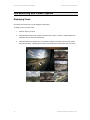
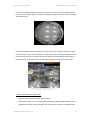
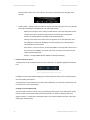
Ocularis Client provides multiple tools for adjusting the contents of view panes, sending video alerts, and onthe-fly investigation of the video displayed.
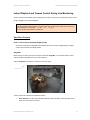
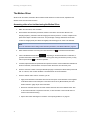
WARNING:
If you have trouble seeing the display of video, make sure that the camera name does not have any
special characters in it including:
<> & ' " \ / : * ? | [ ]
See your system administrator to remedy this.
View Pane Controls
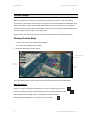
Pane vs. full-screen (maximized) display modes
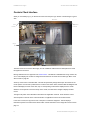
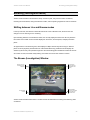
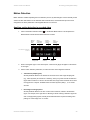
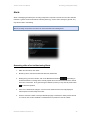
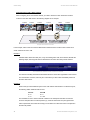
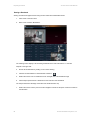
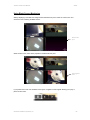
Click on the camera pane Image Bar (which displays the camera name) to toggle between multiple
camera view and full screen display modes.
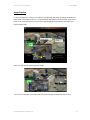
Image Bar
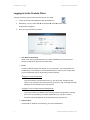
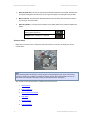
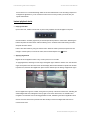
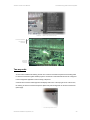
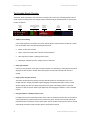
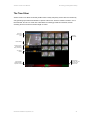
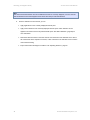
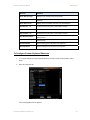
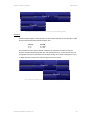
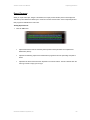
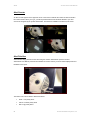
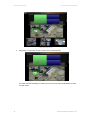
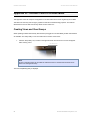
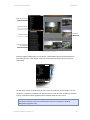
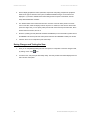
When viewing Live video, the top of each pane contains the Image Bar. The recording status of video
output is located in the rightmost corner of the image bar.
Click the Image Bar to maximize or restore the size of the pane.
Image Bar
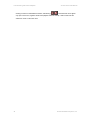
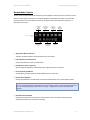
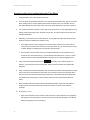
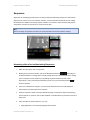
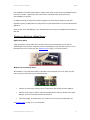
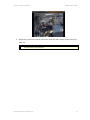
Ocularis Client Image Bar
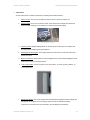
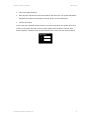
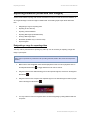
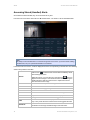
Ocularis Client video Indicators are defined as follows:
1.
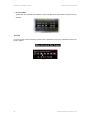
Event Indicator: The first square alternates between yellow and black. Yellow indicates that an
event has occurred on that camera.
On-Net Surveillance Systems, Inc.
13