1
BatchMaster Software
BatchMaster Enterprise 7.25 User's Guide Volume III - Manufacturing
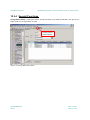
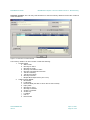
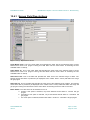
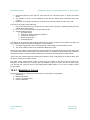
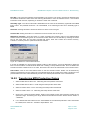
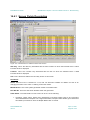
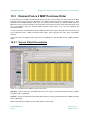
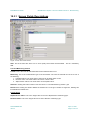
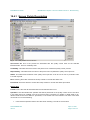
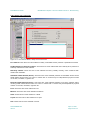
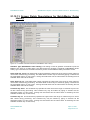
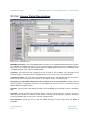
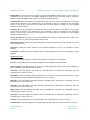
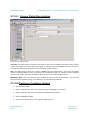
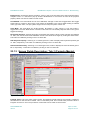
Start Order Requested Delivery Date From: This is the date that specifies the lower limit of the range of
requested delivery dates (as specified on Tab-4 of the Sales Order Entry screen) for which a schedule
has to be generated for the selected range of Item Locations. Leaving this field blank has the same effect
as selecting January 01, 1900. This value has significance only when the selected scheduling formula
involves a quantity from Sales Order Entry.
Start Order Requested Delivery Date To: This is the date that specifies the upper limit of the range of
requested delivery dates (as specified on Tab-4 of the Sales Order Entry screen) for which a schedule
has to be generated for the selected range of Item Locations. Leaving this field blank has the same effect
as selecting the Server Date. This value has significance only when the selected scheduling formula
involves a quantity from Sales Order Entry.
Default Generated Batch Start Date: This is the date that would default to the Start Date field on the
‘Scheduling Item’ screen when the schedule is created.
Default Generated Batch End Date: This is the date that would default to the End Date field on the
‘Scheduling Item’ screen when the schedule is created.
Schedule Formula Key: This is the key associated with the Scheduling Formula that is to be used for
generating the schedules for the selected Item Locations. This is a mandatory field.
Append/Create Schedule: The values at this field can be one of the following:
1. Create: This set ting specifies that a new schedule is created and is not appended to an existing
one. When the user generates schedules with this setting, the user is prompted to specify
whether to keep or delete old schedules for the item locations for which new schedules are
created. If the user does not allow the deletion of the existing schedules, a new schedule will not
be created. When a schedule is created, the Order Quantity of the schedule at the Scheduling
Item screen gets set to the Quantity to Schedule as specified at the selected Scheduling Formula.
2. Append: If this option is selected, the scheduled quantity will get appended to the scheduled
quantity of the existing schedule, if any. When a schedule is appended, the Order Quantity of the
schedule at the Scheduling Item screen gets incremented by the Quantity to Schedule as
specified at the selected Scheduling Formula.
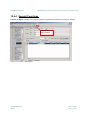
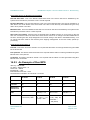
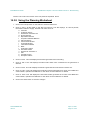
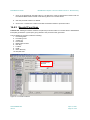
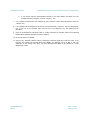
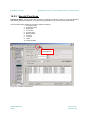
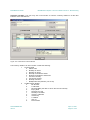
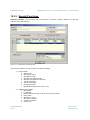
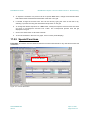
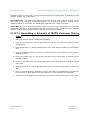
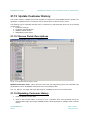
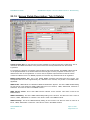
12.1.3 Generating a Schedule
1.
Select a Schedule Type at the ‘Schedule Type’ field.
2.
Select an Item Key at the ‘Item Key From’ field as needed.
3.
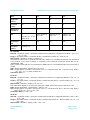
Select an Item Key at the ‘Item Key To’ field as needed.
4.
Select various filter criteria as needed.
5.
Select a Scheduling Formula at the ‘Schedule formula key’ field.
6.
Select ‘Append’or ‘Create’ option at the ‘Append/Create Schedule’ field.
7.
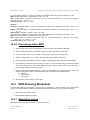
Click on the Process button on the toolbar to generate a schedule.
8.
If a prompt “Do you want to delete previous schedules?” appears, enter Yes or No as needed.
DOCNUMBER 066
Issue 2
April 14, 2005
Page 15 of 274