1
BatchMaster Software
13.16
BatchMaster Enterprise 7.25 User's Guide Volume III - Manufacturing
Production Summary Report
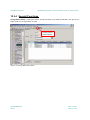
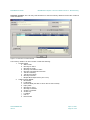
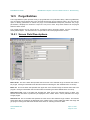
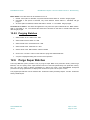
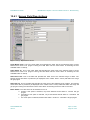
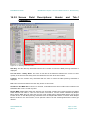
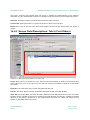
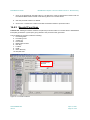
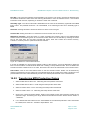
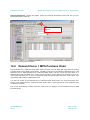
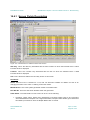
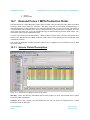
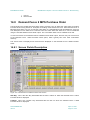
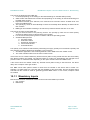
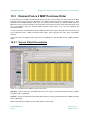
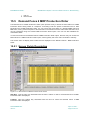
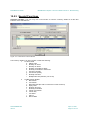
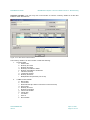
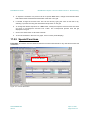
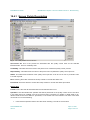
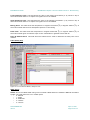
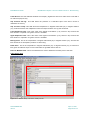
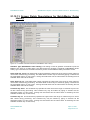
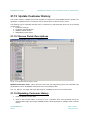
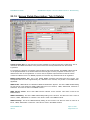
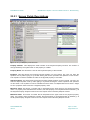
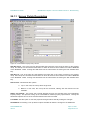
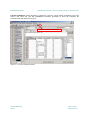
The Production Summary Report screen provides a way to generate a report showing the total
production, by volume or by weight, for end items. The Production Summary Report also includes
Completion date, Customer Key and unit raw material cost by system weight or by system volume.
One can use the option’s filtering parameters to define the report. Once BatchMaster Enterprise
processes the report parameters, it displays the results as a Crystal Report that one can print or export.
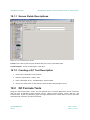
13.16.1
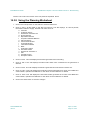
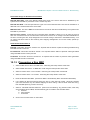
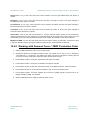
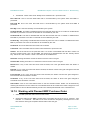
Generating a Production Summary Report
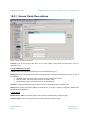
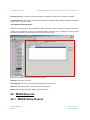
1.
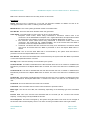
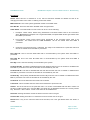
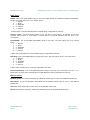
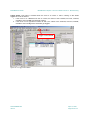
Select Measure In as By Weight or By Volume.
2.
Select the Report Type as Production Summary Report or Production Summary Report (History).
3.
Select the Batch From and To range using the lookup buttons next to the fields.
4.
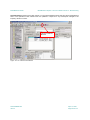
Select the Formula From and To range using the lookup buttons next to the fields.
5.
Select the Customer From and To range using the lookup buttons next to the fields.
6.
Select Completion Date From and To range using the drop-down arrows respectively.
7.
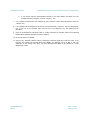
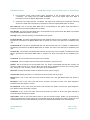
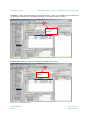
To save these parameters, enter the name to be assigned to the report parameters in the dropdown field on the far right of the toolbar and then click on the Save button on the toolbar to save
the report parameters.
8.
Click on the Process button on the toolbar to create a report.
13.17
Labor Transactions Report
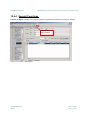
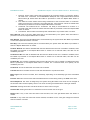
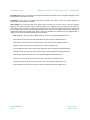
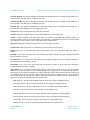
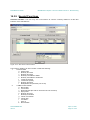
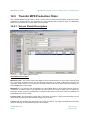
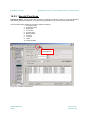
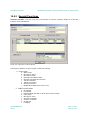
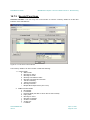
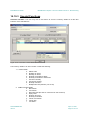
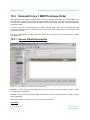
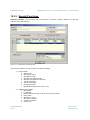
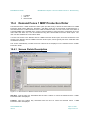
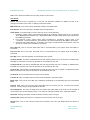
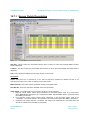
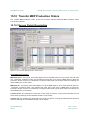
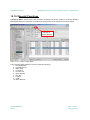
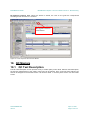
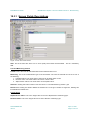
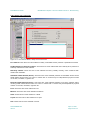
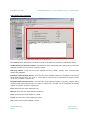
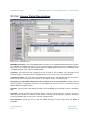
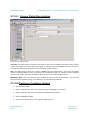
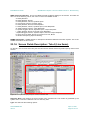
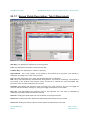
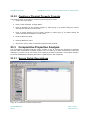
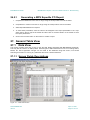
The Labor Transactions report gives details of labor transactions of a batch. This report includes details of
quantity accepted, rejected quantity, line status, employee, details of machine including details of start
date, time and elapsed time.
One can use the option’s filtering parameters to define the report. Once BatchMaster Enterprise
processes the report parameters, it displays the results as a Crystal Report that one can print or export.
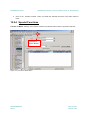
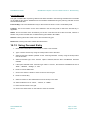
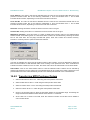
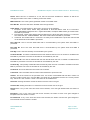
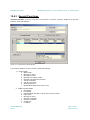
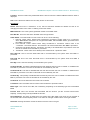
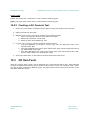
13.17.1Generating a Labor Transactions Report
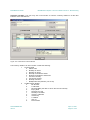
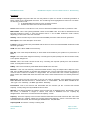
1.
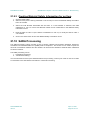
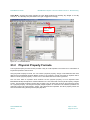
Select the Batch Number From and To range using the lookup buttons next to the fields.
2.
Select the Assembly Item From and To range using the lookup buttons next to the fields.
3.
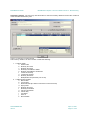
Select the Order Type as one of Mix, Fill, Assembly or All using the dropdown menu in the field.
4.
Select the Labor Transaction Status by checking the box next to the respective statuses.
DOCNUMBER 066
Issue 2
April 14, 2005
Page 45 of 274